



 TL;DR:
Transferring an eSIM to a new Android phone requires deactivating the profile on your old device and installing a fresh one using your carrier's app or a QR code, as eSIMs cannot be directly cloned.
● Before starting the transfer, disable any VPNs or battery savers, connect both fully charged phones to stable Wi-Fi, and locate your new device's IMEI and EID numbers to prevent activation errors.
● Carrier apps like the T-Mobile T-Life app allow for self-service transfers by entering the new IMEI, but accounts with enabled SIM Protection or specific errors will still require customer chat support and an OTP from the old phone.
● When manually transferring via Android network settings and a QR code, always verify that your test calls and mobile data work on the new device before initiating a factory reset on the old phone to avoid deleting your active number.
Ask AI for a summary
 ChatGPT
 Perplexity
 Gemini
 Claude
 Grok
Grok
Upgrading to a new Android phone can feel scary when you do not understand eSIM well. You may worry about losing your number, mobile data, and important text messages during transfer. Many beginners search for how to transfer an eSIM to a new Android phone and still feel confused.
The procedure can vary between brands and carriers, leaving regular users easily lost and overwhelmed. This simple guide explains clear, safe methods that work on most Android phones today. By the end, you will feel confident and calm as you move your eSIM to the new phone.
In this article

Part 1. Understanding eSIM on Android Phones
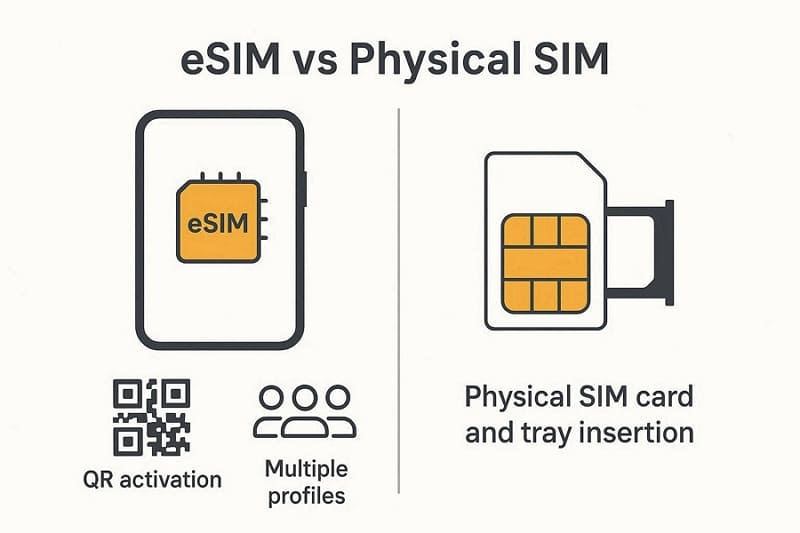
An eSIM is a small digital SIM built inside your Android phone, not a plastic card. It stores your mobile plan information using software instead of a removable chip or tray. Your carrier can add, change, or remove your plan on the eSIM using simple activation steps. This makes it easier to set up service, switch plans, and travel without having to handle tiny cards.
How It Differs from a Physical SIM
A physical SIM is a separate plastic card, while an eSIM is built into the phone. Now, look at the table below to clearly see the main differences:
|
Point |
eSIM |
Physical SIM |
|
Type |
Built‑in digital chip |
Removable plastic card |
|
Profiles |
Can store multiple plans |
One plan per card |
|
Setup Time |
A few minutes with QR/code |
Longer if you replace cards |
|
Security |
Harder to remove or steal |
Easy to remove or misplace |
|
Travel Use |
Easy to add local eSIM plans |
Need to buy and swap new cards |
Benefits of eSIM on Android devices
eSIM brings many strong benefits for Android users in daily life and during device upgrades. Next, let’s explore these advantages before learning how to transfer an eSIM to a new Android phone safely.
- Fast Carrier Switching: Change plans or networks in minutes, without visiting a shop or handling cards.
- Dual-Line Flexibility: Keep personal and work numbers active together, without needing two separate Android phones.
- Safer Than Cards: Thieves cannot simply remove the eSIM to hide location or block your number.
- Better For Travel: Add local data plans when abroad, without hunting for stores or buying physical SIM cards.
- Future-Friendly Choice: Many new Android models support advanced eSIM features, while physical SIM support slowly fades.
Why is Proper Transfer Important When Upgrading
A proper eSIM transfer keeps your calls, texts, and mobile data working when you change phones. This process protects your phone number, so you stay connected with family, work, banks, and services. Avoiding activation problems also prevents important apps, messages, and login security codes from suddenly failing. Careful transfer then saves time and stress, letting you enjoy your new Android device immediately.
Can You Transfer an eSIM Between Android Devices?
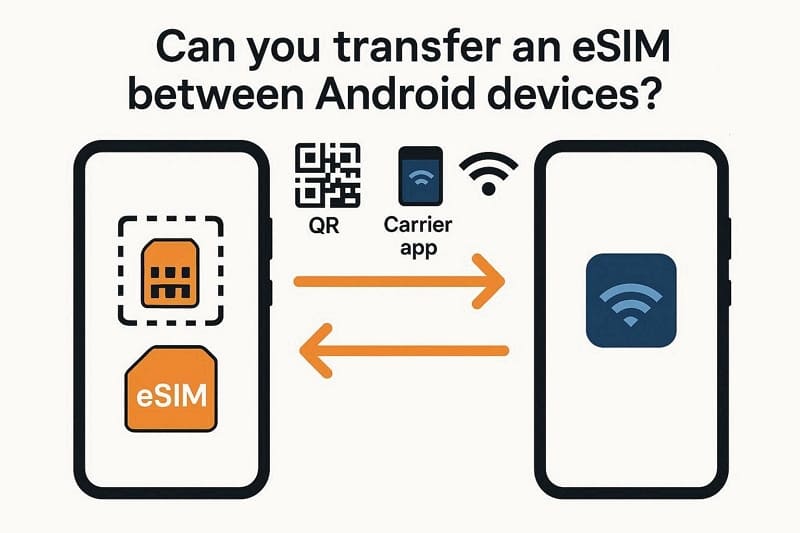
Many users wonder if they can move the same eSIM from one Android phone to another. Yes, you can, but you cannot simply copy or clone the eSIM profile. Instead, the carrier usually deactivates it on the old phone and activates a new profile on the new device.
The exact steps for transferring an eSIM to a new Android phone depend on your carrier and device model. Some carriers let you transfer using their app, while others require QR codes or manual activation details. Always follow your carrier's process, or you might face errors, service breaks, or a blocked eSIM profile.
Part 3. Step-by-Step Guide: Transfer eSIM to New Android Phone
Upgrading to a new Android device works best when you follow a clear eSIM transfer plan. This section explains what you must prepare first to avoid your connection from breaking unexpectedly. You will see which details, settings, and tools matter before you start moving your eSIM. Next, let's get everything ready so the transfer seems safe and easy to understand.
Prerequisites for Transferring Your eSIM
Before you transfer eSIM to a new Android phone, make sure you have everything ready and checked:
- Both Android phones must support eSIM and run recent, stable software versions.
- Your mobile plan must be active, with no unpaid bills or suspensions.
- You need strong, stable Wi-Fi available on both phones during transfer.
- Keep your carrier account username and password ready for quick login.
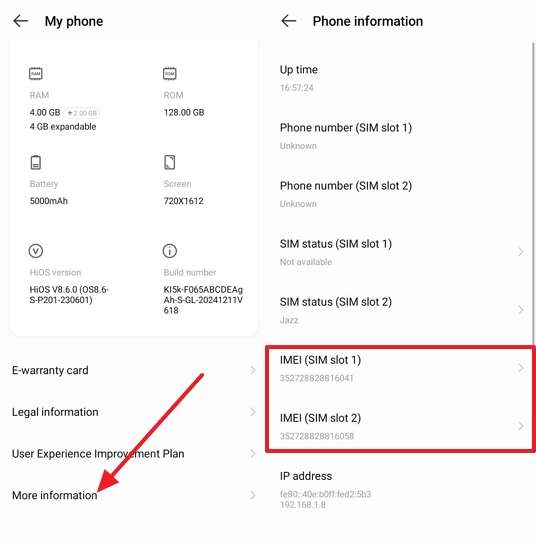
- Note the new phone’s IMEI and EID numbers from settings.
- Fully charge both phones and keep them plugged in throughout the transfer.
- Turn off any VPN or firewall that might block activation requests.
Method 1: Using Your Carrier App (Recommended)
The T-Mobile app, now called T-Life, helps you easily manage your eSIM and mobile line. You can view your lines, check usage, pay bills, and start an eSIM move to another phone. When you upgrade devices, the T-Life app lets you start transferring your number to a new Android device. It is available to download for free on both the Play Store and the App Store.
During eSIM transfer, T-Life may ask for your line details, the new device details, and a simple confirmation. The app then prepares a fresh eSIM profile that you activate on your new Android phone. After activation finishes, the old eSIM stops working, and your number only stays on the new device.
Guide to Move eSIM Using Manage Options.
To start your eSIM transfer to a new Android phone using the T-Life app, follow the simple steps outlined below;
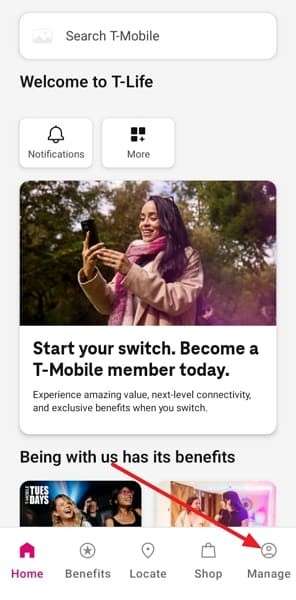
- First, open the T‑Life app while connected to the T‑Mobile network.
- Next, go to the Manage tab and select the line. Tap SIM Transfer > Get Started.
- Find and enter your new phone's IMEI in Settings.
- Choose to Activate an eSIM, then follow the prompts to finish.
Guide to Move eSIM Using Chat Support.
This method works the same for both iPhone and Android phones when moving your eSIM. Follow the simple steps below to complete your eSIM transfer on either device:
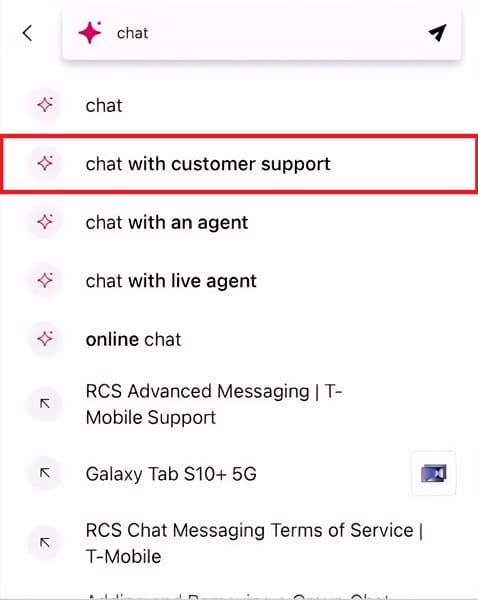
- First, search Chat in the search bar. Then, tap Chat with Customer Support.
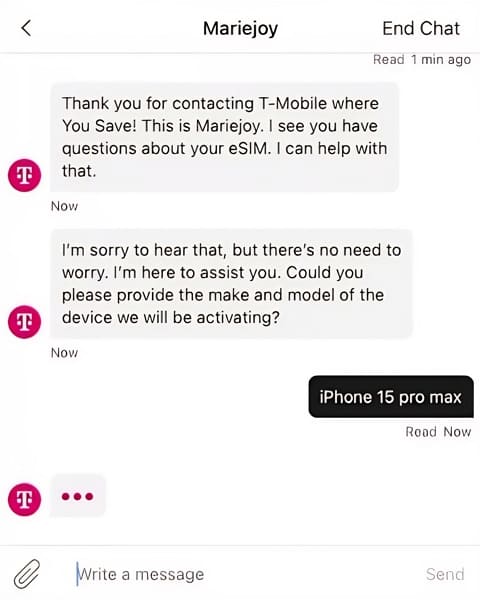
- Ask chat to change the eSIM to another phone and provide the required details.
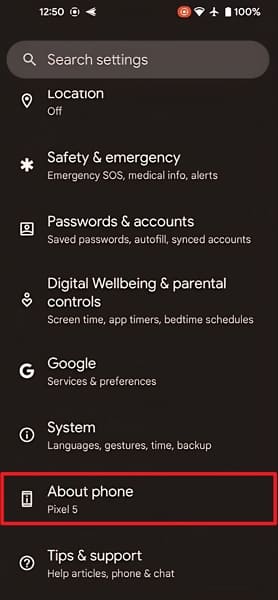
- Provide them with the phone's EID number from About Phone.
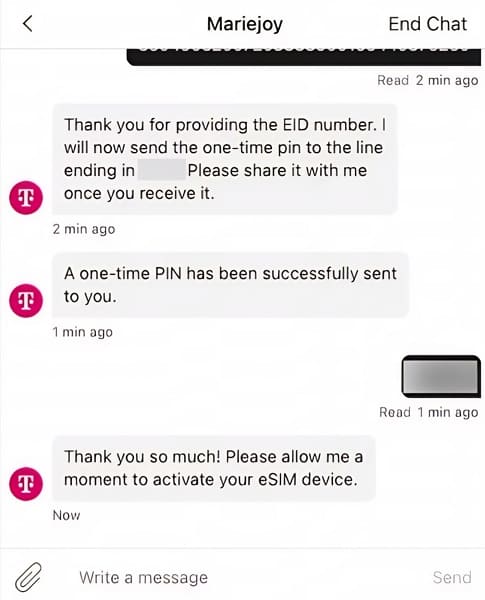
- Next, provide the chat OTP you received on your old phone.
- Restart your new phone. They will transfer the eSIM to another device.
Method 2: Using QR Code/Manual Activation
This method is helpful when your carrier app does not fully support Android eSIM moves. You use a QR code or the manual activation details your carrier gives for the new device. These details let you safely transfer an eSIM to a new Android phone through the built-in settings menu. Next, follow the steps below to complete the QR code eSIM transfer on your new Android phone:
- Open Network & internet, then tap SIMs in Settings.
- Tap Add SIM, then tap Transfer a SIM from Another Device.
- Next, select Pixel or Android Device. Then, tap Next to continue.
- Use an old phone to scan the QR code. Then, tap Transfer and enter the verification code.
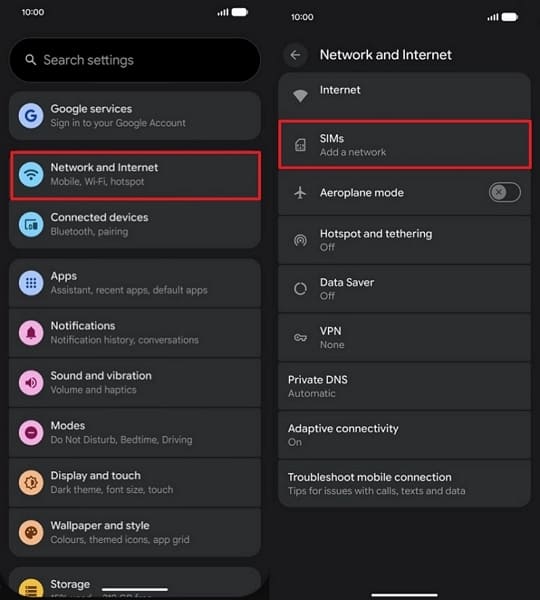
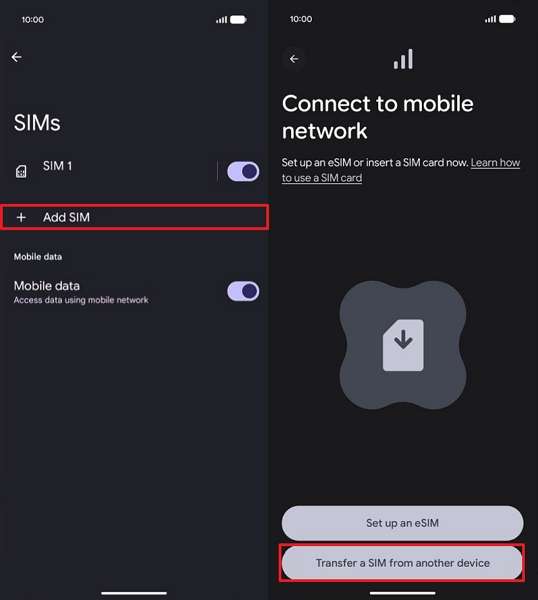
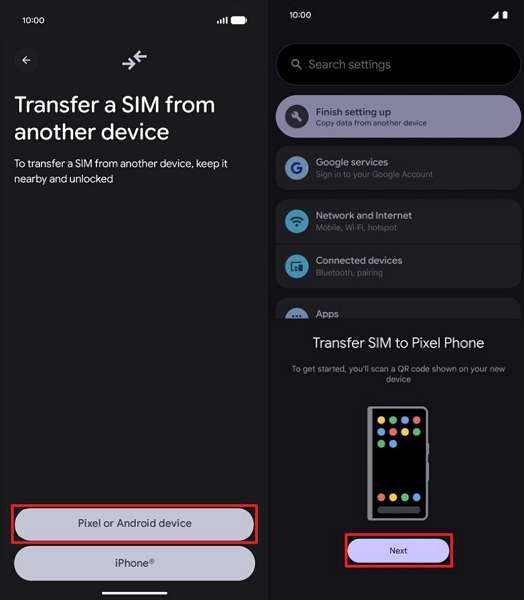
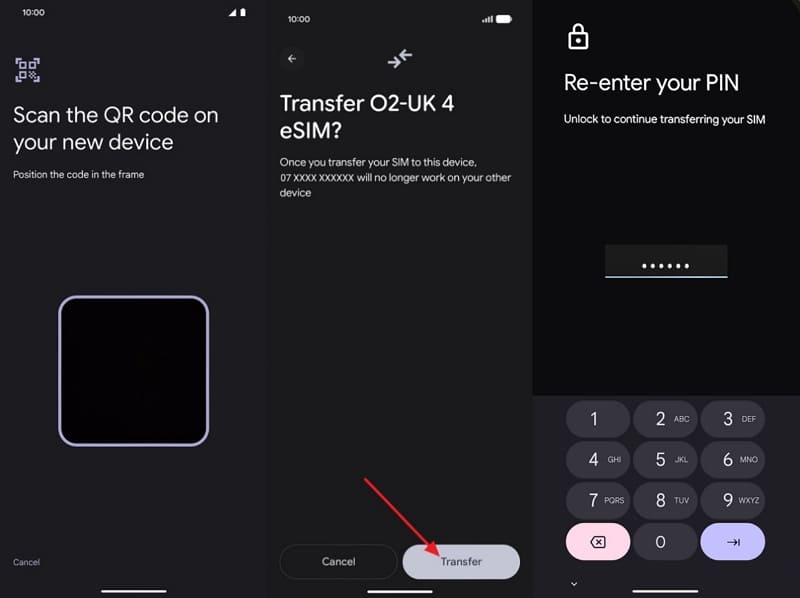
Part 4. eSIM Transfer to New Phone Android: Tips & Tricks
After learning the main transfer steps, let’s explore tips to keep your eSIM working smoothly:
- Strong Wi-Fi: Always use stable Wi-Fi instead of mobile data during eSIM transfer. It helps prevent random errors, progress freezes, and repeated activation attempts on your Android phone.
- Update Software: Check both Android phones for the latest available system and security updates. New versions often fix network bugs that can silently block eSIM downloads or activation requests.
- Disable Extras: Turn off VPN, battery saver, and data saver before starting your eSIM move. These tools sometimes block background traffic needed for messages, verification, and carrier communication.
- Keep Phones Nearby: Place both devices close and avoid heavy apps while the transfer runs. This helps keep connections stable and prevents crashes that interrupt important eSIM installation steps.
- Test Everything: After you transfer the eSIM to a new Android phone, place a quick test call. Then send a message, check mobile data connectivity, and confirm that banking or email verification codes arrive correctly.
Quick Tip. Backup and Transfer All Your Data with MobileTrans
Switching phones is not just about eSIMs; you also need to move apps, media, and settings safely. MobileTrans helps by transferring over 18 data types between phones, so your new device feels instantly familiar. It also moves 5 key data categories from the computer to the phone, which is useful for backups and restorations. All transfers aim for 100% success with zero data loss, supporting smoother upgrades between devices.
Key Features
- Cross‑Platform Support: Move data between Android and iOS devices, covering more than 6,000 different phone models.
- Wide Device Compatibility: Work across many phone brands and older devices when built‑in phone tools feel limited.
- WhatsApp Backup: Move WhatsApp and WhatsApp Business chats, media, and attachments between phones without manual backup steps.
- Local Connection: Move data between phone and computer through local links without any third‑party cloud storage.
- Selective Transfer: Users can choose only the needed data types, like photos, contacts, or WhatsApp data, instead of everything.






Step‑by‑Step MobileTrans Guide to Shift Data Between Phones
To understand how to shift your old phone data to a new one with MobileTrans safely, follow the steps below:
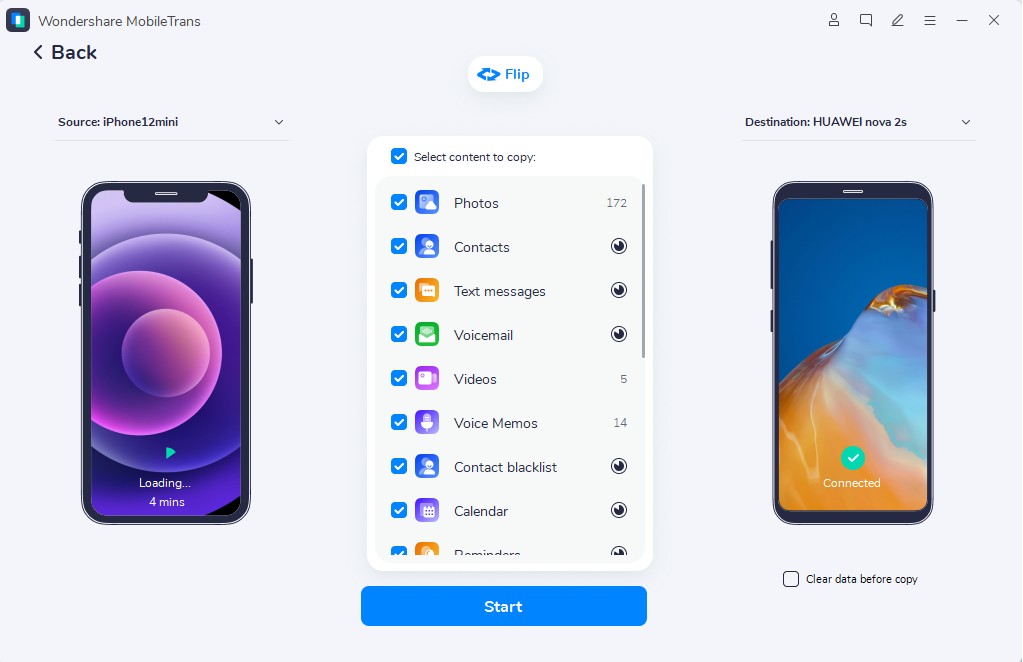
- First, connect devices via USB. Next, click the Phone-to-Phone tab.
- Afterward, confirm the device's location via the Flip icon. Select the data types, then press Start.
- Wait for the process to finish. To abort the transfer process, click Cancel.


If you want to move data between devices without using a computer, the MobileTrans App can help. It uses secure local connections to transfer data up to 200 times faster than Bluetooth. This allows you to quickly move photos, contacts, and other important files directly between phones.
Conclusion
In summary, learning how to transfer an eSIM to a new Android phone makes an otherwise stressful upgrade routine much easier. With proper preparation, you can move your number, avoid service gaps, and resolve most activation issues quickly. To keep photos, chats, and other data safe during the switch, MobileTrans offers an easy, reliable transfer path. This helps ensure your new phone is ready to use with all essential data and services working smoothly.
FAQs
-
Can I keep my old physical SIM active while testing eSIM?
Yes, many users keep a physical SIM active in the old phone while testing calls and data on eSIM. This lets you confirm everything works before fully switching and avoids missing important verification messages.
-
What if my carrier does not support Android eSIM transfers?
If your carrier blocks direct eSIM moves, ask them to issue a fresh eSIM or physical SIM instead. You can then activate service on the new phone and later request a transfer of eSIM to the new Android phone once support improves.
-
Will a factory reset on the old phone affect eSIM transfer?
Yes, resetting the old device too early can delete or invalidate the active eSIM profile tied to your number. Therefore, always complete activation on the new phone, test calls and data, then reset the old phone afterward.










