



 TL;DR:
To transfer an Instagram account to a new phone securely, manually log in on the new device after verifying access to your two-factor authentication (2FA) method, or utilize the MobileTrans App-to-App desktop feature to migrate the application and saved preferences across Android and iOS via USB.
● Before transferring, log out on the old device and unlink connected external apps to avoid duplicate sessions; if 2FA codes fail to arrive, temporarily disable 2FA on the old phone, complete the new login, and re-enable it later.
● The MobileTrans migration method operates offline without overwriting existing target phone data, but strictly requires a computer software installation and a direct USB connection to execute.
● Native data backups requested via the Meta Accounts Center take up to 48 hours to generate and the resulting ZIP file link expires after 4 days, though users can bypass manual downloads by scheduling direct data transfers to supported third-party services like Koofr.
Ask AI for a summary
 ChatGPT
 Perplexity
 Gemini
 Claude
 Grok
Grok
Your migration to a new mobile is an exciting moment, but it also brings a bit of stress. That is mainly regarding keeping your essential apps and accounts intact. For many, Instagram is much more than a social app, a daily habit, or even a business tool. That is why making sure everything carries over smoothly is so critical.
Now that you've bought a new phone, you are probably wondering how to transfer your Instagram account to another phone without losing anything. This thorough guide will walk you through each step in the simplest way possible.
In this article

Part 1. Prerequisites to Ensure Seamless Instagram Account Transfer to Another Phone
Before you begin, having several things ready to ensure a smooth move is the best approach. Many people want to know how to transfer an Instagram account to a new phone, but they sometimes miss small steps that save a lot of time. Thus, the following preparations are a must to make the move to the new mobile straightforward:
- Know The Login Details: Remember your Instagram credentials along with the email or phone number linked to the account. As you need them to sign in on the new mobile, reset the password before switching if you're unsure.
- Two‑Factor Authentication: With 2FA activated, make sure you still have access to the verification method before logging out. It can be an SMS code or a trusted mobile, and you could get stuck at login without it.
- Log Out and Unlink Apps: It is helpful to log out of Instagram on your old phone and unlink any external apps or social media services that are connected. That helps avoid duplicate sessions or login conflicts on the new device.
Part 2. How to Transfer an Instagram Account to Another Phone
Getting everything ready is only half the job, as now comes the part where you make the move. Instead of guessing your way through app settings, it helps to know exactly where to go and what to tap. When learning how to transfer Instagram to a new phone, the following steps break it down clearly. Following them will ensure you don't miss anything that could lock you out:






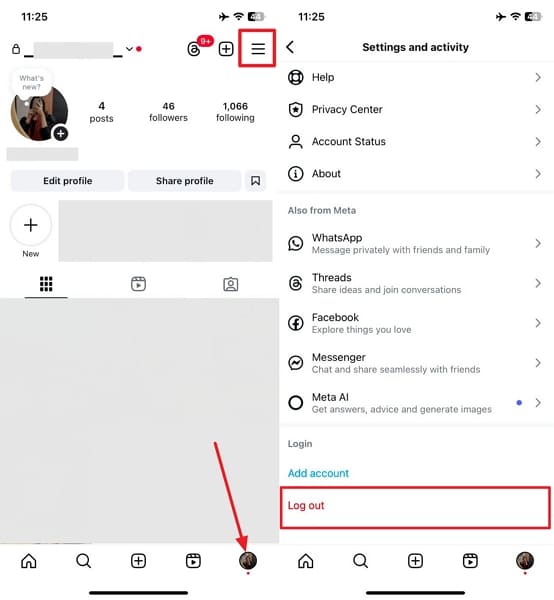
Step 1. Go to old phone > Open Instagram > Tap Profile icon > Choose Hamburger icon > Press Log Out.
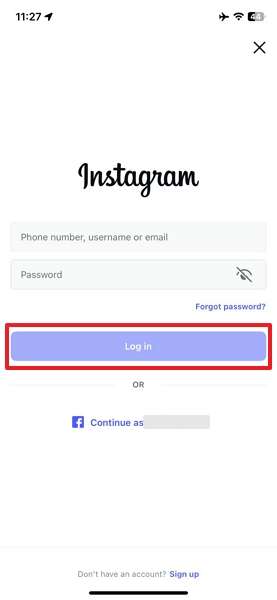
Step 2. Install Instagram on your new phone > Open it > Enter your credentials> Tap Log In.
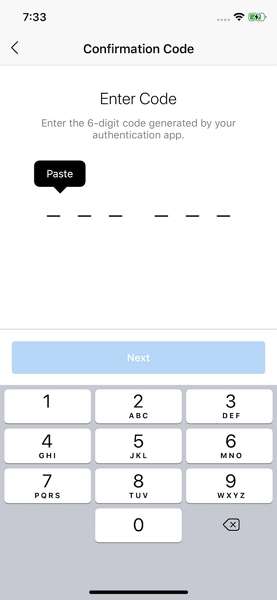
Step 3. Enter the 2FA code sent to your phone or from your authentication app > Press Next.
Part 3. Migrate Instagram App to Another Phone - MobileTrans
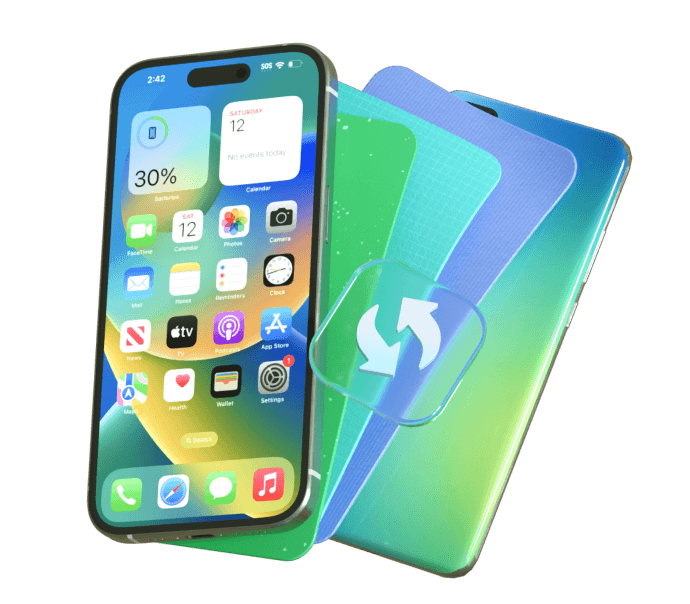
Logging into Instagram on a new mobile works, but it doesn't always bring everything with it. For example, your saved app preferences or the exact setup you had before. That is where many people look for a better way. When wondering how to transfer an Instagram account to a new Android or iOS phone without missing a thing, the desktop version of MobileTrans offers a powerful solution.

Key Features
- Fast and Secure: Transfers at a much higher speed than competitors while using a direct connection via USB and does not require Wi‑Fi or cellular data.
- Selective Data Copy: lets you choose which apps or files (like Instagram only) to move, without overwriting existing data on the target phone.
- WhatsApp View Once Recovery: Allows users to repeatedly view and save the view once media messages on WhatsApp without needing any strict prerequisites.
Guide on How to Migrate the Instagram App to Another Phone Using MobileTrans
Adhere to the detailed steps below to learn how to find the answer to the question "How do I transfer Instagram to my new phone?"
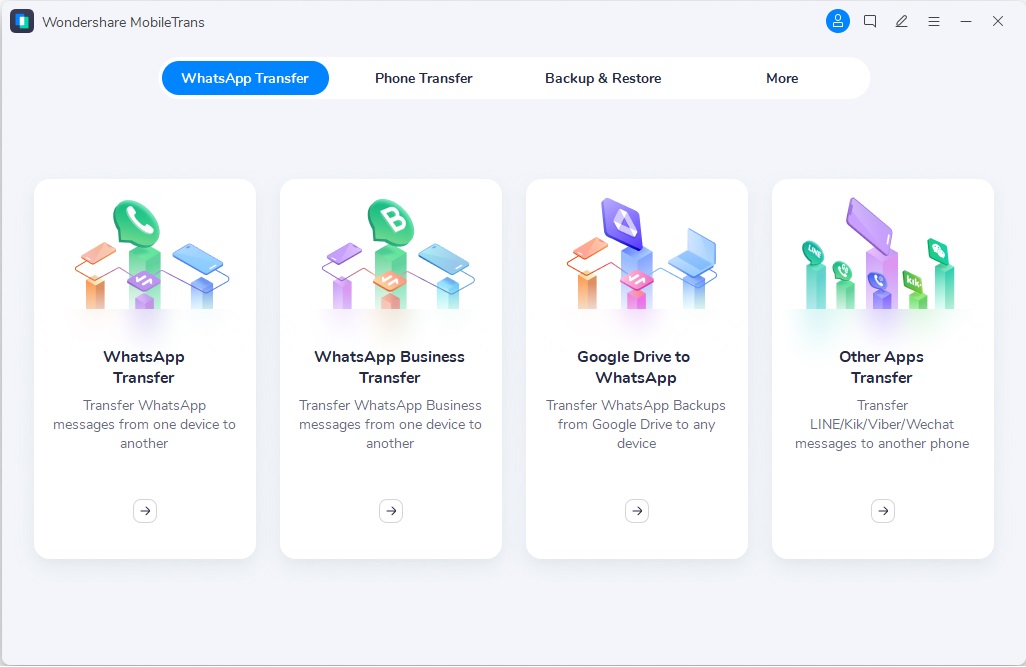
Step 1. Launch MobileTrans > Select Phone Transfer > Choose the App‑to‑App feature to proceed.
Step 2. Connect both Android and iPhone to the computer via USB cables. Select Instagram > and click Start.
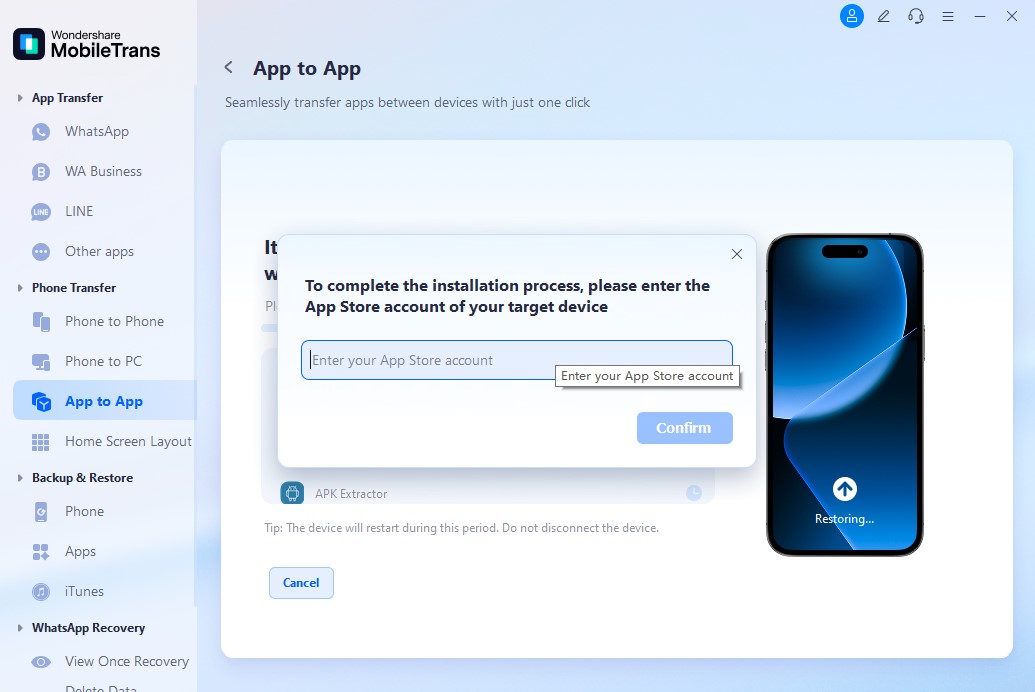
Step 3. Enter the App Store password when prompted > Tap Confirm and wait for the process to conclude.
Part 4. How to Download Your Information/Data from Instagram Settings
Sometimes, you may want to keep a copy of your Instagram data, like photos or messages, especially before changing devices. When unsure of how to transfer your old Instagram account to a new phone without losing any memories, downloading your data is a smart move. Using this method via these steps will let you have a backup saved safely, even if something goes wrong during the switch:
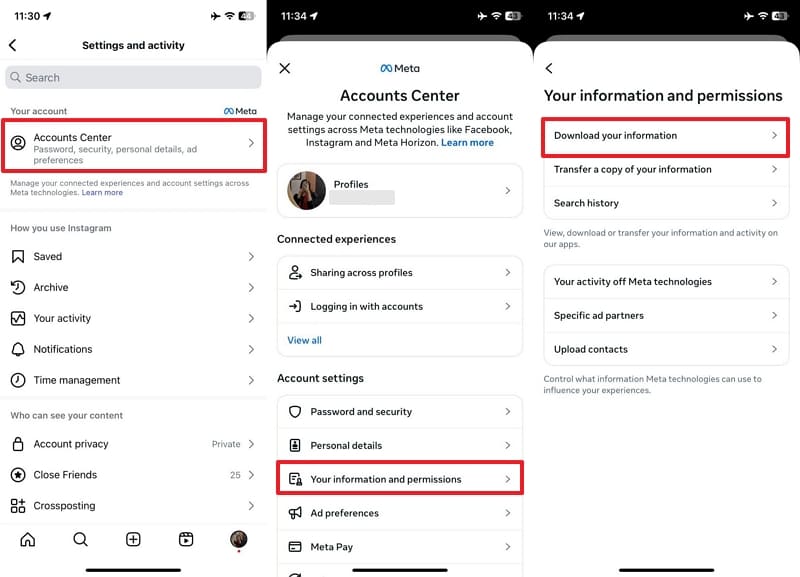
Step 1. Open Instagram > Tap Account Center > Choose Your Information and Permissions > Press Download Your Information.
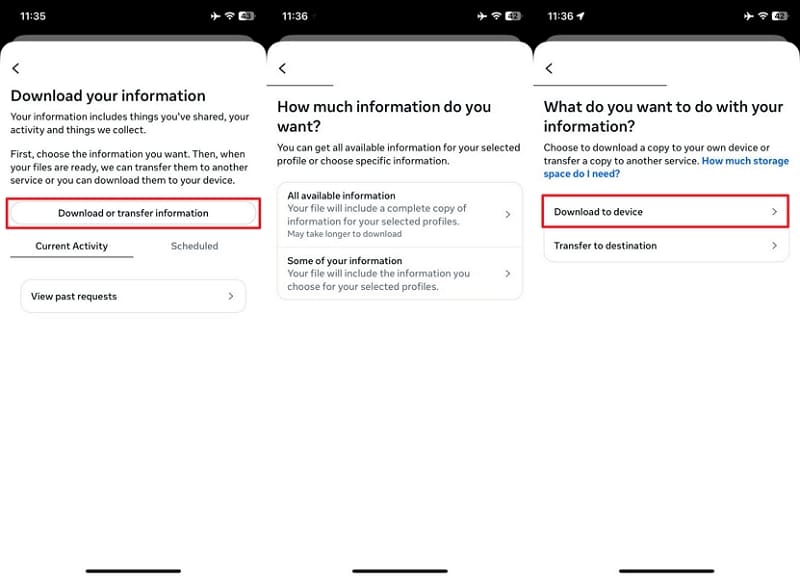
Step 2. Tap Download or Transfer Information > Pick how much data to download > Choose Download to device or Transfer to destination.
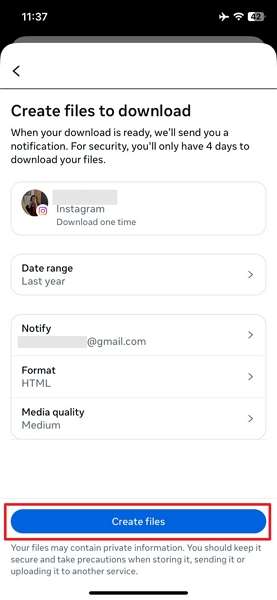
Step 3. Set file format, media quality, and date range. Tap Create Files. Enter the password if asked.
Conclusion
In summary, switching devices doesn't mean losing access or memories when you follow the proper steps. From logging in safely to downloading your Instagram data, everything becomes easier with appropriate guidance. And for those wanting a simple move, MobileTrans is the best tool to transfer apps like Instagram across phones. With its desktop App-to-App feature, you can master how to transfer an Instagram account to another phone with ease.
FAQs
-
What should I do if the 2FA code doesn't arrive when transferring accounts?
If you haven't received an OTP for verification, check the mobile network signal and ensure the number is up to date. Since Instagram sometimes delays codes, disable 2FA for a while via the security settings. That can be done on your old mobile or browser if nothing comes. Then complete the login on your new phone and re-enable 2FA later to avoid waiting for a code. -
How long does it take to receive your Instagram data download link?
The app fulfils the request within 48 hours, but the time required can be more than that. With the link ready, an email or app notification will be sent to let you know. Since the link stays valid for about 4 days once sent, be sure to download the ZIP file before it expires. After that, a completely new request from scratch will need to get a new data file. -
Can Instagram data be transferred directly to another app or service?
Absolutely. Instagram now allows direct transfer of data to supported services like Koofr. Via the Meta Accounts Center, you choose & "Transfer a copy of your information, " select Instagram, then pick a destination and schedule transfers. Essentially, this is a complete record of your Instagram activity. This automates backups to other platforms without manual downloads.










