


 TL;DR:
Signal does not support direct chat history transfers or cross-platform backups from Android to iPhone due to platform-specific encryption keys, forcing users to rely on manual backups or unsupported third-party software to preserve conversations.
● The MobileTrans desktop application for Windows and Mac attempts to migrate messages and media using an App-to-App Transfer feature, but this tool lacks official Signal support and carries risks of incomplete transfers or compatibility issues.
● Even when using workarounds, specific account elements are permanently locked to the original device and will not transfer, including group chat admin rights, voice messages, contact verification safety numbers, and Signal PINs.
● Do not delete the Android application until the new iPhone installation is successfully verified using the exact same phone number, and be prepared to manually re-add all contact profiles once the setup is complete.
Ask AI for a summary
 ChatGPT
 Perplexity
 Gemini
 Claude
 Grok
Grok
Switching from Android to iPhone can be exciting. But moving your apps and data can feel hard. Signal is a popular messaging app that many people use daily. When you want to transfer Signal from Android to iPhone, you might face some challenges.
Signal keeps your messages secure with robust encryption. This makes it different from other messaging apps. The app does not allow easy transfers between different phone types. You cannot simply move your Signal account from Android to iPhone like other apps. This guide will help you understand the process.
Currently, Signal doesn't offer a direct way to transfer chats between Android and iPhone. However, there are a few useful methods to preserve your important conversations. In this guide, you'll learn the most effective ways to switch from Android to iPhone while keeping your Signal data safe.

In this article
Part 1: Can I transfer Signal from Android to iPhone?
The short answer is no. You cannot directly transfer Signal from Android to iPhone. Signal does not support built-in transfer tools. The app was designed this way for security reasons. When you try to transfer Signal messages from Android to iPhone, you will find no official option.
Signal uses strong encryption to protect your messages. This encryption makes direct transfers impossible. Each device has its own unique security keys. These keys cannot be moved to another device type.
This means you cannot transfer Signal chat history from Android to iPhone using normal methods. The app treats each new installation as completely separate.
Part 2: How to Transfer Signal account from Android to iPhone?
Since direct transfers are not possible, you need other solutions. The methods below can help you save some of your Signal data. These are not perfect solutions, but they work for basic needs.
You should know that these methods have limits. They will not give you the same experience as a direct transfer. But they can help you keep important information from your Signal conversations.
Method 1: Use the MobileTrans App-to-App Transfer Feature
MobileTrans is a third-party app designed to move data between phones. It’s commonly used by people switching from one device to another. The app is compatible with both Windows and Mac computers, making it accessible to a wide range of users. One of its useful features is the ability to transfer some Signal data from Android to iPhone. It can copy messages and media files, including photos and videos.
If you're planning to move your Signal account from Android to iPhone, MobileTrans offers a fast and secure process. The software is 8 times faster than Bluetooth and is independent of the internet. Without being bothered by a weak connection, MobileTrans can transfer large files in minutes.
Why use this method:
- Faster than manual copying
- Can handle multiple chat transfers
- Works with many phone types
- Easy-to-use interface
- Saves time and effort with one-click operation
- More organized than manual methods
NOTE: However, it's important to note that no third-party tool is officially supported by Signal. That means there could be limitations or risks, such as incomplete transfers or compatibility issues. Always back up your data before using any external software.




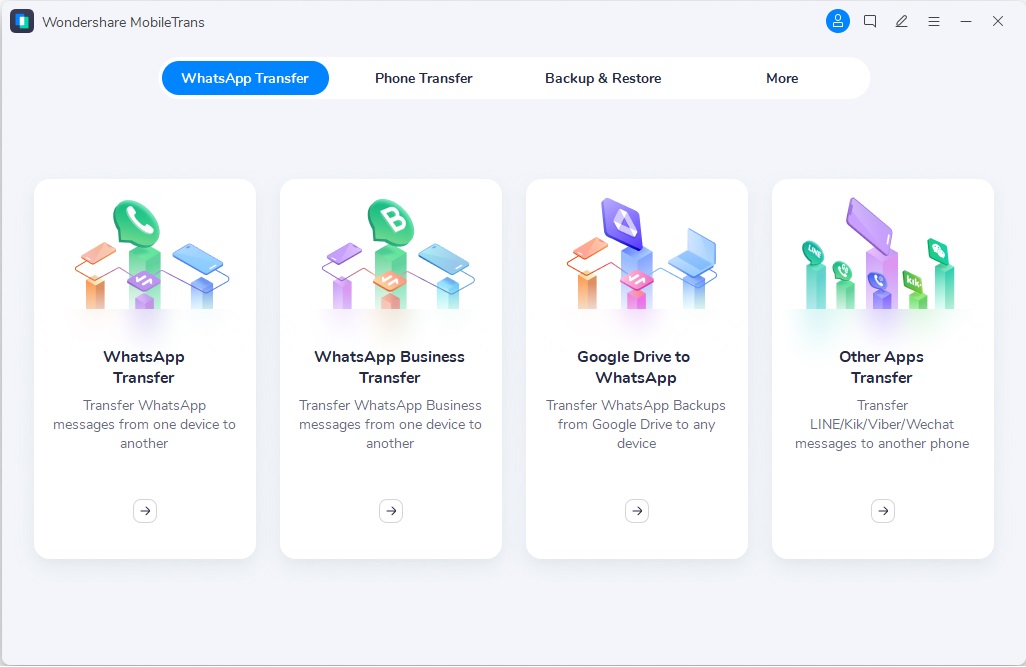
Step 1: Download and install the MobileTrans app on PC. Open MobileTrans. Under Phone Transfer, select App-to-App Transfer.
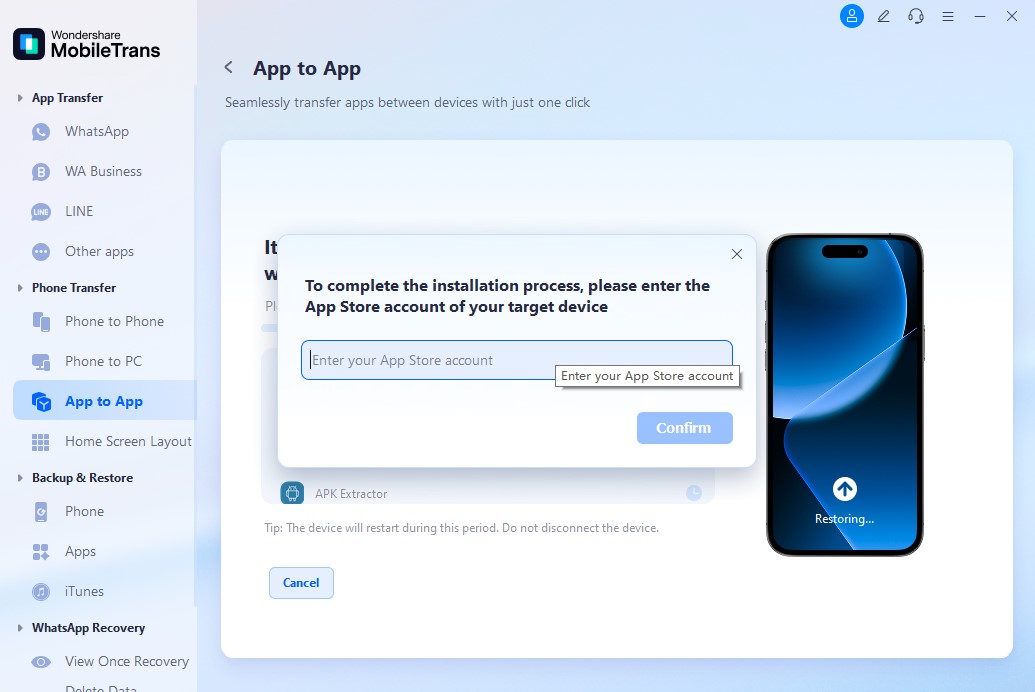
Step 2: To start installing, sign in using your Apple App Store ID. This ensures the system can safely access your list of apps.
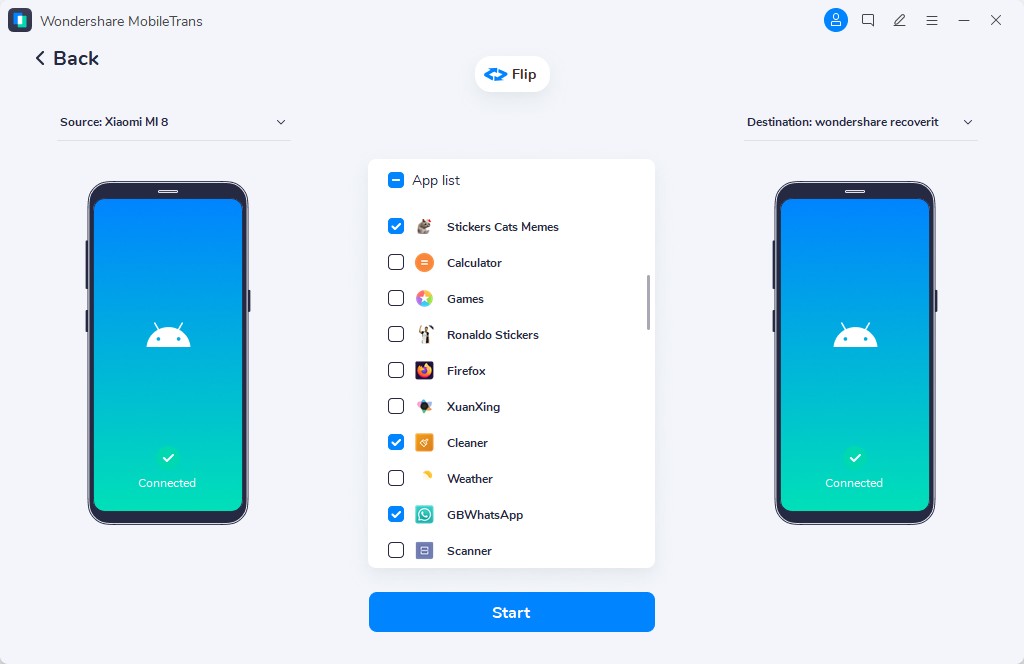
Step 3: Once connected, choose Signal from the list of supported apps. Tap “Start Transfer” to begin the process.
Step 4: When it's finished, launch Signal on your iPhone and confirm your phone number. Your chats and media should now be available on your new device.

Method 2: Manually Save Important Chats
This method involves saving your most important conversations by hand. You take full control over what gets saved. The process requires more time but costs nothing. You will take screenshots or copy text from key chats. You can also save photos and files from conversations. This gives you backup copies of important information.
This works best for short conversations that matter most to you. It is perfect for keeping key business messages or personal conversations. The manual approach ensures you only save what you really need.
Why use this method:
- Free to do
- You control what gets saved
- Works for any phone type
- No extra software needed
- Good for short, important chats
- Simple process
NOTE: However, manually saving chats takes time and effort. If you have lots of messages, it can be slow. Screenshots and copied text don't show everything, like message times or full chat order. You also have to save photos and files one by one. It's not the easiest way to keep things organized, and there’s no built-in security for your saved data.
Step 1: Open Signal on your Android phone. Find the conversations you want to save.
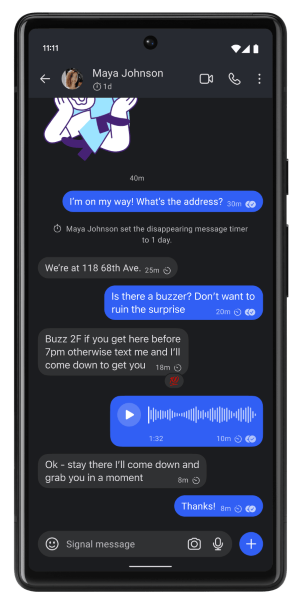
Step 2: Take screenshots of important messages. You can also copy and paste text to a note app. Save these files to cloud storage. This lets you access them on your new iPhone.

Part 3: Signal Does Not Support Message or Account Transfers in These Cases
Signal has many situations where transfers will not work. Understanding these limits helps set proper expectations. Here are the main cases where you cannot transfer Signal chat history from Android to iPhone:
- Different operating systems (Android to iPhone) - Security systems do not match between platforms
- Encrypted backup files from other devices - Each device uses unique encryption keys
- Signal desktop to mobile transfers - Desktop and mobile versions store data differently
- Group chat admin transfers - Admin rights cannot move to new devices
- Voice message transfers - Audio files use device-specific encryption
- File attachment transfers - Media files are locked to the original device
- Contact verification transfers - Safety numbers reset on new installations
- Signal PIN transfers - PINs are tied to specific device installations
Part 4: Pro Tips to Transfer Signal From Android to iPhone
Here are helpful tips to make your Signal transition smoother. These tips can save you time and prevent common mistakes when you transfer Signal messages from Android to iPhone.
- Install Signal on iPhone first before deleting from Android
- Save your Signal PIN before starting any transfer process
- Screenshot your most important conversations early
- Use cloud storage to save manual backups
- Tell your contacts about your new phone number if it changes
- Export important photos and files from Signal conversations
- Set up Signal on iPhone with the same phone number
- Test the new Signal installation before removing the old one
Conclusion
Moving from Android to iPhone means you cannot directly transfer Signal from Android to iPhone. Signal's strong security prevents easy transfers between different phone types. The app does not support built-in transfer tools for this purpose.
You have two main options to save some Signal data. MobileTrans can help transfer some information automatically. Manual methods like screenshots work for important conversations. Neither method gives you a perfect copy of your original Signal experience.
The best approach is to accept Signal's limitations. Focus on saving only your most important conversations. Set up Signal fresh on your iPhone. This gives you the best security and performance. Remember that Signal's design prioritizes your privacy over convenience.
FAQ
-
Q: Can I back up Signal messages from Android and restore them on an iPhone?
A: Signal does not support cross-platform backups. If you create a backup on an Android device, it can only be restored on another Android device. Likewise, backups made on an iPhone will only work on iPhones.
-
Q: Will I lose all my Signal contacts when switching to iPhone?
A: When you switch to Signal on an iPhone, you will need to re-add your contacts manually. However, if you continue using the same phone number, your contacts can still send you messages.
-
Q: How long do I have to transfer Signal data before losing it?
A: Your Android Signal data will remain available as long as you don’t delete the app. There is no time limit, so you can take your time during the transition.










