


 TL;DR:
MobileTrans provides the most efficient, offline solution for transferring contacts from Huawei to Samsung by bypassing Google Mobile Services restrictions, though some features require a paid account.
● Samsung Smart Switch and Google Account Sync serve as free transfer alternatives, but they are strictly viable only for older Huawei devices that still retain active Google services.
● Exporting a VCF file via email or utilizing a SIM card allows manual contact migration without external software, but these methods are constrained by strict SIM storage limits and potential file corruption.
Ask AI for a summary
 ChatGPT
 Perplexity
 Gemini
 Claude
 Grok
Grok
As you keep switching from Huawei to Samsung, the first step that you have to take is to save your contacts. Many people feel worried about losing important numbers when changing phones, which can cause real frustration. By following easy steps, you can keep your phone book safe and ready on your new device. This guide explains how to transfer contacts from Huawei to Samsung, so you never lose touch with connections.
In this article
Part 1. 5 Methods to Transfer Contacts from Huawei to Samsung
Various simple and effortless methods are available to help you never lose touch with family, friends, or business connections. So, the following section covers the top 5 ways to transfer contacts from Huawei to Samsung, so you can choose according to your needs:
Method 1. MobileTrans
MobileTrans is the most suitable option if you need a fast and secure method for transferring contacts between phones. For users who want an effortless way to learn how to transfer contacts from Huawei to Samsung, MobileTrans allows a smooth one-click transfer without requiring Wi-Fi or the internet.
Plus, you can transfer not only contacts but also 18 other data types, including messages and multimedia files. Moreover, its speed is significantly faster than that of Bluetooth or other apps, making it ideal for those who want to achieve results immediately.
Key Features
- App Transfer: It even lets you directly move apps from one device to another, saving time by avoiding reinstallation and setup.
- Cross-Platform Support: You can even transfer data between Android and iOS devices, making switching phones effortless.
- Chosen Migration: Users can also choose exactly which files or categories to move, avoiding unnecessary data clutter on the phone.
- Great Compatibility: The tool supports more than 6000 mobile devices across Android and iOS.
- Safe & Secure: No overwriting issues. End-to-end encrypted transfer, keeping your data safe and private.






Review the comprehensive guide to transfer contacts from Huawei to Samsung without any hassle:
Step 1. Upon running MobileTrans, access the Phone to Phone tab and connect both devices to the PC.

Step 2. Opt for the Contacts and press the Start button. You will see a confirmation screen after completing the contact transferring task.

Limitations
- Requires a paid account for some features.
Along with the desktop tool, you can also use the MobileTrans App for smooth transfer between phones. With this app, you can transfer almost all types of phone data, including contacts and even documents.
Unlike other applications, it uses no mobile data since it establishes a secure local hotspot for transfers. Install the MobileTrans App to effortlessly and wirelessly migrate data between two phones.
Method 2. Using Samsung Smart Switch
It is another convenient solution to transfer contacts and other data between devices. Smart Switch supports both wired and wireless transfers, making it easy to move contacts and other data from your old phone. The app works with multiple brands, including Huawei, and lets you receive data on your Samsung phone. So, follow the quick guide below to transfer contacts from Huawei to Samsung through this method:
Step 1. On your Huawei, access Smart Switch > tap Send From This Phone > Cables.
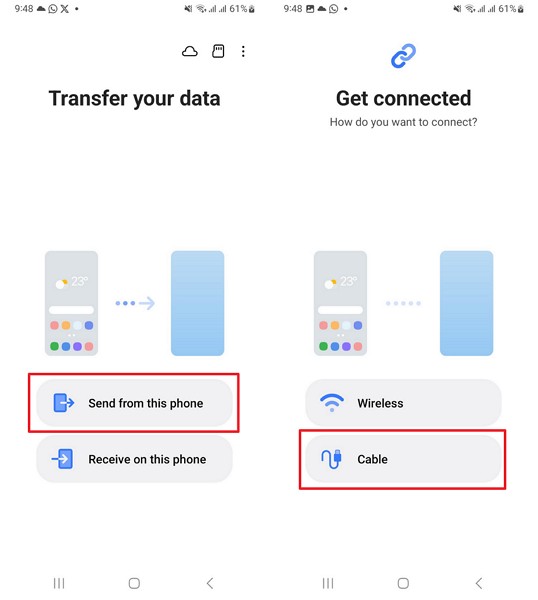
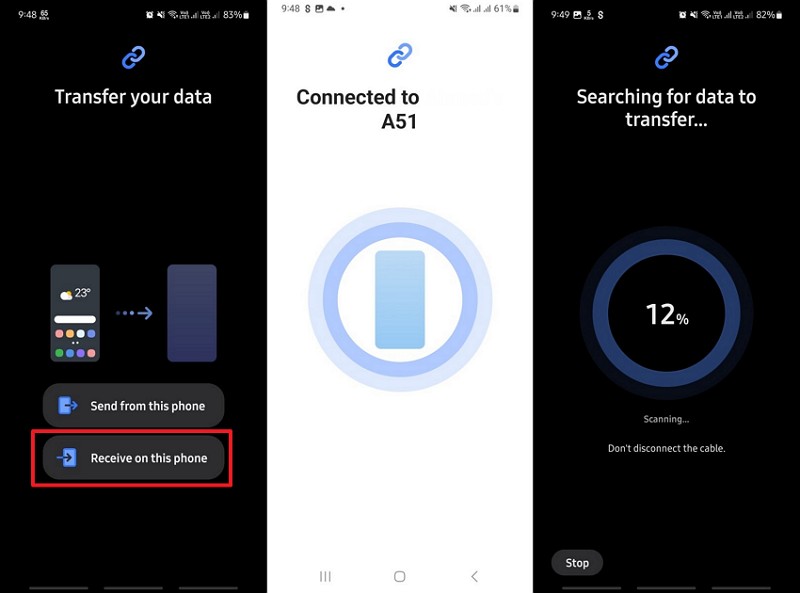
Step 2. On your Samsung, select Receive On This Phone and connect both phones through cable.
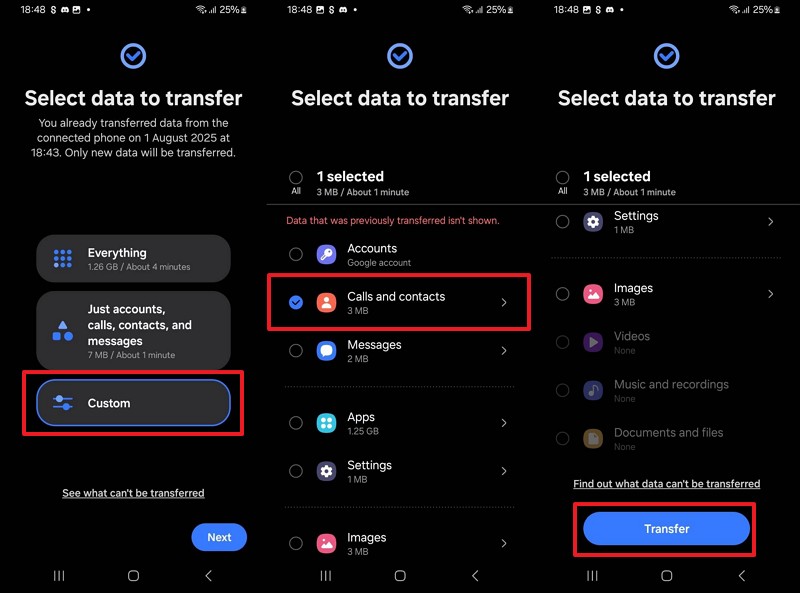
Step 3. Later, choose the Custom > Next > Calls And Contacts > Transfer button.
Limitations
- Newer Huawei phones lack GMS.
- Certain DRM-protected media is unsupported.
Method 3. Via Google Account Sync [For Older Huawei Devices]
Apart from that, you can also transfer contacts between 2 phones using the Google Account Sync feature. This approach allows you to save contacts to your Google account so that all the names and numbers are secure. Once signed in on the Samsung device, contacts sync instantly without needing cables or extra apps. So, go through the given steps to understand how to transfer contacts from Huawei to Samsung:
Step 1. Launch the Contacts app on your Huawei and tap Three Dots > Manage Contacts > Sync Contacts > toggle Google Account.
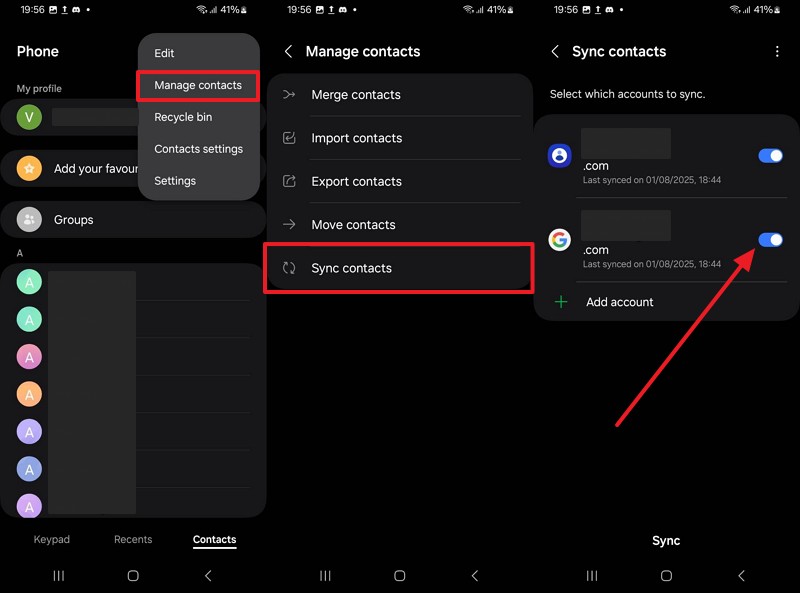
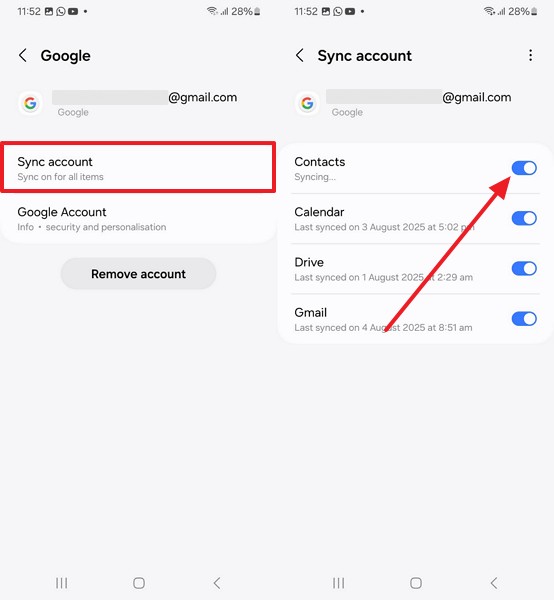
Step 2. On your Samsung's settings, head to Accounts and Backup > Manage Accounts > Same Google Account.

Step 3. Tap the Sync Account > enable Contacts toggle.
Limitations
- Requires an active Google account.
- Google services are not available on the latest Huawei devices.
Method 4. VCF File Export/Import Feature
While exploring the top methods, the VCF file export/import feature allows easy transfer of contacts using a standard file format. All Huawei contacts can be exported into one VCF file and imported into your Samsung device. Plus, it ensures contacts remain organized while giving users full control over which contacts are moved to the new phone. Hence, let's explore how to transfer contacts from Huawei to Samsung:
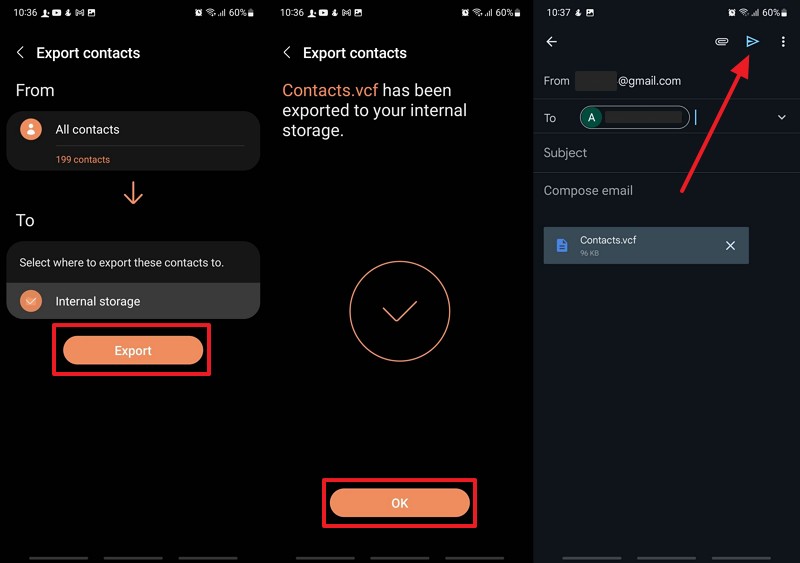
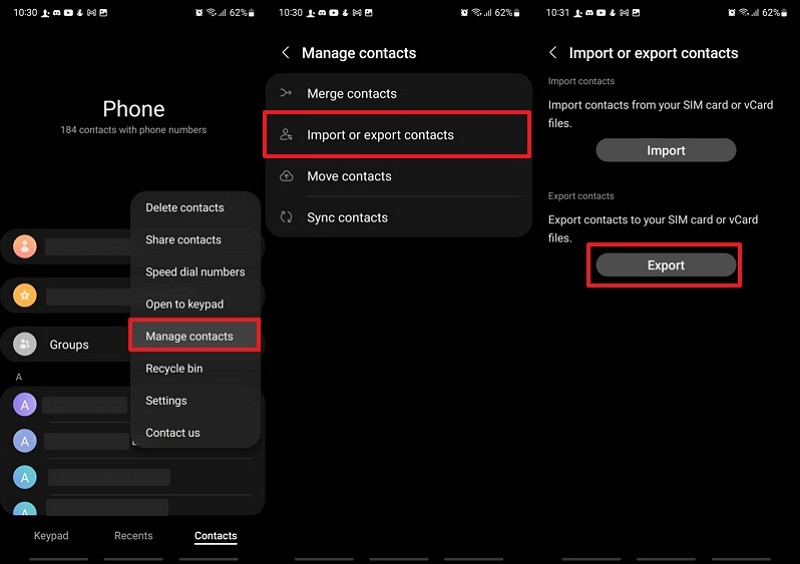
Step 1. On your Huawei's Contacts app, press Three Dots > Manage Contacts > Import or Export Contacts > Export.

Step 2. Hit the Export > OK button and send this VCF file to your Samsung through Gmail.
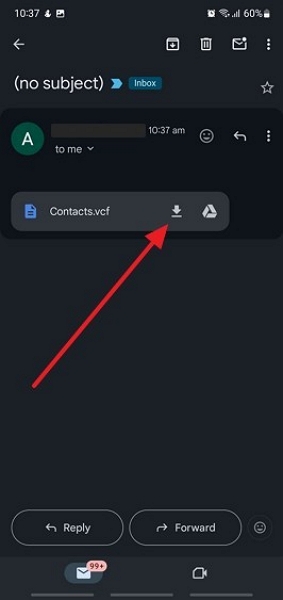
Step 3. On your Samsung, access the newly received VCF file on Gmail and tap the Download icon.
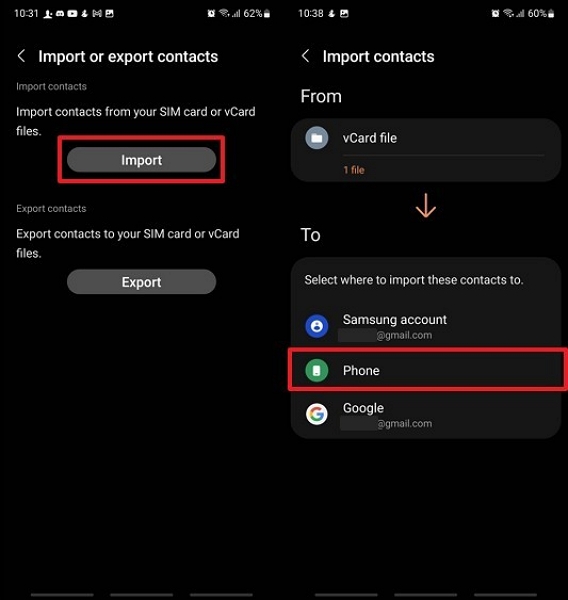
Step 4. Head to the Contacts app to access the Import or Export Contacts screen and tap Import to choose VCF file > Press Phone.
Limitations
- Possible corruption of the VCF file.
- Needs basic file management skills.
Method 5. Through the SIM Card
Another traditional method for moving phone numbers is through the SIM card. You can save contacts from your Huawei device directly onto the SIM card and then insert it into your Samsung phone. Once done, it lets you effortlessly import all the saved contacts on your new smartphone. Anyway, take guidance from the following steps to learn how to transfer contacts from Huawei to Samsung:
Step 1. Access Huawei's Contacts app and hit Three Dots > Manage Contacts > Import or Export Contacts > Export to SIM card.
Step 2. Insert the SIM in your Samsung and tap Three Dots > Manage Contacts > Import from SIM card > Phone.

Limitations
- Possible loss if the SIM is damaged.
- Limited storage on SIM.
Part 2. [Choose by Table] Find the Best Method to Transfer Contacts from Huawei to Samsung
After learning the top methods, many users still find it difficult to pick the best way among the available options. So, this section will compare all the methods discussed in a detailed table, so you can choose the one wisely to transfer contacts from Huawei to Samsung:
|
Criteria |
Ease of Use |
Speed |
Internet |
Security |
|
MobileTrans |
One-click, very simple |
Fast transfer |
No internet needed |
High, no data overwrite |
|
Samsung Smart Switch |
Moderate, requires app setup |
Moderate speed |
Needed for wireless |
Secure, but may miss files |
|
Google Account Sync |
Easy if Google services work, account-dependent |
Depends on the internet |
Always required |
Cloud storage privacy risks |
|
VCF File Export/Import |
Manual, several steps needed |
Slow for large files |
Not required |
Risk of file corruption |
|
SIM Card Transfer |
Manual, basic steps |
Slow and limited |
Not required |
SIM loss/damage risk |
As you explore the detailed table, you can see that MobileTrans stands out as the best and most effortless option. It lets you move 18+ data types without requiring an internet connection or compatibility issues. So, you should download and try the MobileTrans software to move your Huawei contacts to your Samsung without worrying about Google services.
Conclusion
In conclusion, switching phones should never mean losing your important contacts. With multiple options explored above, you can safely keep all connections while moving from Huawei to Samsung. Each method has benefits, but some are slower, limited, or require more effort. For anyone wanting a fast solution on how to transfer contacts from Huawei to Samsung, MobileTrans is the ideal option.










