


 TL;DR:
You can transfer data from a Samsung device to an iPhone 17 using Apple's free Move to iOS app during initial device setup, the paid MobileTrans tool for comprehensive transfers, or cloud services like Google Sync for selective files.
● The paid MobileTrans software provides the fastest complete transfer for over 18 data types (moving 1,000 photos in roughly 10 minutes), whereas the Move to iOS app is ideal for first-time users but takes 30 minutes to 2 hours over Wi-Fi.
● Before starting wireless methods, ensure both phones are fully charged on a stable Wi-Fi network, noting that WhatsApp chats and iTunes music require separate manual transfer processes.
● Although the Move to iOS app migrates some compatible software, most applications will require manual downloading on the iPhone 17 after the initial data transfer is complete.
Ask AI for a summary
 ChatGPT
 Perplexity
 Gemini
 Claude
 Grok
Grok
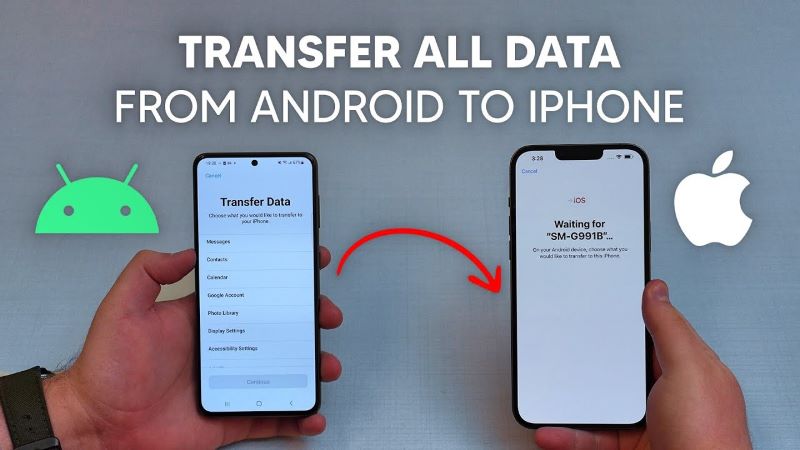
Switching from a Samsung device to an Apple iPhone 17 might feel challenging at first, and it's common to worry about losing important data. However, the process is simpler than it seems. With the right tools and steps, you can securely transfer your photos, contacts, and even compatible apps without hassle.
The iPhone 17 brings new features. It makes switching worth it. But first, you need to know how to transfer data from Samsung to iPhone 17. This guide will show you the best ways. You won't lose any important files.
There are many ways to transfer data from Samsung to iPhone 17. Some are fast. Others are free. We will cover all the top methods.
In this article
Getting Ready for iPhone 17
The iPhone 17 will launch soon. Yes, you heard that right. Apple plans to release it in fall 2025. This new phone will have better cameras. It will also have a faster chip. The battery life will be longer too. These upgrades make many Samsung users want to switch.
Switching from Samsung to iPhone 17 is a big decision. You might worry about losing your data. But don't stress. There are safe ways to transfer data from Samsung to iPhone 17. The process is simpler than most people think. With the right method, you can move everything safely.
How to Transfer Data From Samsung to iPhone 17?
Moving your data doesn't have to be hard. There are four main ways to transfer data from Samsung to iPhone 17. Each method works well. Some are faster than others. Some are free while others cost money.
The key is picking the right method for you. Think about what data you have. Consider how much time you have. Also, think about your tech skills. This will help you choose the best way to transfer data from Samsung to iPhone 17.
Method 1: Use MobileTrans Phone to Phone Transfer Feature
MobileTrans is a popular tool for phone transfers. It works with both Samsung and iPhone 17. This software can move almost all your data. It’s among the quickest methods for moving data from a Samsung device to an iPhone 17.
The program runs on your computer and your phone. You connect both phones to a computer or transfer data wirelessly with the mobile app. It moves your data directly. This method is very reliable. It keeps your data safe during the transfer process.




Steps to use MobileTrans:
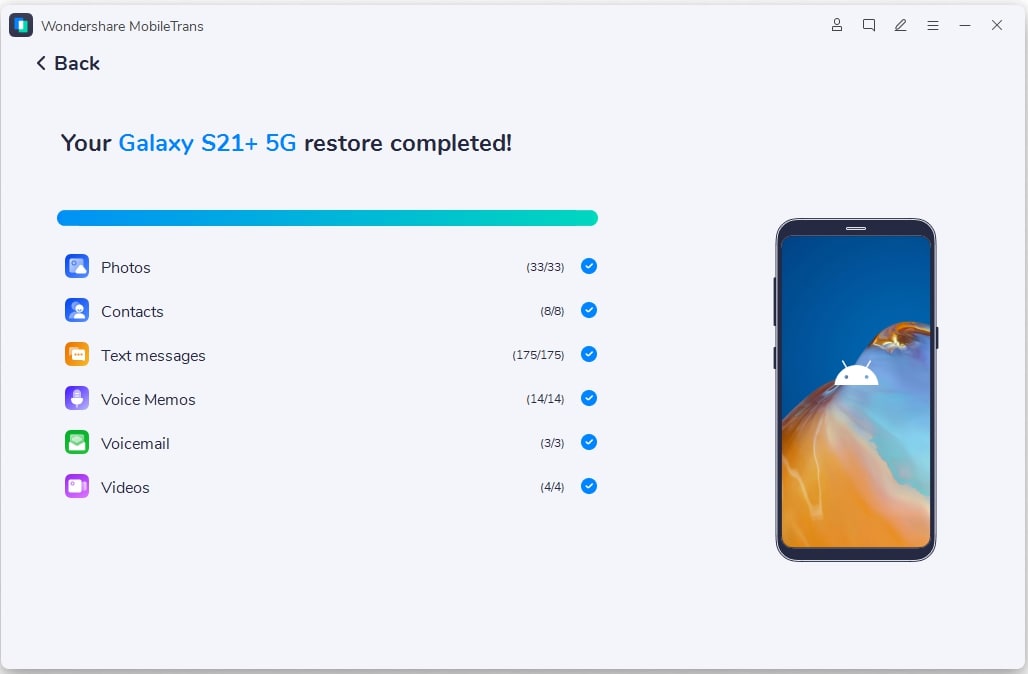
Step 1: Open the program. Choose "Phone Transfer" from the main menu. Then select Phone to Phone. Connect your Samsung phone and iPhone 17 to your computer using USB cables.

Step 2: Choose the types of data you wish to move, then click “Start” to begin the transfer.

Step 3: Wait for the process to complete. Don't disconnect the phones until it's done.
Method 2: Use the Move to iOS App
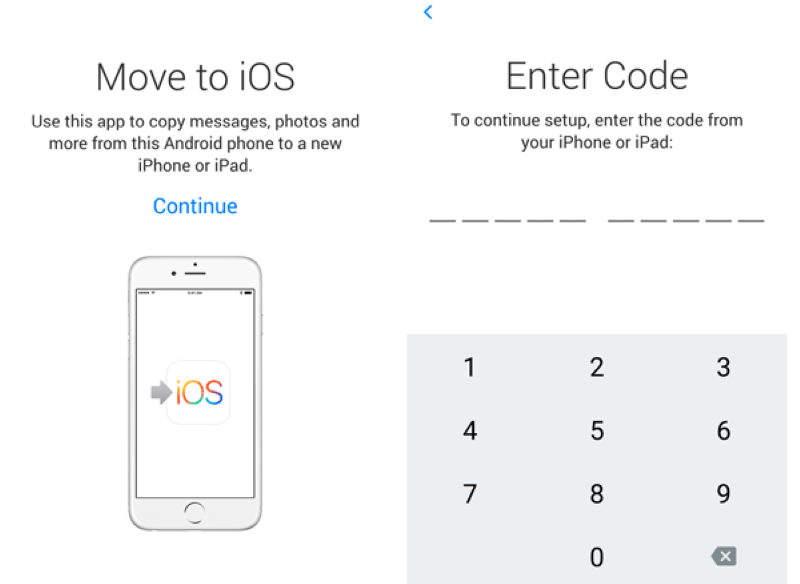
Apple developed the Move to iOS app specifically for Android users, and it's available as a free download. This app enables wireless data transfer from a Samsung device to an iPhone 17.
Steps to use Move to iOS:
Step 1: Set up your new iPhone 17 until you see the "Apps & Data" screen. Choose the "Move Data from Android" option.
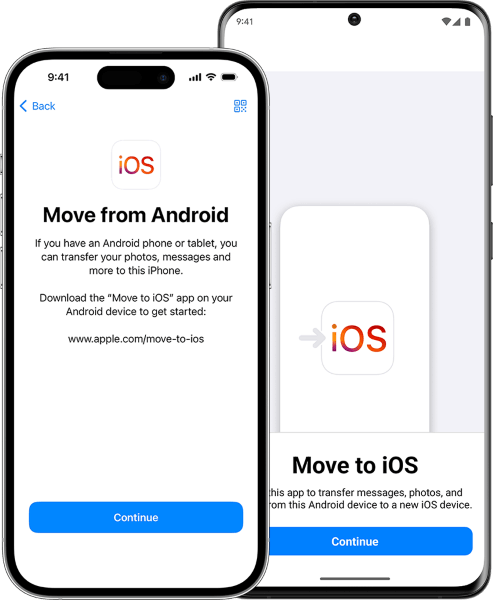
Step 2: Download the Move to iOS app on your Samsung phone. Enter the code shown on your iPhone 17 into the Samsung app. Just choose the data you’d like to move, then sit back and let the transfer complete.
Method 3: Sync your Samsung data to Google
Google services are compatible with both Android and iPhone. You can start by syncing your Samsung data to your Google account, then simply sign in with the same account on your iPhone 17.
Steps to sync via Google:
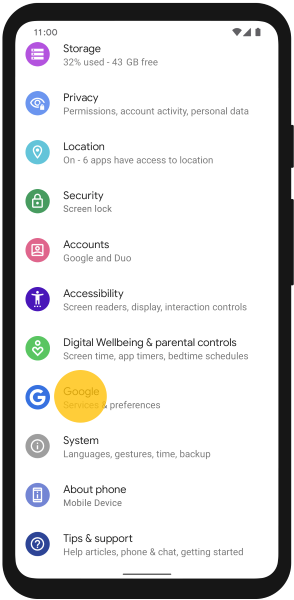
Step 1: On your Samsung phone, go to Settings > Accounts > Google.
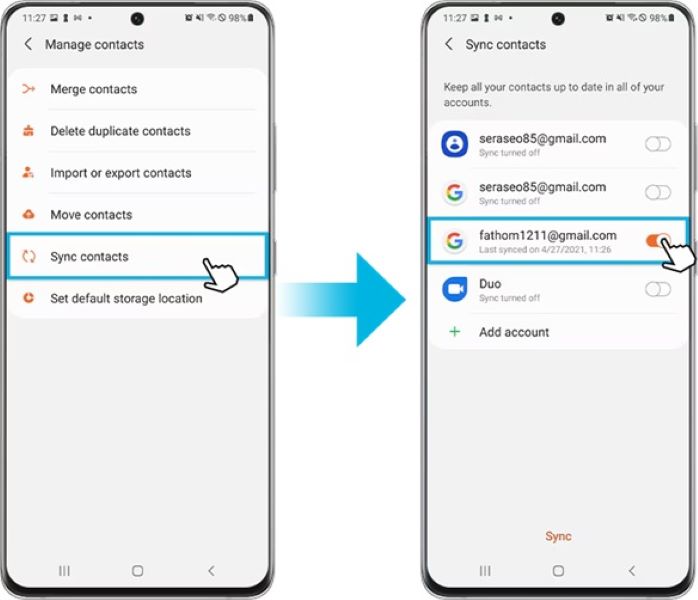
Step 2: Turn on sync for contacts, calendar, and other data. Wait for sync to complete.
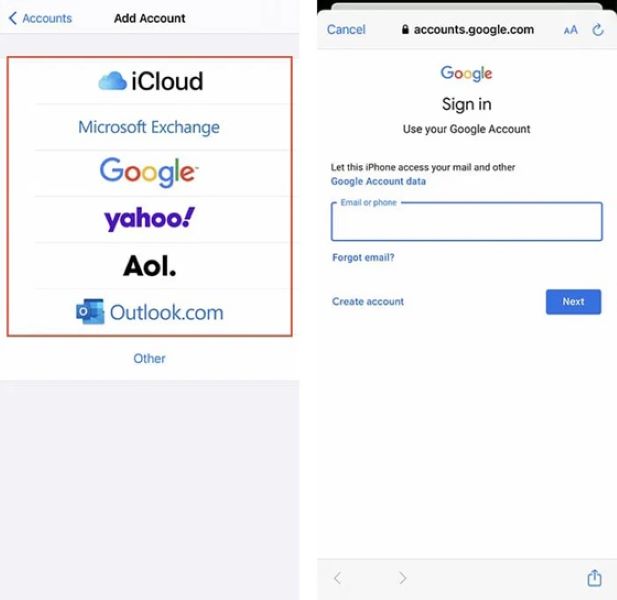
Step 3: On your iPhone 17, go to Settings > Mail > Accounts > Add Account > Google. Sign in and turn on the data types you want to sync.
Method 4: Use apps like Google Drive or Dropbox
Cloud storage apps can help transfer files. Google Drive and Dropbox are popular choices.
Steps to use Google Drive:
Step 1: Download Google Drive on your Samsung phone. Upload files you want to transfer.
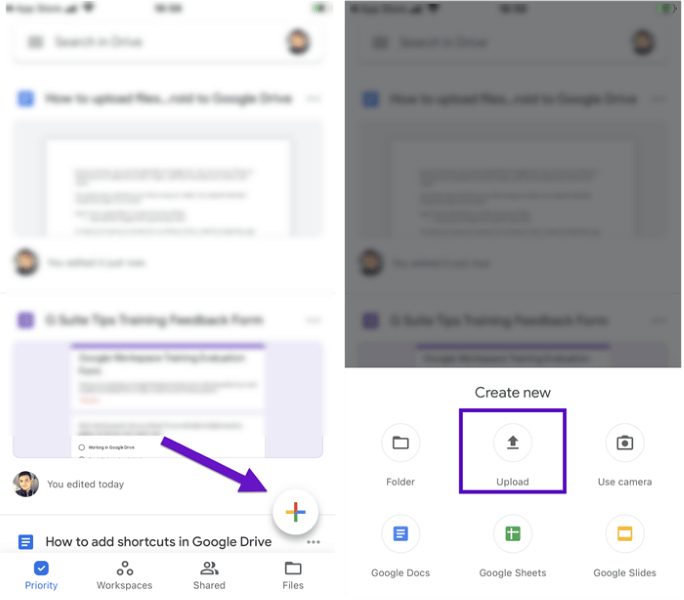
Step 2: Download Google Drive on your iPhone 17. Sign in and download the files you need.
Which is the Best Method to Transfer Data From Samsung to an iPhone 17?
| Method | Speed | Cost | Data Types | Ease of Use | Best For |
| MobileTrans | Very Fast | Paid | 18+ types | Very Easy | Complete transfer |
| Move to iOS | Fast | Free | Contacts, photos | Easy | First-time iPhone users |
| Google Sync | Slow | Free | Contacts, Gmail | Medium | Google users |
| Cloud Storage | Slow | Free/Paid | Files, docs | Medium | Selective transfer |
Pro Tips to Transfer Data from Samsung to iPhone 17
- Ensure a Stable Wi-Fi Connection
- Charge Both Devices Fully
- Clean Up Your Samsung Device
- Use Third-Party Transfer Tools like MobileTrans
- Transfer Music and Ringtones Manually via iTunes
- Back Up Your Samsung Data First
- Transfer WhatsApp Chats Separately



Conclusion
Learning how to transfer data from Samsung to iPhone 17 is important. You have many good options to choose from. Each method works well for different situations. Pick the one that fits your needs best.
Frequently Asked Questions
FAQ
-
Q: How long does it take to transfer data?
A: With MobileTrans, ~10 minutes for 1000 photos. With Move to iOS, 30 mins–2 hrs depending on Wi-Fi.
-
Q: Will I lose any data?
A: No, if you follow the steps and back up Samsung first.
-
Q: Can I transfer apps?
A: Some apps transfer via Move to iOS, but most need manual download on iPhone.










