


 TL;DR:
To transfer a customized home screen layout of apps, folders, and widgets from a Samsung device to an iPhone, you must use a third-party desktop tool like MobileTrans, as official migration apps do not support cross-system layout transfers.
● Apple's Move to iOS and Samsung Smart Switch cannot migrate home screen arrangements due to distinct system management differences, meaning reliance on these official apps will leave your new device with Apple's default layout.
● The MobileTrans offline transfer process requires a computer with the software installed and compatible hardware connections, specifically utilizing USB-C cables or Lightning cables for an iPhone under 15.
● To execute the migration, navigate to the Phone Transfer section within MobileTrans, select the Home Screen Layout feature, connect both the Samsung and iPhone to the computer, and follow the on-screen backup instructions.
Ask AI for a summary
 ChatGPT
 Perplexity
 Gemini
 Claude
 Grok
Grok
Switching from Samsung to iPhone looks exciting until your home screen layout is reset unexpectedly. Everything feels unfamiliar and scattered on your new device, which can cause annoyance. Not only that, but all your favorite app folders and shortcut placements vanish instantly. That can be confusing and stressful for anyone who has just shifted phones.
Manually setting up again can take time, and you'll have to remember your layout and rebuild it from scratch. To avoid that, you need a tool that makes the layout transfer smooth and accurate. Hence, in this guide, we'll introduce you to a way to transfer the Samsung home screen layout to an iPhone. Plus, we'll even provide a detailed guide to complete the task more efficiently.
In this article
Part 1. Why Does Someone Need to Transfer the Samsung Home Screen Layout to an iPhone?
Switching from Samsung to iPhone can feel like losing years of personalization. Plus, your Samsung home screen layout holds more value than you think, and here are a few reasons why you should transfer it:
- Familiar Navigation: Replicating the home screen layout helps users retain muscle memory and preserve familiarity. This makes switching to iOS even faster and less frustrating.
- Setup Efficiency: Years of customized widgets and app placements don't need to be redone. You can save hours of manual setup on iPhone by moving your whole layout once.
- Workflow Continuity: Your shortcuts and grouped apps are key to staying efficient. Keeping the same arrangement guarantees a smooth and uninterrupted daily task on your new iOS device.
- Transition Comfort: Moving from Android to iPhone can feel overwhelming since it's a whole new system. A familiar layout helps reduce confusion and boosts confidence during the switch.
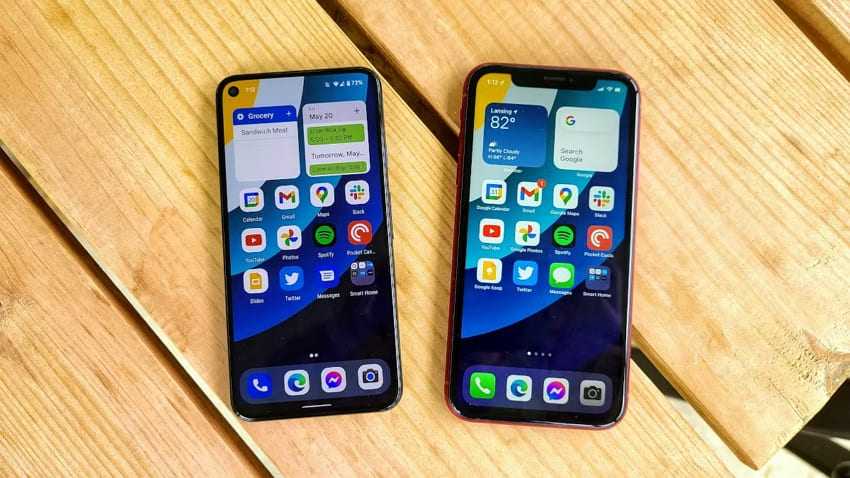
- Personal Touch: Your home screen reflects your unique and distinctive style and preferences. When you bring it over to your iPhone, you can make the device feel personal right from the start.
Part 2. Is It Possible to Transfer Samsung's Home Screen Layout to an iPhone?
Many users try to transfer home screen layout from Samsung to iPhone with Apple's Move to iOS app, thinking it will replicate. In reality, this app is helpful to move data categories like contacts, messages, and even apps. However, after the migration, your iPhone displays Apple's default layout rather than your previous phone's. This means you lose personalized and icon placement that defines your workflow.
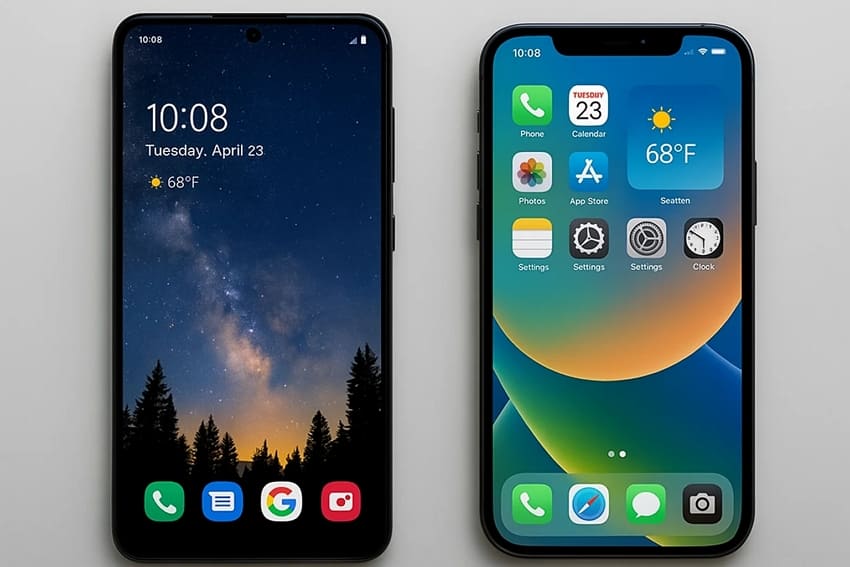
To achieve a smoother move with your preferred setup, it's wise to consider third-party transfer solutions. Using such solutions saves you time and reduces the hassle of manual labor, helping you preserve your preferred organization.
Part 3. [Ultimate Option] Transfer Samsung Home Screen Layout to iPhone - MobileTrans
To transfer Samsung's home screen layout to an iPhone, you can use MobileTrans for seamless migration, ensuring all data arrives safely. It is compatible with over 6000 Android and iOS models, including the newest Samsung and iPhone releases. The tool can carry over the entire arrangement of apps, folders, and widgets from your Samsung device, making setup on iPhone very easy.
Furthermore, you can do phone-to-phone transfer without the need for mobile data or Wi-Fi and perform the process at a blazing-fast speed. Moreover, the Home Screen Layout transfer feature of MobileTrans allows you to transfer the layout from an iPhone/Samsung to a Samsung. In simple words, this feature is helpful for all types of users who are shifting to an iPhone or a Samsung.




What You Will Need to Migrate Samsung Home Screen
- Computer with MobileTrans software installed
- Cables compatible with your phones (normally USB-C cables or Lightning cables for iPhone under 15)
Guide to Migrate Your Samsung Home Screen to iPhone with MobileTrans
Now that you know why preserving Samsung's home screen layout matters, let's walk you through the steps to migrate it:
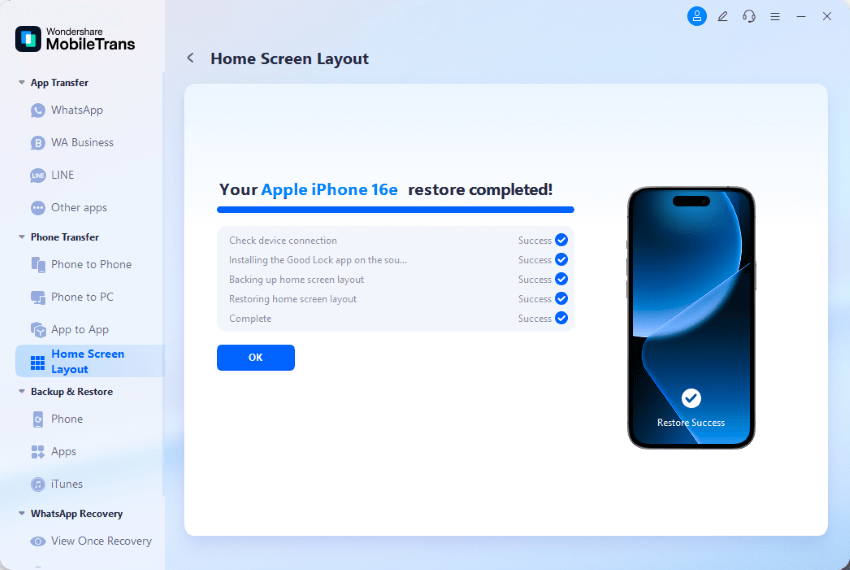
Step 1. Launch MobileTrans on your computer. From the Phone Transfer section, choose the "Home Screen Layout" feature and connect your Samsung and iPhone.
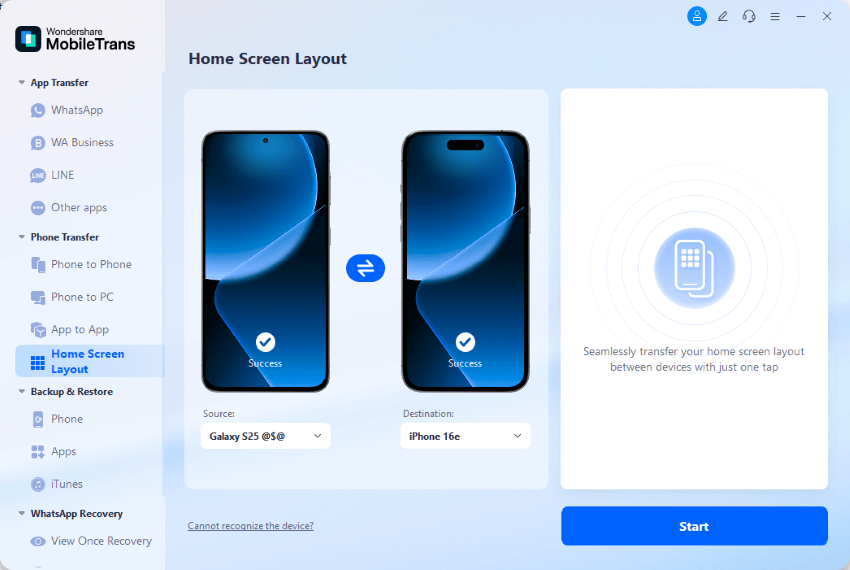
Step 2. Follow the on-screen instructions to back up the Samsung home screen to complete the transfer process.
Part 4. Can Samsung Smart Switch/Move to iOS Transfer Samsung Home Screen Layouts to an iPhone?
When you switch from a Samsung phone to an iPhone, you might think of using Samsung's Smart Switch or Apple's Move to iOS to bring your stuff over. But if you're hoping to move the arrangement of your apps, folders, and widgets on your home screen, the answer is: Nope.
Here's why:
- Samsung Smart Switch: This app is mostly for Samsung users to move data to a new Samsung phone. It can't transfer things to an iPhone, so it definitely can't move your home screen layout.
- Move to iOS: This is Apple's official tool to help Android users move data to an iPhone. While it's great for contacts, photos, and messages, it can't move your app arrangement or home screen layout. That's because Android and Apple systems are very different; their home screen management is totally distinct, so these personalized layouts just can't be directly transferred across systems.
Simply put, while these official apps are super handy for moving data like photos and contacts, they currently can't help you bring your Samsung home screen layout directly to an iPhone.
MobileTrans stands out as a better choice when you migrating to a new phone. It covers 18+ different data types and supports cross-platform transfer of home screen layout. With faster transfer speed and smoother transfer process, MobileTrans can provide a better experience.
Conclusion
In conclusion, switching from Samsung to iPhone is all fun until you have to set up your home screen by yourself. It is essential to learn how to transfer a Samsung home screen layout to an iPhone, so you won't have to do it by hand. Therefore, this guide introduced you to the standout tool called MobileTrans to easily migrate your home screen layout to your new iPhone.










