How to Transfer WhatsApp from Android to Android?
Switching to a new Android phone should not mean losing your important WhatsApp data. With MobileTrans App, you can transfer WhatsApp chats, photos, videos, files, voice messages, call logs, and other data from one Android device to another using a simple QR-based connection.
MobileTrans App also supports AI Transfer on the sending device. Before the transfer starts, AI can analyze the selected WhatsApp data, identify files that may need your attention, and let you deselect unwanted files so that only the data you want is transferred to the new phone.
This guide will walk you through the complete Android-to-Android WhatsApp transfer process, including how to use AI Transfer to review your WhatsApp data before connecting the two devices.
Don't forget to download MobileTrans App on both Android devices before following the steps.





Before transferring WhatsApp data between two Android phones, please make sure MobileTrans App is installed on both devices. Keep both phones nearby and follow the on-screen instructions carefully.
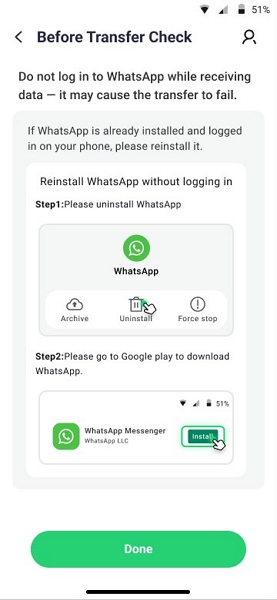
During the process, the receiving device may need to uninstall and reinstall WhatsApp. Do not log in to WhatsApp on the receiving device before the transfer is completed, as this may cause the transfer to fail.
Step 1: Choose the Android-to-Android WhatsApp Transfer Mode
Open MobileTrans App on both Android phones. On the sender device, go to the WhatsApp Transfer tab and choose Send to Android. On the receiving device, choose Receive from Android.

Step 2: Select the WhatsApp Account to Transfer
On the source Android device, select the WhatsApp account you want to transfer. MobileTrans App can recognize both single-account and multi-account situations. After choosing the account, tap Confirm. MobileTrans will then analyze the WhatsApp backup package.
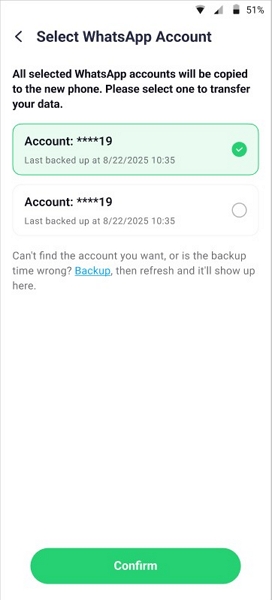
Step 3: Choose WhatsApp Data and Analyze with AI
After the backup package is analyzed, choose the WhatsApp data you want to transfer, such as texts, photos, audios, videos, files, emojis, locations, GIFs, voice messages, and call logs.
Turn on the AI Transfer switch and tap Analyze with AI. MobileTrans will use AI to analyze the selected WhatsApp data before the transfer starts.
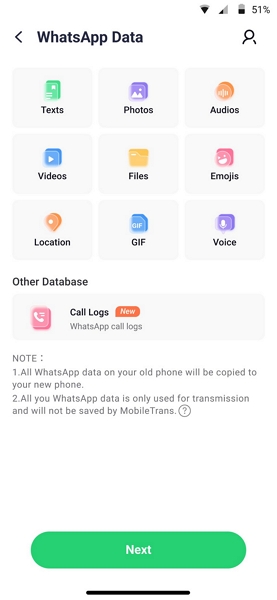
Step 4: Wait for AI Analysis
MobileTrans will analyze the structure of your selected WhatsApp data. Wait until the AI analysis is completed before proceeding.
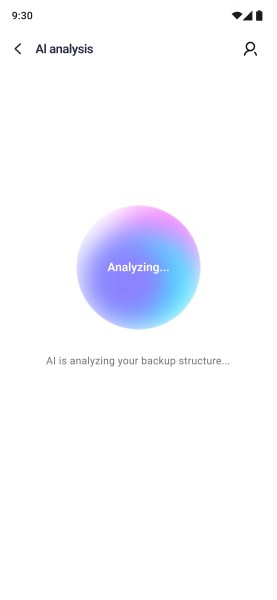
Step 5: Review the AI-Powered Analysis Results
After the analysis is complete, MobileTrans will display the files that may need your attention. Review the results and deselect any files you do not want to transfer. Only the selected files will be kept for the transfer.
Once you have confirmed the data you want to keep, tap Next to continue to the device connection process.
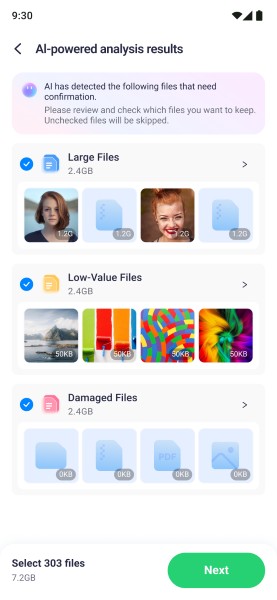
Step 6: Prepare WhatsApp on the Receiving Device
On the target Android device, follow the instructions to uninstall and reinstall WhatsApp if required. After completing the required preparation, tap Done to continue.
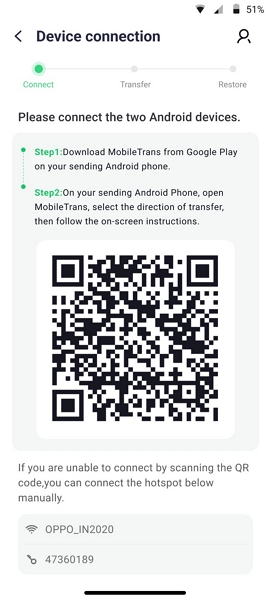
Step 7: Display the QR Code on the Receiving Device
After the receiving device is ready, MobileTrans App will display a QR code on the screen. Keep this QR code open so that the sender device can scan it and establish a connection.
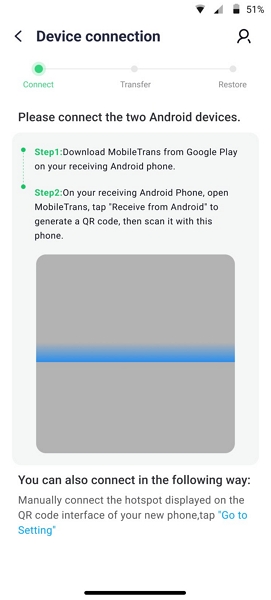
Step 8: Scan the QR Code with the Sender Device
Use the sender Android device to scan the QR code shown on the receiving device. Once the two Android phones are connected successfully, MobileTrans App will get ready to start the WhatsApp transfer.
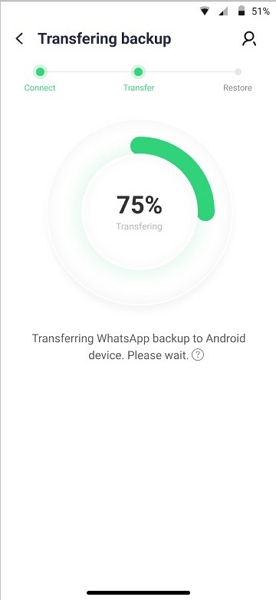
Step 9: Start Transferring WhatsApp Data
After the connection is established, the transfer will start automatically. You can monitor the transfer progress on the screen. Please keep both devices nearby and avoid closing MobileTrans App during the process.
Step 10: Open WhatsApp and Finish the Setup
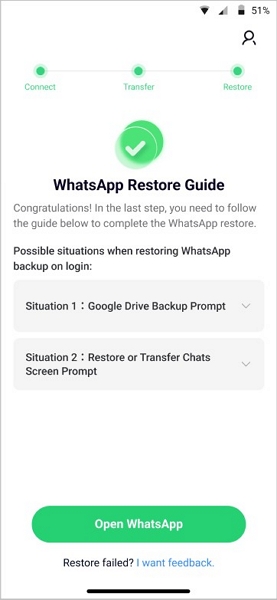
When the transfer is complete, tap Open WhatsApp on the receiving device. Then log in to WhatsApp and choose the transferred account to finish the setup.
Conclusion
MobileTrans App makes Android-to-Android WhatsApp transfer simple and convenient. With AI Transfer, you can review your WhatsApp data before transferring it and remove files you no longer want. After that, the QR-based connection lets you move WhatsApp chats, photos, videos, files, call logs, and other important data to your new Android phone.
Whether you are switching to a new Android phone or moving WhatsApp data between Android devices, MobileTrans App helps you transfer the data you need and continue using WhatsApp on your new phone.