Help Center / Guide / WeLastseen iOS User Guide
Track WhatsApp Online Status with WeLastseen on iPhone
WeLastseen helps you monitor WhatsApp online and offline activity from your iPhone. Follow this guide to add a contact, link your WhatsApp account, and view the contact's activity status.
Before You Start
Please read the following important notes before using WeLastseen:
- Install and open WhatsApp on the phone you will use for linking.
- Set your WhatsApp Last Seen privacy setting so that it can be viewed. Do not set it to Nobody.
- Make sure the person you want to monitor also has their privacy settings set to visible, not Nobody; otherwise, their status cannot be monitored.
- Make sure the person you want to monitor is another WhatsApp user, not yourself.
- Ask the person you want to monitor to save your number and add you as a contact.
- Make sure both parties can open the WhatsApp chat and send messages normally.
- If you have used WeLastseen before, remove all existing linked devices or link records in WhatsApp before starting again. Duplicate links may cause linking problems or log your WhatsApp account out.
- Keep WhatsApp available while completing the linking process.
STEP 01: Open WeLastseen and Complete Onboarding
- Open the WeLastseen app, complete the onboarding flow, then enter the Last Seen page.
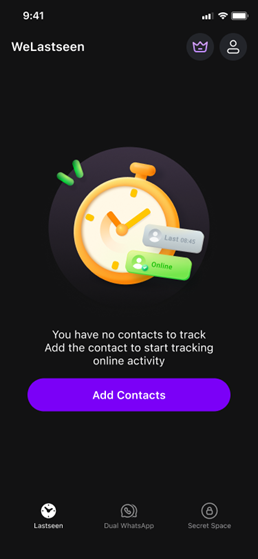
STEP 02: Add a Contact and Authorize Contacts Access
- On the Last Seen page, tap Add Contact.
- Read and confirm the responsible-use terms, then tap OK.
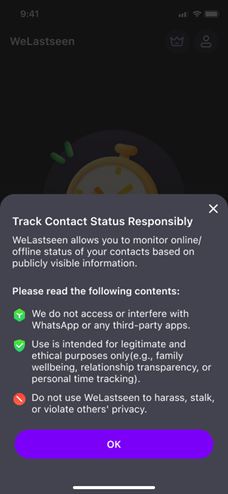
- Tap Continue to confirm the permission scope.
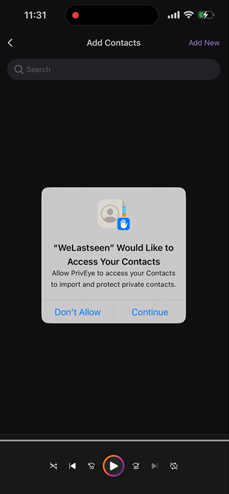
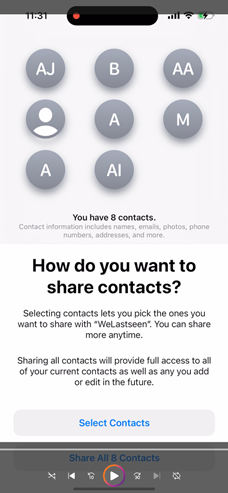
- Choose one of the following options:
- Select Contacts: allow access only to the contacts you select.
- Share All Contacts: allow access to all contacts.
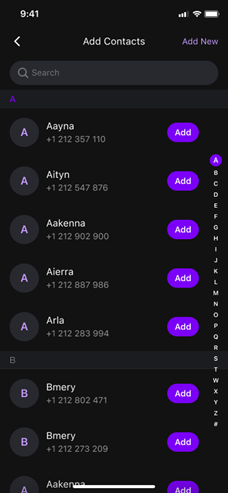
- Add the person you want to monitor on the WeLastseen contacts page.
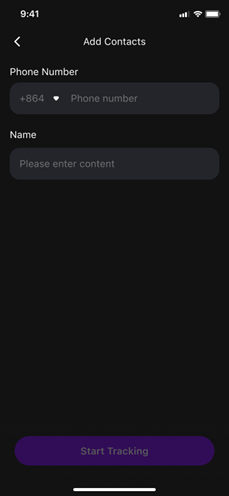
- Tap Start Tracking.
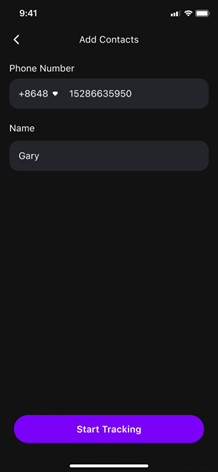
- The contact is added successfully when an Add Success toast message appears.
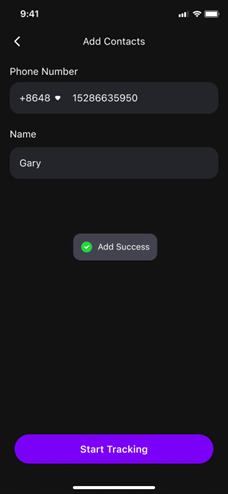
Important notes:
- The person you want to monitor must be another WhatsApp user. Do not select your own number.
- If the contact already exists in WeLastseen, do not add it again.
STEP 03: Start Linking with Your Own WhatsApp Number
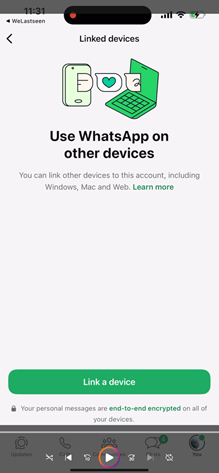
- In WhatsApp, remove all existing linked devices or link records.
Linked devices found
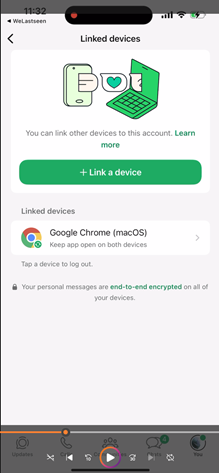
No linked devices found
- Return to WeLastseen and tap Link.
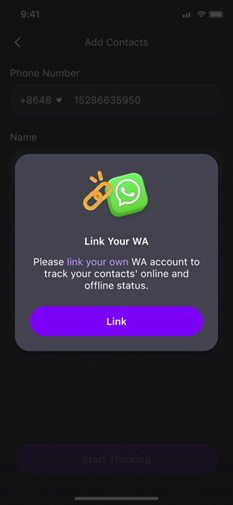
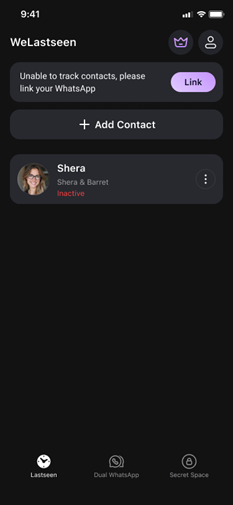
- Enter the phone number you used to register your own WhatsApp account.
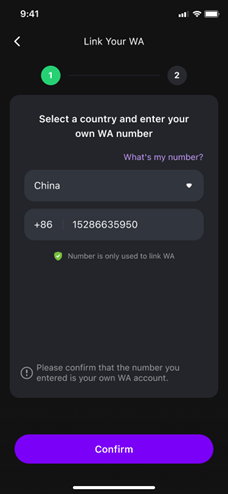
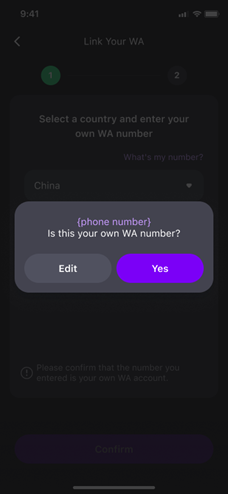
- If it is your own WhatsApp number, tap Yes. If it is incorrect, tap Edit and update it.
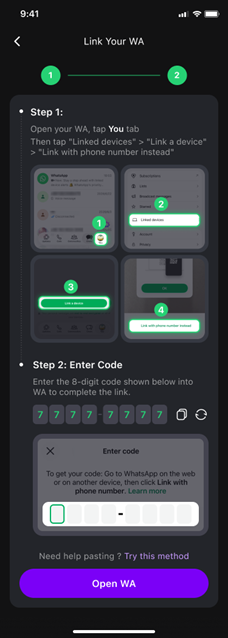
- The system will automatically request an 8-digit verification code.
Important notes:
- Do NOT enter the phone number of the person you want to monitor.
- If an old or duplicate link still exists, remove it before trying again.
- Do not repeatedly tap Link, as duplicate links may cause linking issues, log you out of WhatsApp, or make it permanently impossible to recover your account.
STEP 04: Open WhatsApp and Select Phone-Number Linking
- Tap Copy to copy the 8-digit code, or remember it for manual entry.
- Tap Open WA to open WhatsApp.
- In WhatsApp, tap Link a device.
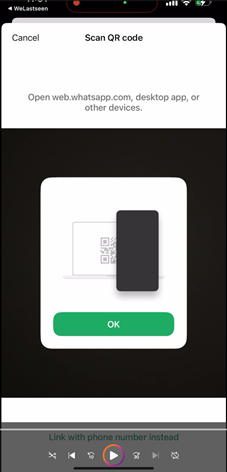
- Tap Link with phone number instead.
Important note:
- Keep the WeLastseen page available until you have entered the code in WhatsApp. If you leave the page and the code is no longer valid, return to WeLastseen and request a new code.
STEP 05: Enter the 8-Digit Code
You can enter the code in either of the following ways to complete the linking process.
Option 1: Copy and Paste
- Long-press the code input field in WhatsApp.
- Tap Paste.
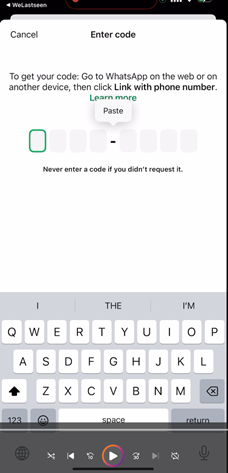
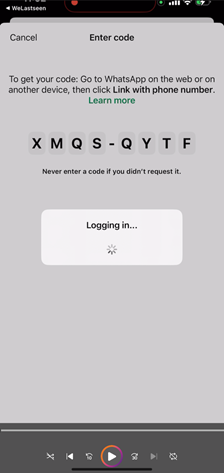
Option 2: Enter Manually
- Type the 8-digit code directly into the input field.
Important note:
- The code must be entered correctly in one attempt.
- If you enter it incorrectly, return to WeLastseen, tap the refresh button, request a new 8-digit code, and use the new code. Do not resubmit the incorrect code.
STEP 06: Confirm That Linking Was Successful
- Check the Linked devices list in WhatsApp.
- Confirm that a new entry has been added.
- Return to the Last Seen page in WeLastseen.
- Check the top of the page. If the Link banner is still visible, linking has not been completed successfully.
Link successful
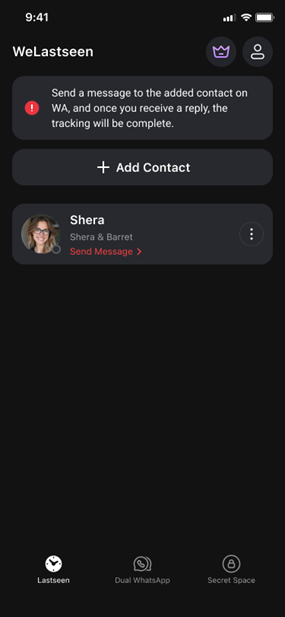
Link failed
STEP 07: Send a Message to the Monitored Contact
- On the contact card in WeLastseen, tap Send Message >.
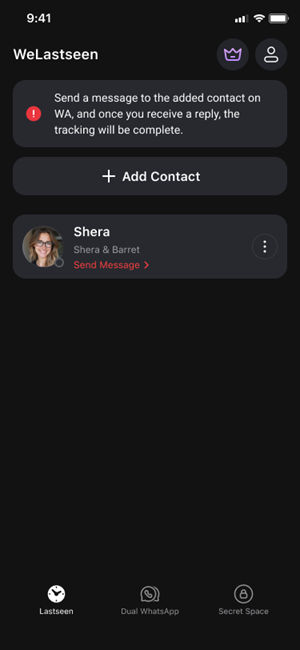
- WhatsApp opens the chat with the monitored contact.
- Send a message from the WhatsApp account used to complete the linking process.
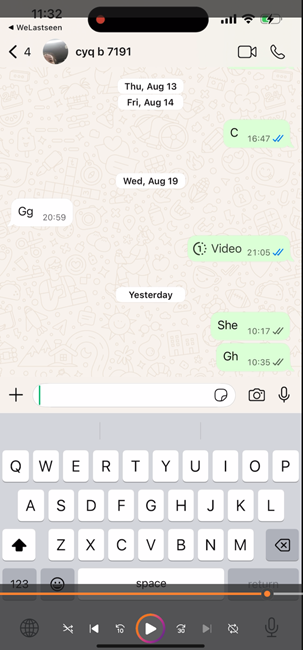
- Confirm that the message was sent successfully.
STEP 08: Refresh the Contact Status
- Return to the Last Seen page in WeLastseen.
- Pull down on the contact list to refresh it.
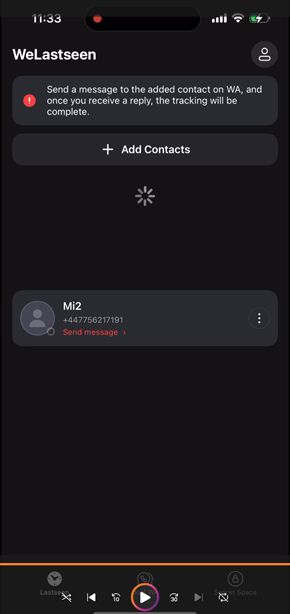
- Check the status of the monitored contact.
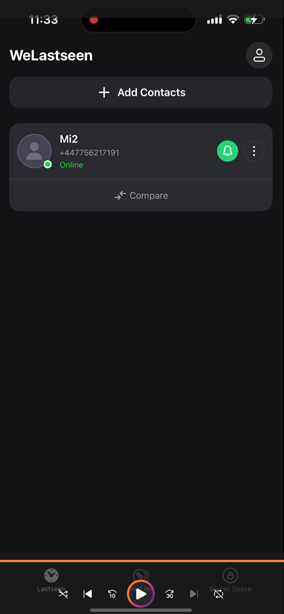
Important note:
- If the status does not appear immediately, wait briefly and refresh again. Do not repeat the linking process just because the status has not updated yet.
Completion:
- The monitored contact displays online or offline.
- The contact's status can be viewed in WeLastseen.