
 TL;DR:
You can log in to WhatsApp on a PC or Mac through WhatsApp Web or the WhatsApp Desktop app by either scanning a QR code with your phone or verifying an 8-digit code via your phone number.
● The phone number login method for the desktop application is strictly limited to Windows only, whereas the QR code method is universally supported across both desktop and browser versions.
● Successful login and real-time chat synchronization require your phone to maintain an active internet connection, and utilizing the phone number login requires the latest app version since the feature is still rolling out.
● You can track up to three contacts' online and offline status history using the third-party WeLastseen Online Web tool for $4.99 per week, though the tool occasionally experiences connectivity issues during the account linking process.
Ask AI for a summary
 ChatGPT
 Perplexity
 Gemini
 Claude
 Grok
Grok
Have you ever faced a situation where you are working on a computer and your phone is constantly buzzing with WhatsApp notifications? If so, switching the devices can disrupt your workflow, making it hard to focus. If you're switching devices permanently, you might also want to transfer your WhatsApp chats. Hence, instead of transitioning between screens, you must log in to WhatsApp on your computer to make your chat appear on a larger screen for quick replying.
Through this, you eliminate the hassle of shifting between devices and save yourself from losing momentum in your work. Therefore, if you don’t know how to access WhatsApp on your computer, this guide offers comprehensive assistance. Here, we have mentioned two simple ways to log in to WhatsApp: phone number and QR code. By the end, you can also access someone’s status using an innovative tool.
In this article

Part 1: Benefits of Using WhatsApp on Your Computer (PC or Mac)
Determining its benefits is necessary before you know how to log into WhatsApp on a computer. Therefore, in this guide, we have mentioned the five significances of using this messaging app on a PC or Mac.
- Faster Typing: With a full-sized keyboard, you can type faster and more efficiently and keep up with conversations. Hence, reducing the effort of typing on tiny keyboards, you can log in on a computer for a comfortable messaging experience.
- Easy File Sharing: Sending files from a PC or Mac can be challenging, but syncing chats on the computer can make this process less daunting. You can choose multiple files, images, and videos to reduce the need to switch platforms. This is much easier than transferring files from PC to your phone.
- Better Multitasking: By logging in to WhatsApp on computers, you can stay connected while working or studying on screens. Thus, with this facility, users can seamlessly chat without changing between phones and computers to maintain their attention on work.
- Larger Screen: Shifting devices is a hassle, but it also affects your visibility, so you should fetch chats on computers. This approach allows you to manage multiple conversations easily without experiencing eye strain.
- Real-Time Sync: WhatsApp syncs the messages between phones and computers to get all updates simultaneously. By benefiting from this feature, you’ll never miss a message, no matter the device you use for interaction.

Method 1: How to Log in to WhatsApp on Computer with a QR Code
Whether using WhatsApp Web or Desktop, logging in is seamless via the QR code. You won’t have to set up a proper system; it just requires you to scan the QR code. Once connected, your chats will instantly sync, offering users a hassle-free way to manage conversations in a broader display. This is the most common method for a WhatsApp computer login. Whether you're using the desktop app or the web version, the QR code scan is fast. Hence, for WhatsApp sign-in on a PC (or laptop), here are the simplified guides:
Using WhatsApp Desktop App
Starting with the WhatsApp desktop, this solution allows you to constantly connect with others without facing the issue of reloading. So, by following the guide below, scan the QR code and instantly access all your chats on your PC:
Step 1. Launch the WhatsApp desktop on your device and press the get started option from the main interface to access the QR code screen.

Step 2. After that, go to your phone's app settings and tap the “Link Devices” option. Oness the “Link Device” button to access the QR code scanner screen on the new interface. Now, scan the QR code on your computer, and you will be logged in real-time.

Step 3. However, if you are an Android user, tap the “Three Dots” icon and choose the “Link Devices” option. Now, from the new screen, hit the “Link a Device” option to scan the QR code screen on the computer.

Using WhatsApp Web (Browser)
Sometimes, users can’t access WhatsApp Desktop on their computers due to storage issues, and that’s where WhatsApp Web comes in handy. This browser-based solution lets you link accounts and access all chats without installing the application. Hence, to determine how to log into WhatsApp from a computer, adhere to the below steps:
Step 1. Search for the WhatsApp Web on your PC or MacBook using your browser and fetch the QR code screen.

Step 2. On your phone, pick the “Link Devices” option from the profile settings and press the “Link Device” button from the next screen. This will fetch a QR code scanner screen that you can use to scan the code on the computer to log in. You can also access this feature on Android devices via the abovementioned steps to scan the QR code.

Method 2: How to Log in to WhatsApp on Computer with a Phone Number
Other than the QR code method, you can also use your phone number to log in to WhatsApp desktop login since you just have to insert the 8-digit code. Before that, users must choose the desired region and enter the phone number to log in using the two simple guides mentioned in this section.
Using WhatsApp Desktop (Windows Only)
For WhatsApp Desktop, here is how you can log in to this communication app via phone number in just a few taps:
Step 1. After launching the app on your device, pick the “Link with Phone Number option” and enter the number by selecting the region. This way, you can get an 8-digit code to insert on your phone to log in.

Step 2. On iPhone or Android, you will get a notification, “Are You Trying to Link a Device?” where you have to select the “Confirm” button. After that, enter the code on the new screen to seamlessly access and sync the chats.

Using WhatsApp Web
For WhatsApp login PC through the web, the approach is simple and is mentioned in a few steps in this section:
Step 1. Once you search for WhatsApp Web on your device, pick the “Link with Phone Number” option from the main interface. After that, select the region and enter the phone number to access the 8-digit code you must add to the phone.

Step 2. For iOS, press the “Link Devices” option from the profile settings and choose the “Link Device” option. As you get the new interface, hit the “Link with Phone Number Instead” option and enter the code to access chats. For Android, you must also access the “Linked Devices” feature to sync the chats on the Web.

Bonus Tip: How to Track WhatsApp Online Status
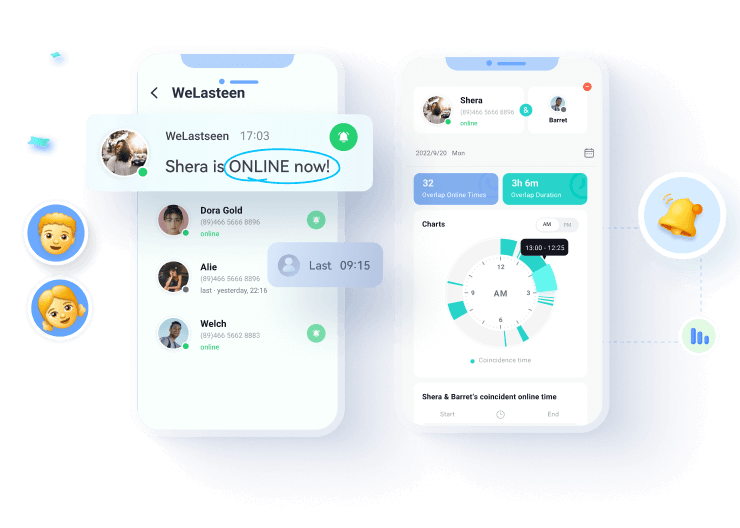
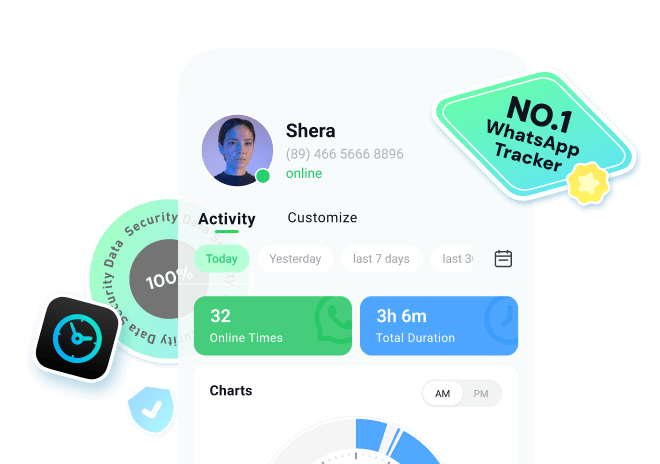
After you log in, you might want to know when your contacts are online. While WhatsApp on your computer shows their status, tools like WeLastseen Online Web are designed to help you track online and offline activity in detail. It allows you to get notifications and view activity history.
Furthermore, it features a calendar where you can manually select the desired day to track WhatsApp activity. This innovative feature also lets you determine the tracking data to eliminate the manual hassle. If you fail to fetch the activity, consider using its reload capacity to refresh the page and establish a connection to regain access to the user’s activity.





Detailed Guide to Track User's Activity with WeLastseen Activity Tracker
After wrapping up the “WhatsApp sign in on PC” discussion, here is how you can track the user activity with the WeLastseen online tracker:
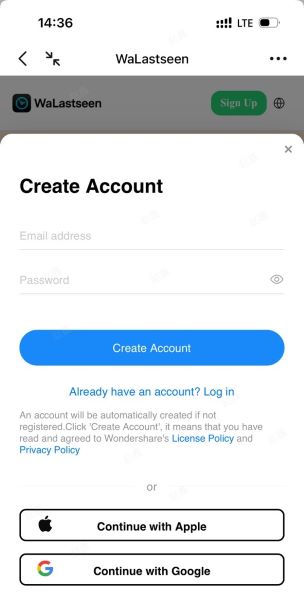
Step 1. Search for WeLastseen Online Tracker and Create an Account
To begin with, search for the WeLastseen online tracker on the web and choose the “Sign-Up” button from the top right corner. This will fetch a bottom popup menu where you must insert the email credentials to create the account.


Step 2. Enter the User Phone Details by Picking Region
After generating the account, enter the target user's phone number and hit the "Track Now" button to start linking the device. To connect to WhatsApp, tap the “Link WhatsApp” button from the following interface, after which you must scan the QR code from your WhatsApp device.
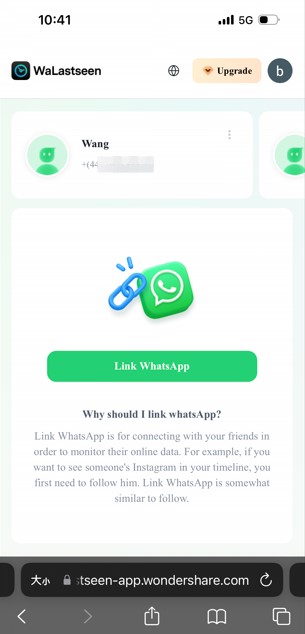
Step 3. Buy Plan and Access the User’s WhatsApp Activity
Upon doing so, purchase the subscription, and you can access the person’s activity on your device in no time. By selecting the dates from the calendar, you can also track their specific online and offline status without any problem.
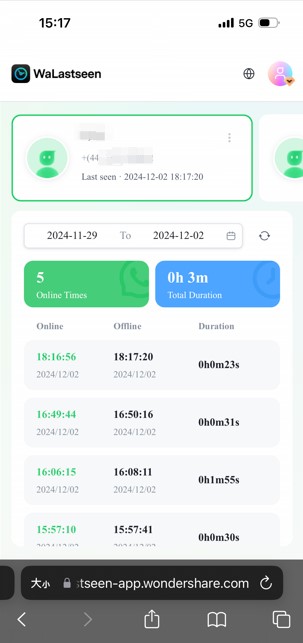
Troubleshooting: WhatsApp Login on PC Not Working?
Is your WhatsApp login for PC failing? If you can't scan the QR code or the PC WhatsApp login keeps disconnecting, here are a few common fixes:
- Check Your Phone's Connection: Your phone must have a stable internet connection (Wi-Fi or Mobile Data) for WhatsApp Web/Desktop to work.
- Update Your App: Ensure both your phone's WhatsApp and your WhatsApp Desktop app are updated to the latest version.
- Clear Browser Cache: If you're using WhatsApp Web, try clearing your browser's cache and cookies, then reload the page.
- QR Code Won't Scan: Make sure your computer screen is bright enough and your phone's camera is clean. Try zooming in (Ctrl +) on the QR code.
- Phone Number Login Not Working: This feature is rolling out. Ensure your app is updated. Double-check you have entered the correct country code and phone number.
Conclusion
Summing up, sometimes, sending the files and chatting becomes so hectic that you seek a simple solution to make the process manageable. To cater to this situation, logging in to WhatsApp on the computer is better to manage workflow and communication efficiently.
In this guide, we have mentioned how you can log in to WhatsApp on the web and desktop in 2 ways. Once there, you can also monitor the activity of specific people using WeLastseen Online Web.
FAQs About WhatsApp Login on Computer
-
Q1. Can I use WhatsApp on my computer without the phone being connected?
Unfortunately, you need to connect to a phone using a phone number or QR code when logging in. Besides, having a device by your side will also ensure your chats are synced to your PC. -
Q2. What if I don’t want to use the QR code to log in?
For various reasons, you can opt for the “Link with Phone Number Instead” option if you don't want to use the QR code scanner. To use that, you just have to fetch the code from the computer and enter it on the phone to make a connection. -
Q3. How do I monitor someone’s WhatsApp activity on my computer after logging in?
While working, if you notice a person's unusual activity, you can easily monitor their online and offline status using the WeLastseen online activity tracker. By buying its subscription plan, you can use its intuitive interface to fetch the WhatsApp activity of up to 3 persons.