


 TL;DR:
To seamlessly transfer your home screen layout to a new Samsung device, choose an official Samsung feature for basic syncing or a dedicated migration tool for a comprehensive data transfer.
● MobileTrans provides a one-click migration that moves your layout alongside all apps, contacts, and settings without data loss, making it ideal for users wanting an exact replica of their previous setup.
● Samsung Smart Switch wirelessly transfers basic layout elements and apps using built-in software, while Samsung Cloud restores your setup via internet connection if you have an active Samsung account and backups enabled.
● Advanced users can utilize the Good Lock app with the Home Up module to manually save and share precise icon positions, keeping in mind that varying screen sizes between models may slightly alter final widget placement.
Ask AI for a summary
 ChatGPT
 Perplexity
 Gemini
 Claude
 Grok
Grok

Getting a new Samsung phone is exciting. But recreating your home screen setup takes time. The good news is that you can transfer the Samsung home screen layout to Samsung devices easily.
There's no need to rebuild your home screen from the ground up. Thanks to the thoughtful design of Samsung devices, preserving your personalized layout is easier than you might think — letting you pick up right where you left off without skipping a step.
This guide shows you five simple methods to move your layout.
In this article
Part 1: Why Transfer Your Home Screen Layout?
Your home screen is personal. It reflects how you use your phone daily. Here's why you should transfer the Samsung home screen layout to Samsung devices:
- Save time - No need to reorganize apps and widgets manually
- Keep productivity - Your workflow stays the same on the new device
- Preserve customization - Keep your personal touch and style intact
- Reduce learning curve - Start using your new phone right away
- Avoid mistakes - No forgotten apps or missed important widgets
- Professional setup - Business users keep their organized layouts
- Personal comfort - Your phone feels like home from day one
Part 2: How to Transfer Samsung Home Screen Layout to Samsung
Moving your home screen setup doesn't have to be hard. You have several options to transfer the Samsung home screen layout to Samsung phones. Each method works differently and has its own benefits.
The key is picking the right method for your needs. Some methods are faster. Others give you more control. Let's explore five proven ways to move your layout.
Method 1: Using MobileTrans (Quick & Easy)
MobileTrans is a third-party tool that makes phone transfers simple. It works with many Android devices, including Samsung phones. This tool copies almost everything from your old phone to your new one.
The software handles the technical parts for you. You just connect both phones and click transfer. It's perfect for users who want their new phone to feel just like their old one. You get a complete copy of your previous setup, which means no starting from scratch. It's fast, secure, and ideal for those who want a hassle-free experience.
Why use MobileTrans:
- Works with all Samsung models
- Move your apps, personal data, and home screen setup all at once—no need for multiple steps.
- No technical knowledge needed - very user-friendly interface
- Supports cross-platform transfers between iPhone and Samsung




Steps:
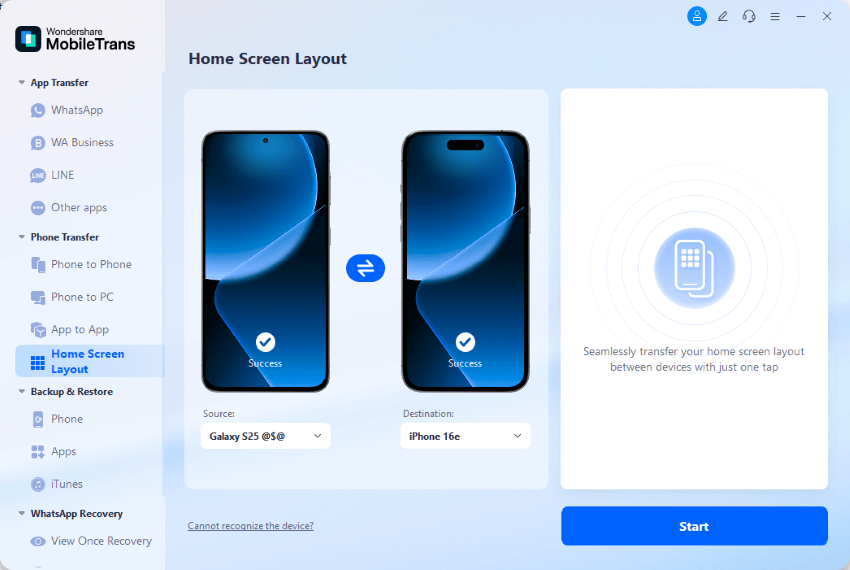
Step 1. Open MobileTrans. Choose Home Screen Layout from the Phone Transfer section on the left. Connect both phones to your computer with cables. Then hit Start to begin the transfer.
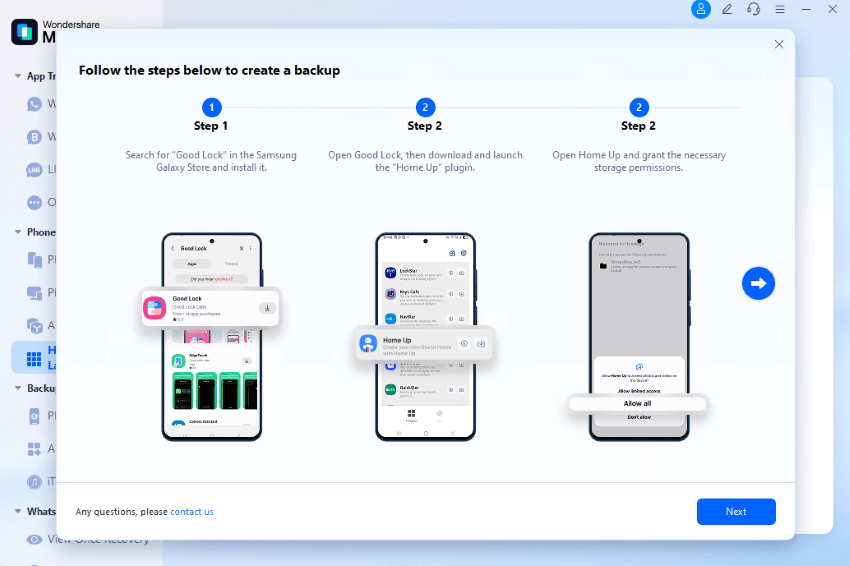
Step 2. If you're switching from a Samsung phone, a few messages will pop up to help you save your home screen layout before you move it over.
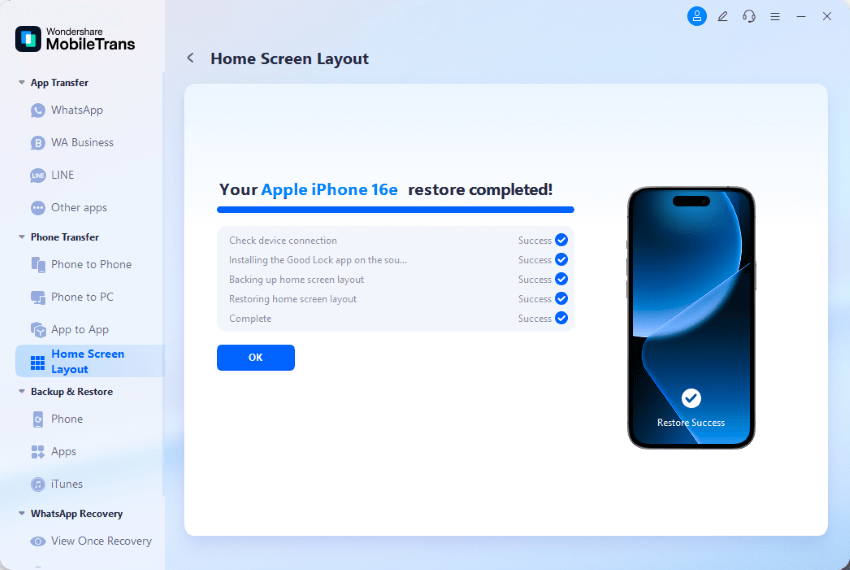
Step 3. Make sure both phones stay connected until you see the “Transfer Complete” message.
Method 2: Using Samsung Smart Switch
Samsung Smart Switch is Samsung's official transfer tool. It comes pre-installed on most Samsung phones. This method is free and designed specifically for Samsung devices.
Smart Switch can move most of your data wirelessly or with cables. It's the most trusted method since Samsung made it. The tool works well between Samsung phones of different generations.
Why use Samsung Smart Switch:
- Official Samsung tool - guaranteed compatibility with all Samsung devices
- Free to use and comes pre-installed on Samsung phones
- Wireless transfer option available for convenience
- Transfers most apps and some layout elements automatically
Steps:
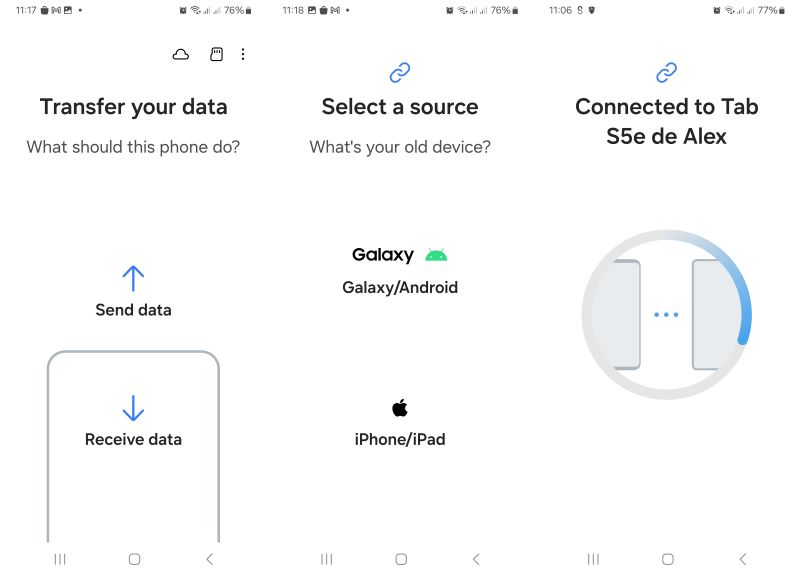
Step 1. Open Smart Switch on both phones. Choose "Send data" on the old phone and "Receive data" on the new phone. Connect phones wirelessly or with a cable.
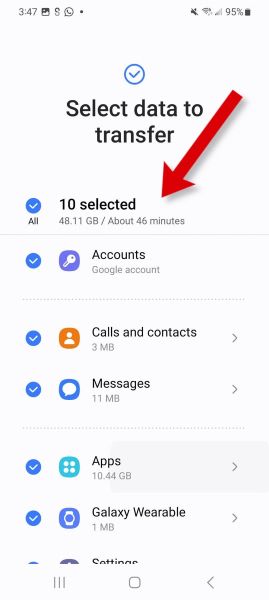
Step 2. Select data types including "Settings" and "Apps."
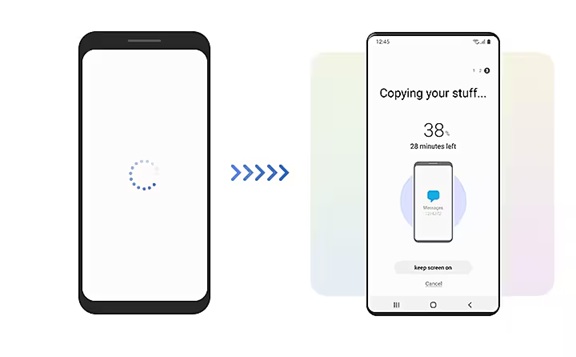
Step 3. Start transfer and keep phones close together until the process completes successfully.
Method 3: Using Samsung Cloud Backup & Restore
Samsung Cloud lets you back up your phone data online. Your home screen layout gets saved to Samsung's servers. You can then restore it on any Samsung phone using your Samsung account.
This method works great for users who plan ahead. You back up your current phone first. Then restore everything on your new phone. It's like having a digital copy of your phone setup.
Why use Samsung Cloud:
- Automatic backups keep your layout safe in the cloud
- Access your backup from any Samsung phone worldwide
- No need for cables or computer connections
- Includes app data and personal settings along with layout
Steps:
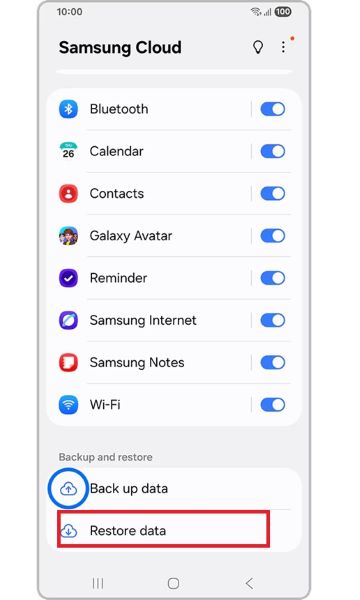
Step 1. Go to Settings > Cloud and Accounts > Samsung Cloud on your old phone. Turn on "Home screen" backup. Let the backup complete.
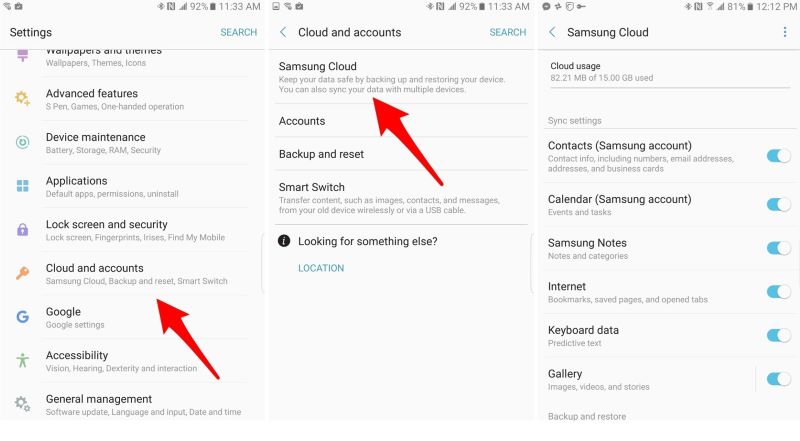
Step 2. Sign in with the same Samsung account on your new phone. Go to Settings > Accounts > Samsung Cloud > Restore Data. Select "Home screen" and start the restore process.
Method 4: Using the Good Lock + Home Up Module
Good Lock is Samsung's customization app suite. The Home Up module specifically handles home screen layouts. This method gives you the most control over your transfer process.
You can save multiple layouts and switch between them. It's perfect for users who like to customize their phones frequently. The tool also lets you share layouts with other Samsung users.
Why use Good Lock + Home Up:
- Save and manage multiple home screen layouts easily
- Share layouts with friends who have Samsung phones
- Fine-tune individual app and widget positions precisely
- Part of Samsung's official customization toolkit
Steps:
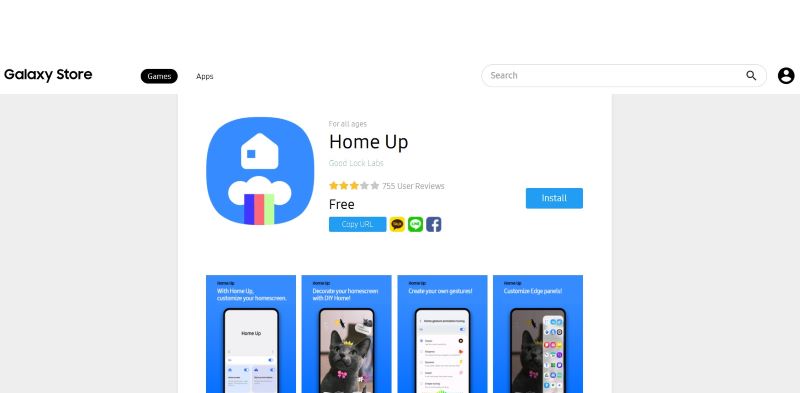
Step 1. Download the Good Lock app from the Google App Store. Install the Home Up module from within Good Lock.
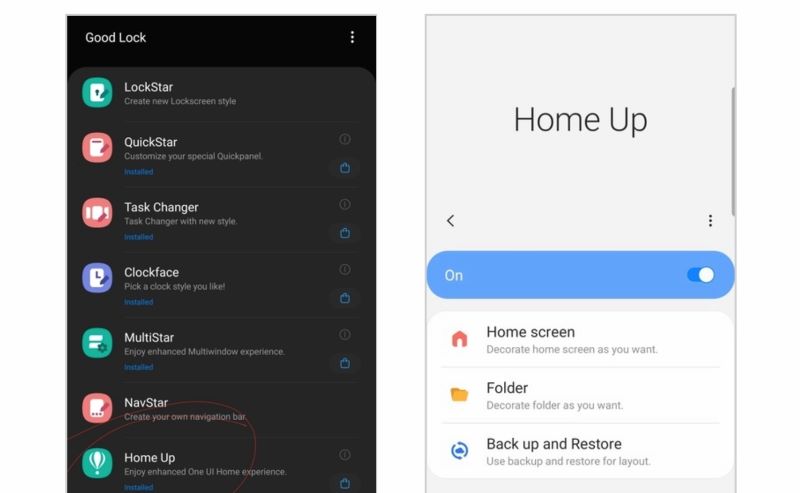
Step 2. Open Home Up. Select Backup and Restore. Create a backup of your current layout. Save it with a memorable name.
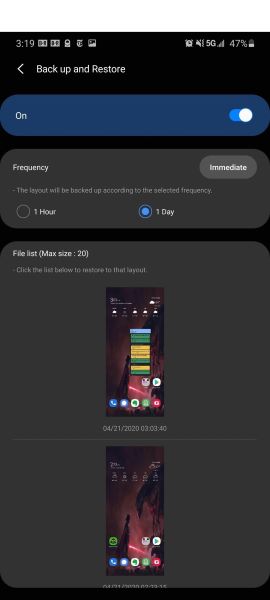
Step 3. On your new phone, install Good Lock and Home Up. Load your saved layout file to apply it.
Method 5: Using Other Third-Party Launchers (Nova, Lawnchair)
Third-party launchers replace Samsung's default home screen. Popular options include Nova Launcher and Lawnchair. These apps have built-in backup and restore features.
The launcher handles your entire home screen experience. When you back up a launcher, it saves everything about your layout. You can then restore it on any Android phone with the same launcher.
Why use Third-Party Launchers:
- Work across different Android brands, not just Samsung phones
- Advanced customization options beyond Samsung's default features
- Built-in backup and restore functions for easy transfers
- Large community support with shared layouts and themes
Steps:
Step 1. Install Nova on both phones. Set it as the default launcher. Customize your home screen on the old phone. Use the Nova's backup feature to save the layout.
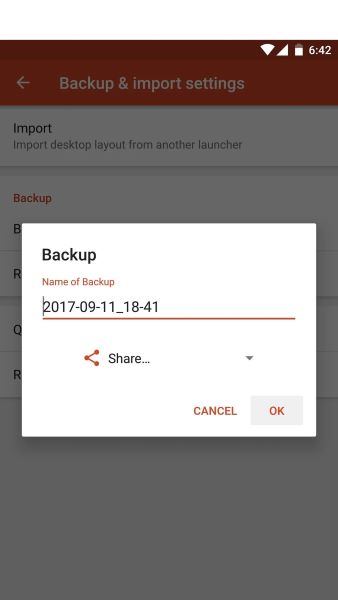
Step 3. Restore the backup file on your new phone through Nova's restore option.
Part 3: Which is the Best Method to Transfer the Samsung Home Screen Layout to Samsung
Choosing the right method depends on your needs and technical comfort level. Some methods are faster while others offer more features. Consider what matters most to you: speed, completeness, or control.
Each method has strengths and weaknesses. The comparison below helps you pick the best option to transfer the Samsung home screen layout to Samsung devices based on your situation. MobileTrans stands out because it handles everything in one transfer.
You don't need to worry about missing apps or widgets. It's the most complete solution to transfer the Samsung home screen layout to Samsung phones effortlessly.
|
Method |
Ease of Use |
What Gets Transferred |
Best For |
|
MobileTrans |
One-click process, no technical skills needed |
Apps, layouts, data, settings, contacts, photos |
Complete phone migration with zero data loss |
|
Samsung Smart Switch |
Simple Samsung interface, built-in tool |
Apps, basic settings, some layout elements |
Users wanting an official Samsung solution |
|
Samsung Cloud |
Easy once set up, requires a Samsung account |
Layout, app data, Samsung settings only |
Users who back up regularly |
|
Good Lock + Home Up |
Requires manual operations |
Home screen layouts, icon positions, widgets |
Advanced users who customize frequently |
|
Third-Party Launchers |
Moderate, need launcher knowledge |
Launcher settings, icon layouts, custom themes |
Users switching between Android brands |
Part 4: Pro Tips for a Smooth Transfer: Transfer Samsung Home Screen Layout Easily
Planning ahead makes the transfer process much smoother. Small preparation steps save hours of setup time later. Here are expert tips to transfer the Samsung home screen layout to Samsung devices without problems:
- Backup before starting - Always create a backup of your current setup first
- Update both phones - Install the latest software updates on both devices before transfer
- Clear storage space - Make sure your new phone has enough free storage
- Use stable internet - Connect to reliable WiFi for cloud-based transfers
- Keep phones charged - Ensure both devices have at least 50% battery life
- Close other apps - Stop running apps to prevent transfer interruptions
- Document your layout - Take screenshots of your home screen as a reference
- Test after transfer - Check that all apps and widgets work properly on the new phone
Conclusion
Moving your home screen layout to a new Samsung phone is easier than you think. You have five reliable methods to transfer the Samsung home screen layout to Samsung devices. Each method works well for different situations and user needs.
MobileTrans offers the most complete solution for busy users. Samsung's official tools work great for basic transfers. Advanced users can try Good Lock or third-party launchers for more control. Pick the method that fits your comfort level and requirements best.
FAQs
-
Q: Can I transfer Samsung home screen layout to Samsung phones of different models?
A: Yes, you can transfer Samsung home screen layout to Samsung phones across different models. All methods in this guide work between various Samsung Galaxy models. However, some widgets might not transfer if the new phone doesn't support them. Screen size differences may also affect widget placement slightly.
-
Q: Will my app data transfer along with the home screen layout?
A: Most methods transfer both app layouts and app data. MobileTrans and Samsung Smart Switch move app data along with positions. Samsung Cloud backup includes app data if you enable it. Third-party launchers only move layout positions, not the actual app data stored inside apps.
-
Q: What happens if the transfer fails halfway through?
A: If the transfer fails, your phones remain safe and unchanged. You can restart the process after fixing the issue. Common solutions include checking the internet connection, ensuring enough storage space, and updating both phones. Your original home screen layout stays intact on the old phone until the transfer completes successfully.










