How to Transfer LINE Chats with MobileTrans App?
Want to move your LINE chat history to another device? MobileTrans App provides a quick way to access the LINE Transfer feature from your phone and continue the transfer with MobileTrans on your computer.
The process is the same on both Android and iOS. From the MobileTrans App, you can open LINE Transfer, create or sign in to your Wondershare ID, and then continue the LINE chat transfer on the MobileTrans desktop application.
Don't forget to download or update MobileTrans App before following the steps.





Step 1: Open Social Transfer in MobileTrans App
Launch MobileTrans App on your Android phone or iPhone. Tap Social Transfer at the bottom of the screen to enter the Social Transfer section.
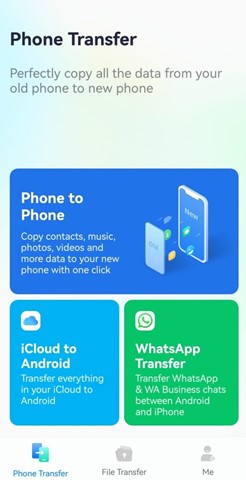
Step 2: Select LINE Transfer
On the Social Transfer page, scroll to the bottom and tap the LINE Transfer card.
MobileTrans will open the LINE Transfer guide and help you continue the process on the desktop version of MobileTrans.
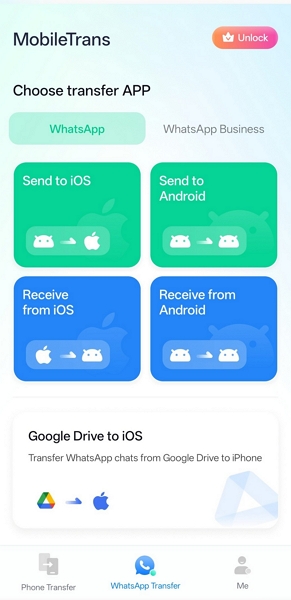
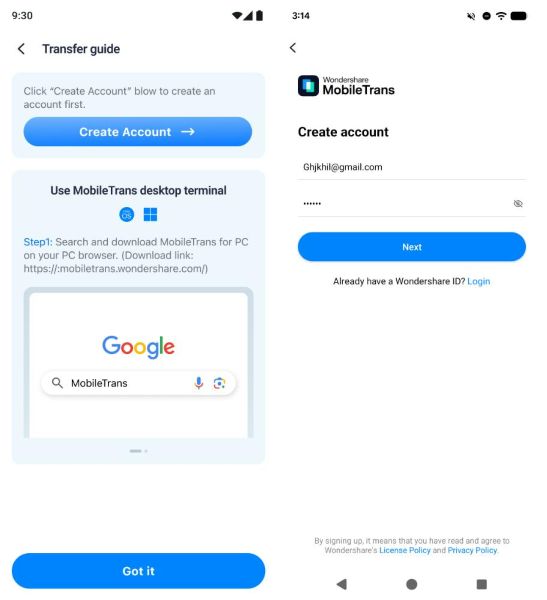
Step 3: Create or Use Your Wondershare ID
If you don't already have an account, enter your email address and create a password to register a new Wondershare ID.
If your phone has already been linked to a Wondershare ID, MobileTrans will notify you. In this case, you do not need to create another account. Simply download MobileTrans on your computer and sign in with your existing account.
Step 4: Continue LINE Transfer on Your Computer
Download and install MobileTrans on your computer from the MobileTrans official website .
 safe & secure
Open MobileTrans and sign in with the Wondershare ID you just created or the account already linked to your phone.
From the left navigation panel, go to App Transfer > LINE to start transferring your LINE chat history.
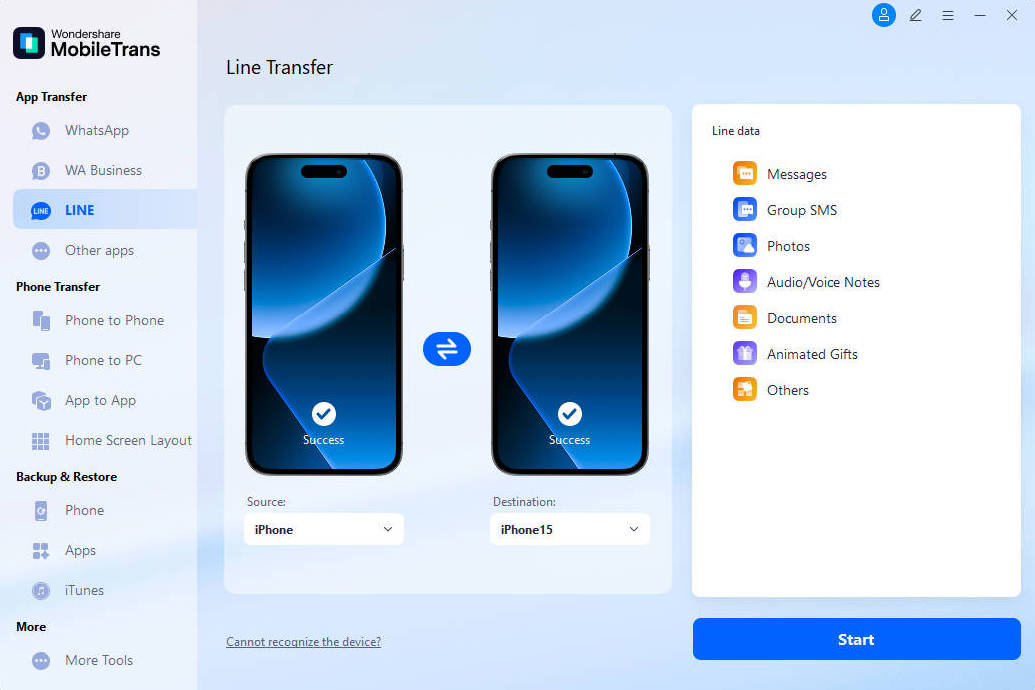
For the complete desktop LINE transfer process, see How to Transfer LINE Chats with MobileTrans on a Computer .
Conclusion
MobileTrans App makes it easy to access LINE Transfer from either Android or iPhone. After opening LINE Transfer on your phone and signing in with a Wondershare ID, you can continue the actual LINE chat transfer with MobileTrans on your computer.
Since the mobile workflow is the same on Android and iOS, you can follow the same steps regardless of which mobile platform you use.