How to Recover Deleted WhatsApp Messages from iCloud/Google Drive
Losing a conversation or a cherished photo due to an accidental tap or a sudden phone glitch can feel like a digital disaster. Nonetheless, your chat history does not have to be lost forever. With MobileTrans, you can recover deleted WhatsApp messages from iCloud Drive or Google Drive. Follow the steps below to get your chats back in just a few taps.
 safe & secure
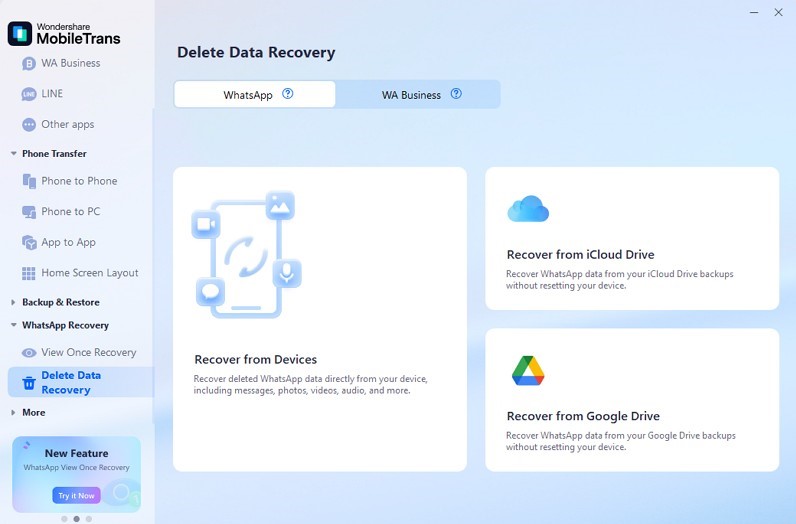
Step 1: Open MobileTrans and go to WhatsApp Recovery > Deleted Data Recovery > WhatsApp.
- If you want to recover data from iCloud, click Recover from iCloud Drive.
- If you want to recover data from Google Drive, click Recover from Google Drive.
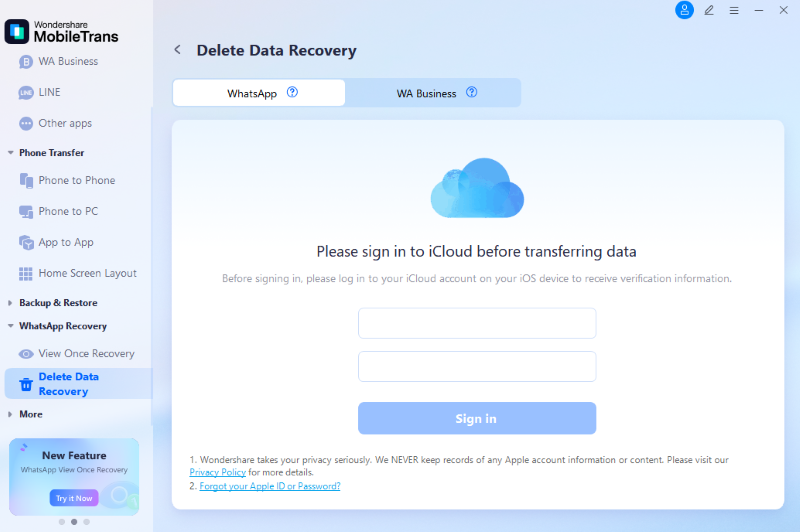
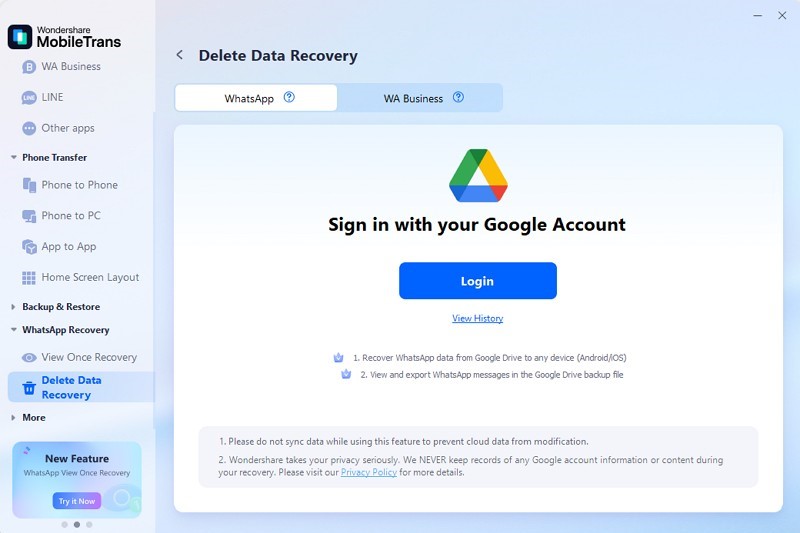
Step 2: Log in to your cloud account.
- If you choose Recover from iCloud Drive, sign in with your Apple ID.
- If you choose Recover from Google Drive, click the Login button and sign in to your Google Account.
Step 3: When the backup file appears on the screen, click the Download button to download the backup package.
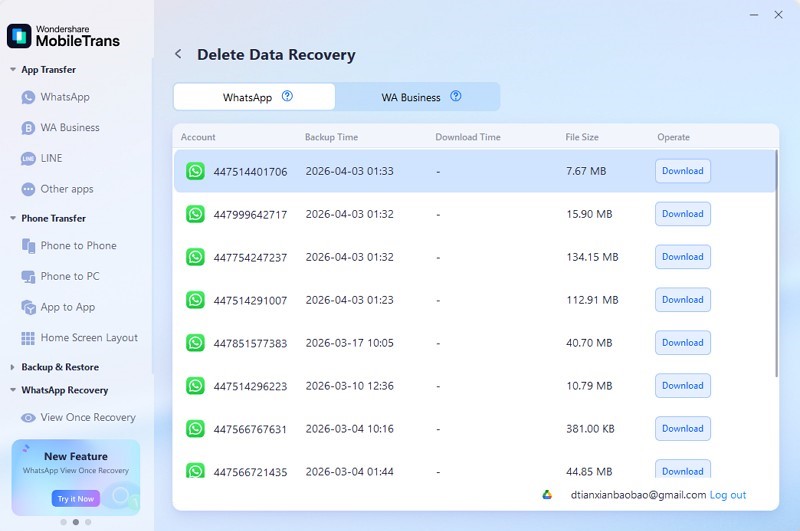
Step 4: Enter the phone number linked to the WhatsApp backup, then click the Verify button.
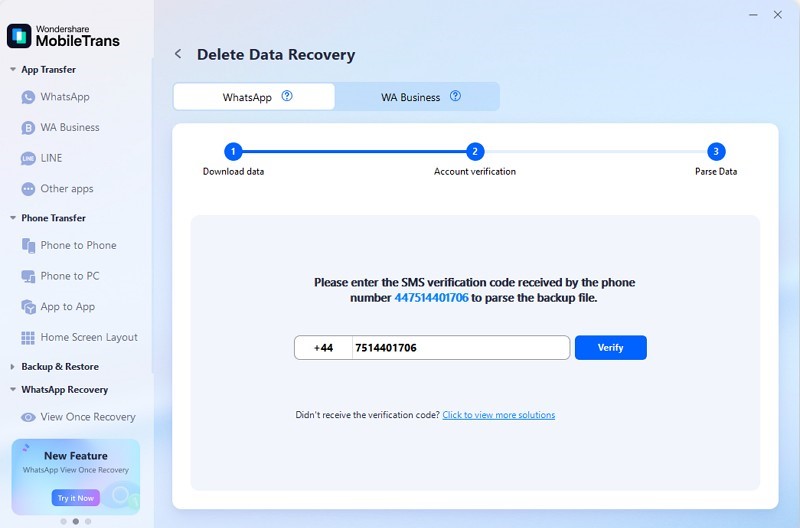
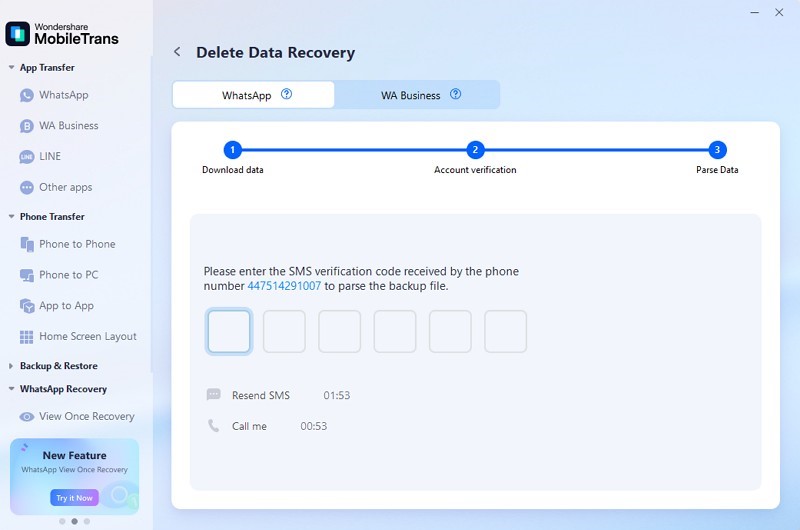
Step 5: When you receive the verification code, enter it to proceed with parsing the backup data.
Step 6: Once the backup is decrypted, locate the WhatsApp messages you want to restore.
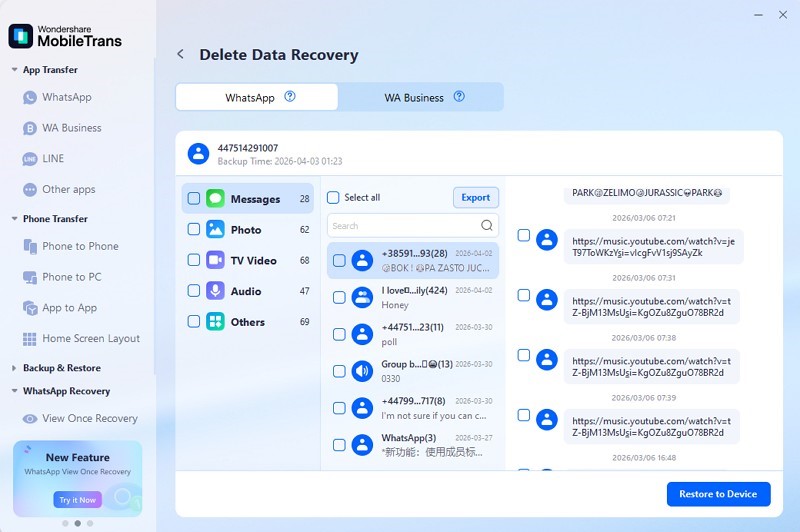
Step 7: Select the target device and click the Start button to restore the selected WhatsApp data.
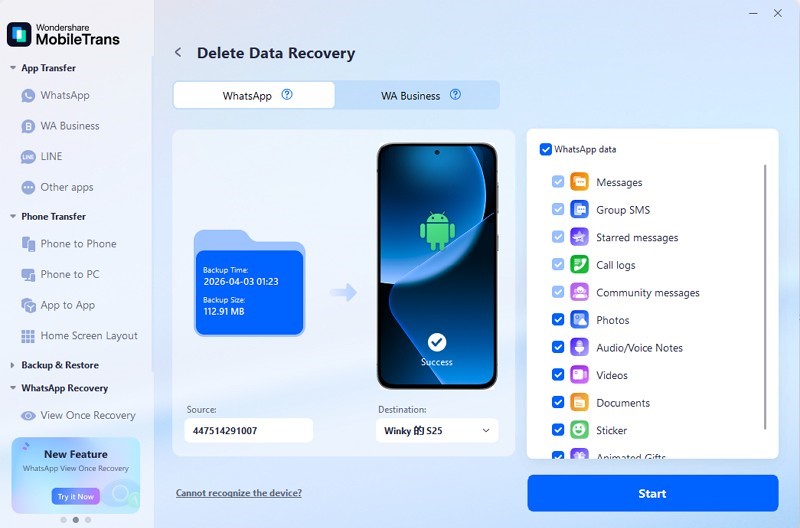
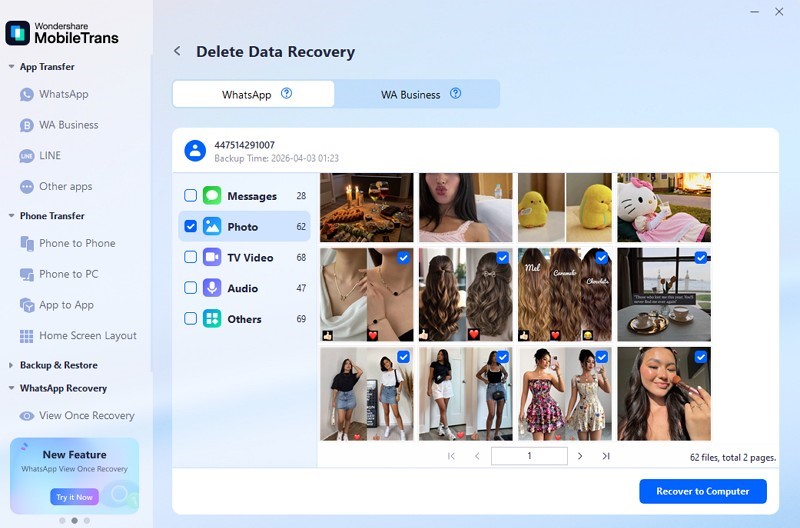
Step 8: If you want to restore the messages to your computer instead, select the data type and click Recover to Computer.