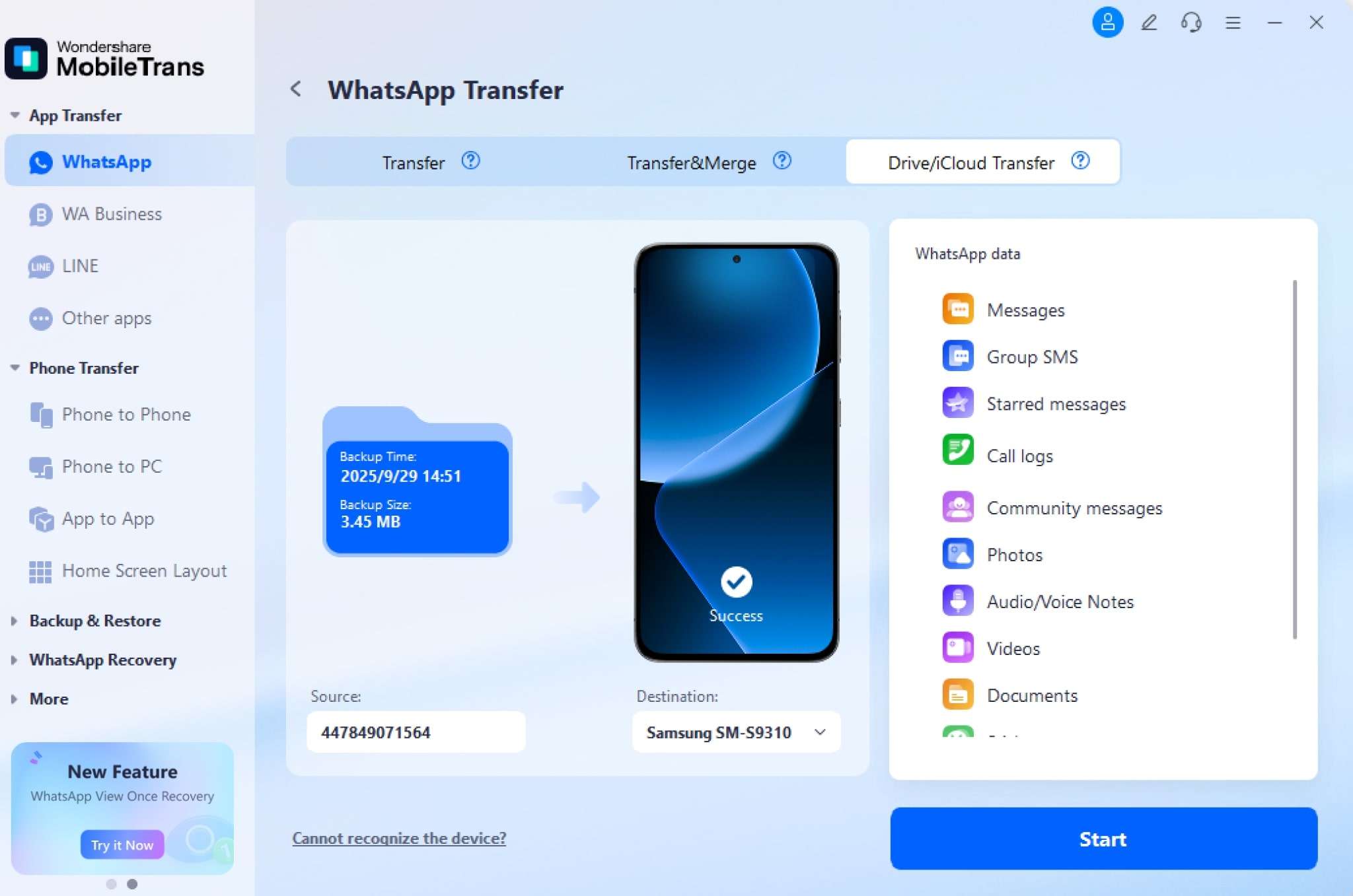
How to Transfer WhatsApp Data From iCloud Drive to Android/iPhone/PC
If you’ve recently switched to a new phone or need to recover your WhatsApp chats from iCloud Drive, MobileTrans makes it easy. This tool helps you quickly restore your WhatsApp data without complex steps. Follow this guide to learn how to move your WhatsApp data from iCloud Drive effortlessly using MobileTrans.
 safe & secure
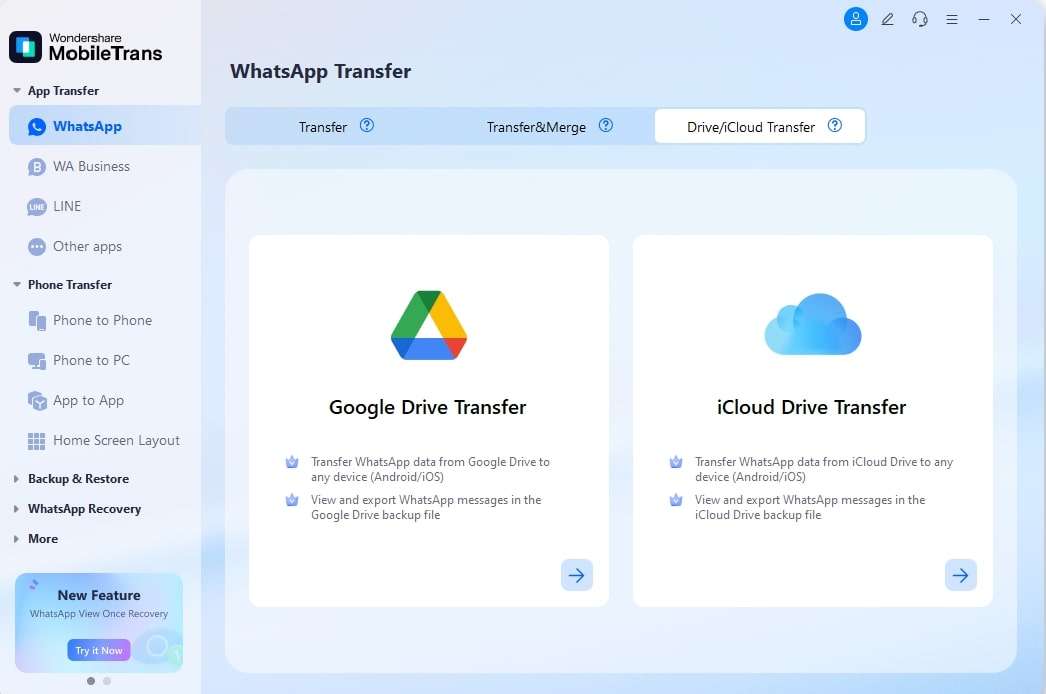
Step 1: Navigate to the WhatsApp tab under App Transfer. Then access the Drive/iCloud Transfer tab and click the iCloud Drive Transfer feature.
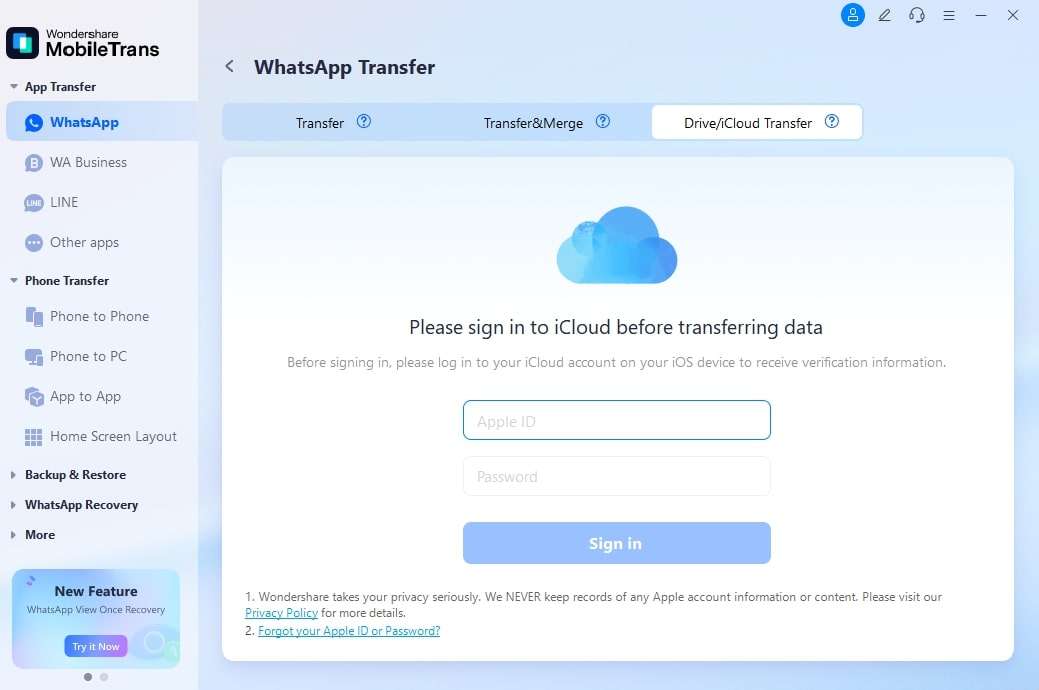
Step 2: Sign in to your correct iCloud account to access the WhatsApp/WhatsApp Business backup data.
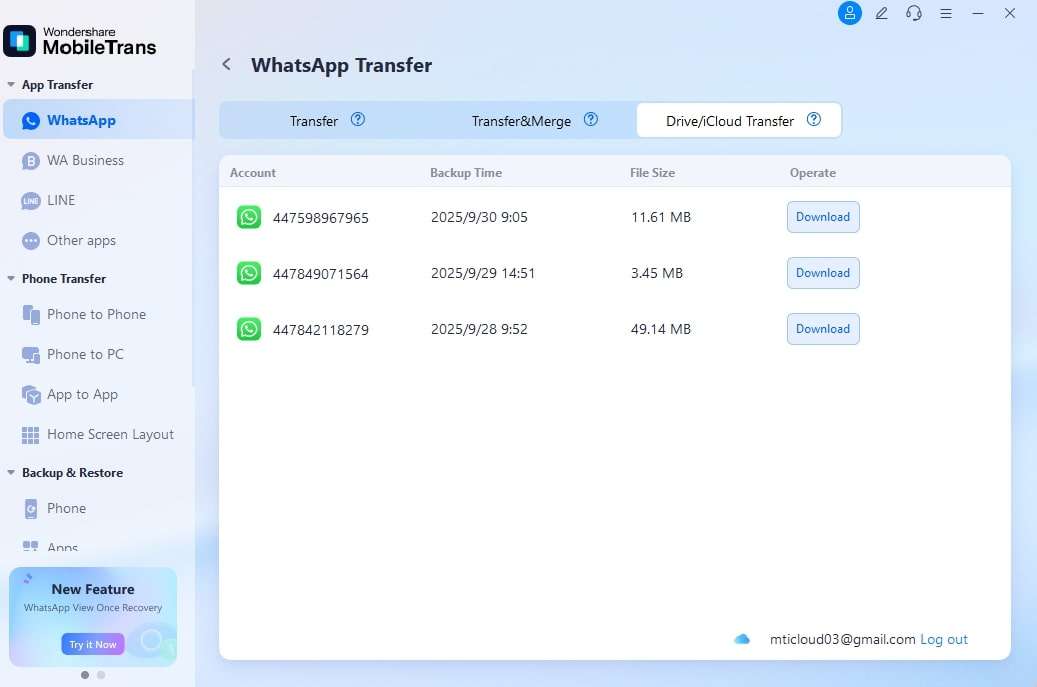
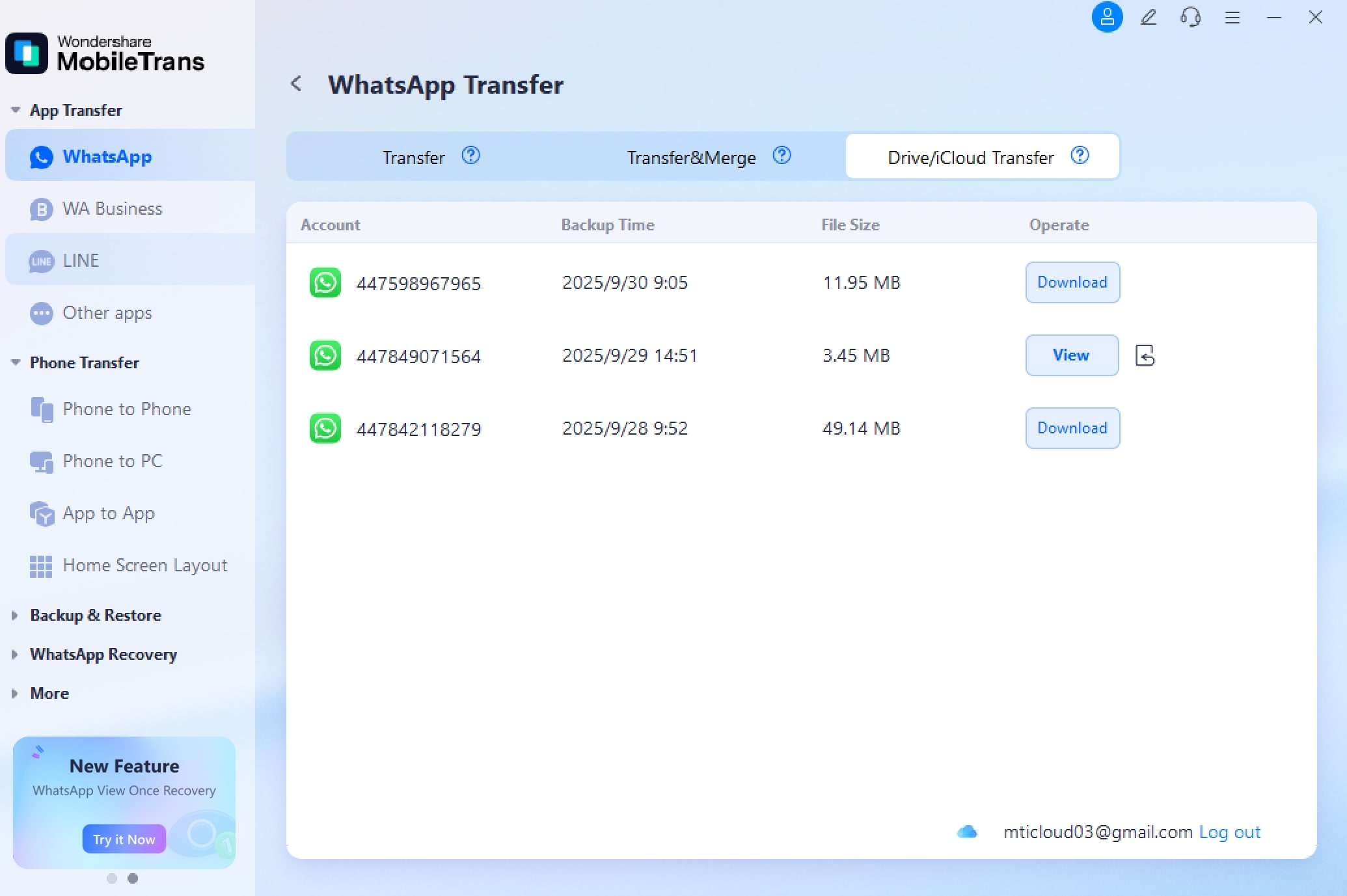
Step 3: Press the Download button after signing in to get your preferred WhatsApp backup file.
Step 4: Enter your mobile number and click Verify to continue.
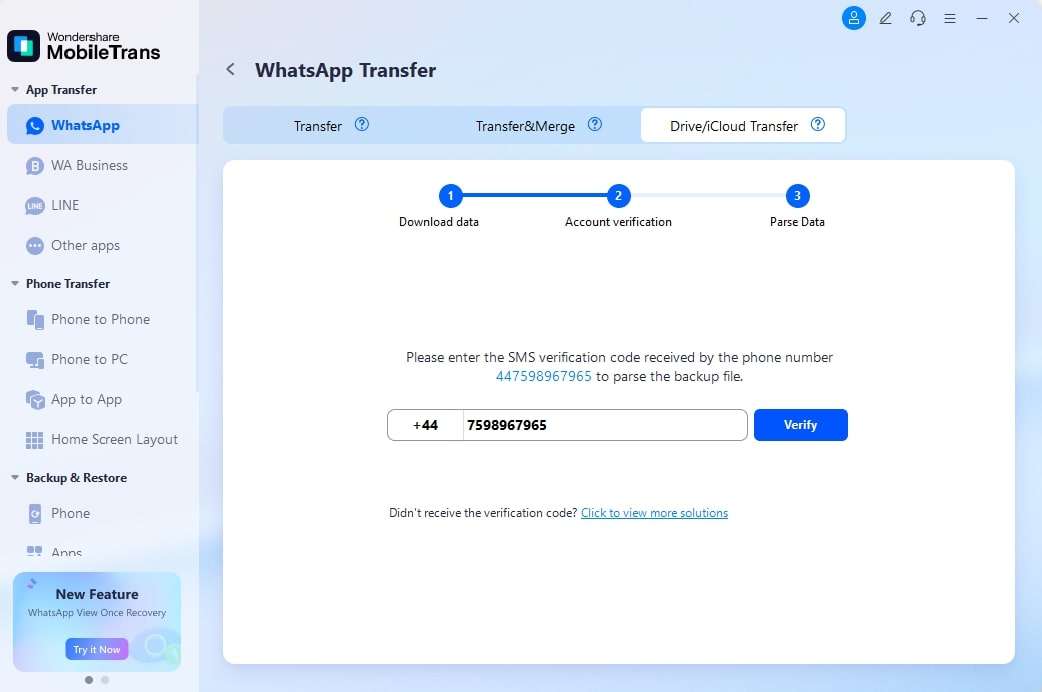
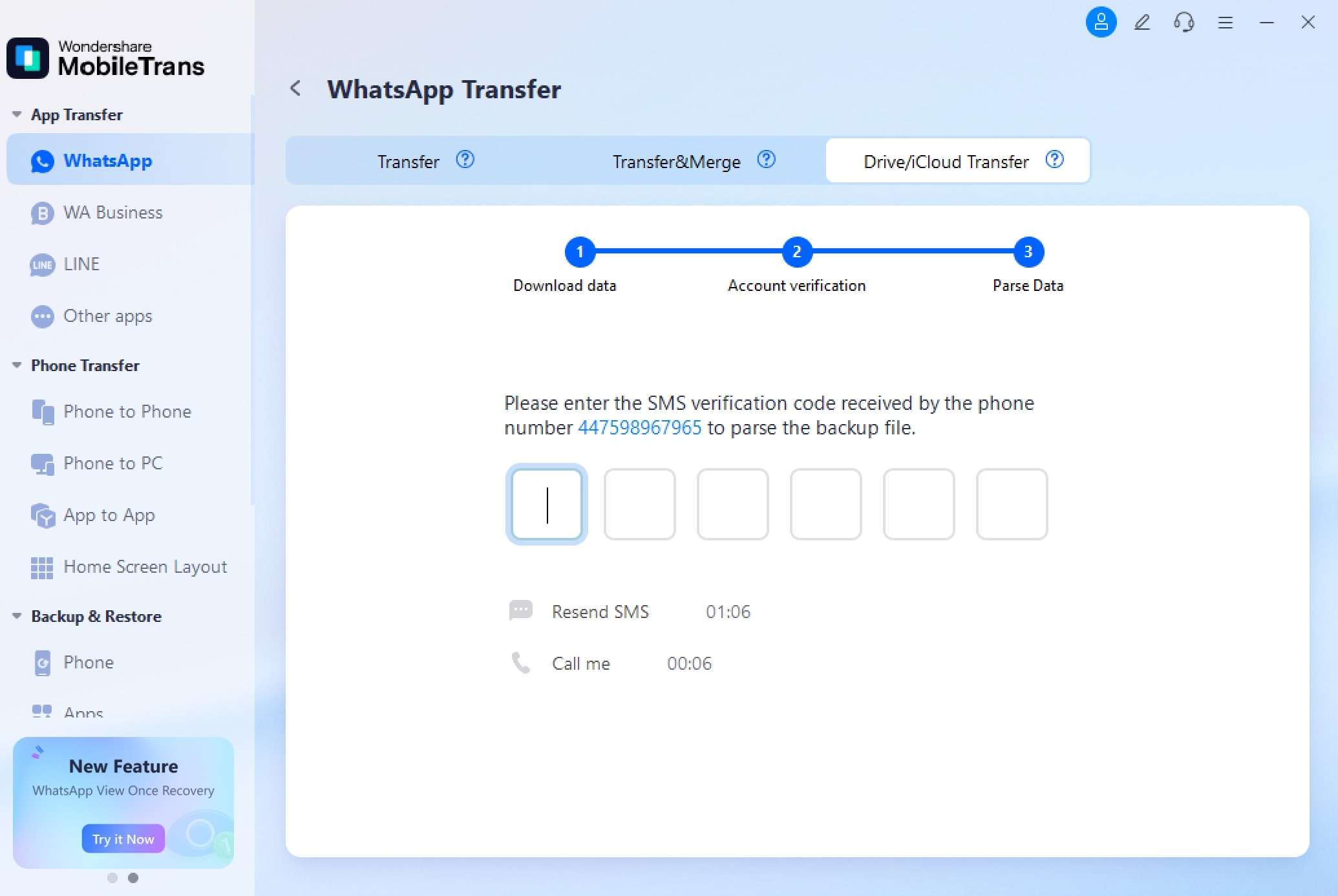
Step 5: Enter the verification code you receive to confirm your identity.
Step 6: Click View to access your WhatsApp backup file data.
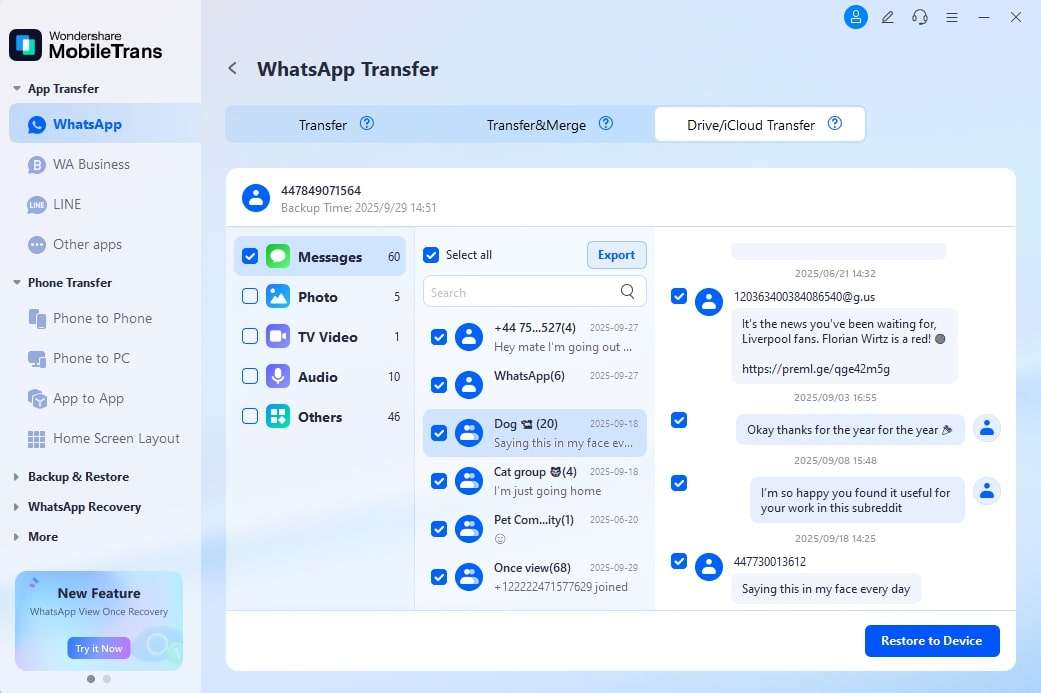
Step 7: Once you open the backup file, select the data you wish to export.
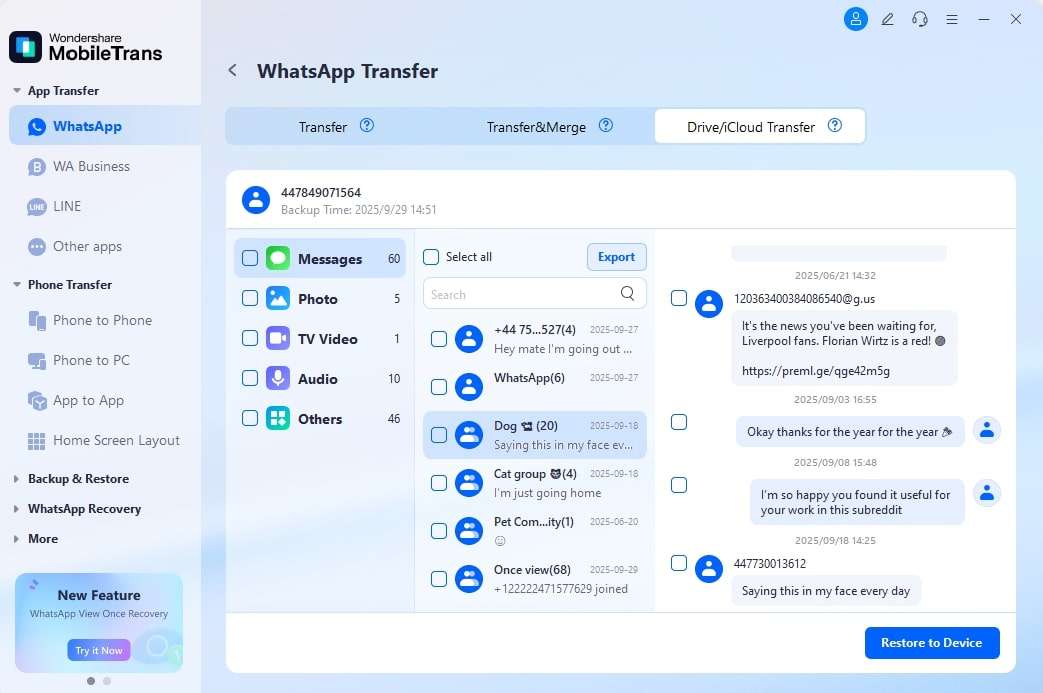
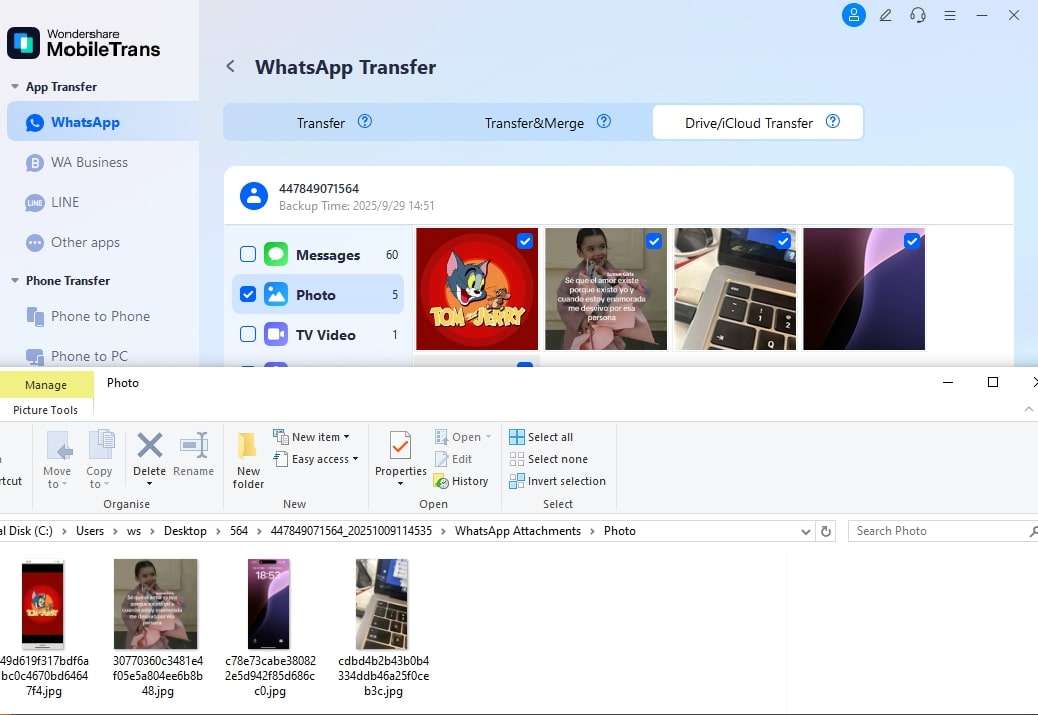
Step 8: To recover WhatsApp data from iCloud onto your computer, choose your save location and click Export.
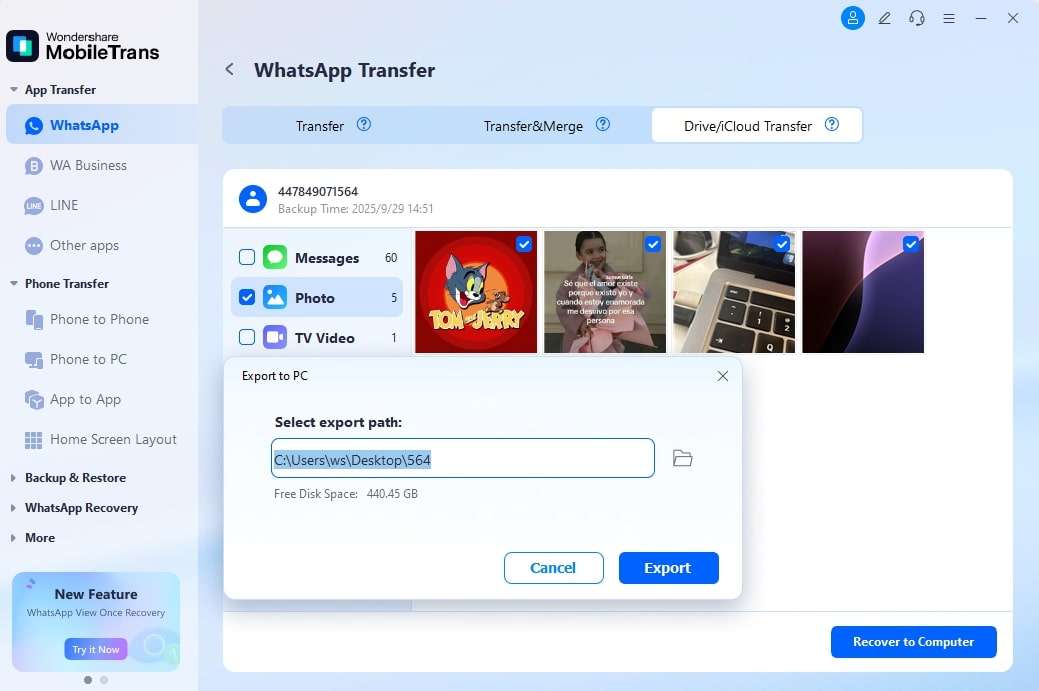
You can also click the Storage Location Folder icon to view and choose your desired path.
Step 9: To restore WhatsApp data to your Android/iPhone, connect your device to the computer using a compatible USB cable, then click Restore to Device.
After detection, choose the WhatsApp data you want and click Start to begin transferring.