
Phone Backup & Restore
Software for iPhone, Android & WhatsApp
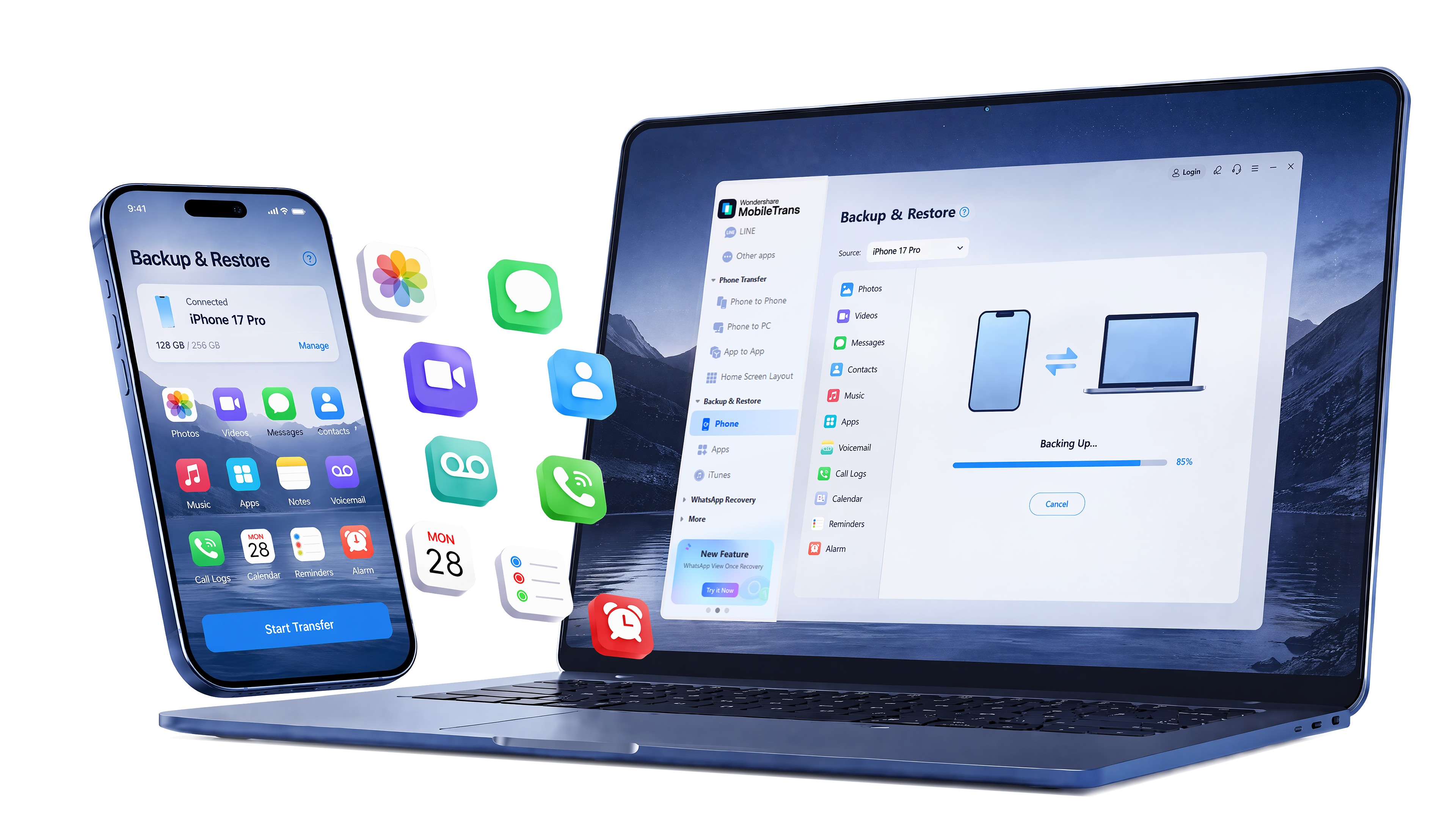


Phone Data Backup & Restore
 photos
 contacts
 text message
 voicemail
 videos
 call logs
 notes
notes voice memos
 contact blacklist
 calendar
 bookmark
 ringtone
 music
music Reminders
 alarms
 Safari history
 wallpaper
 apps
apps
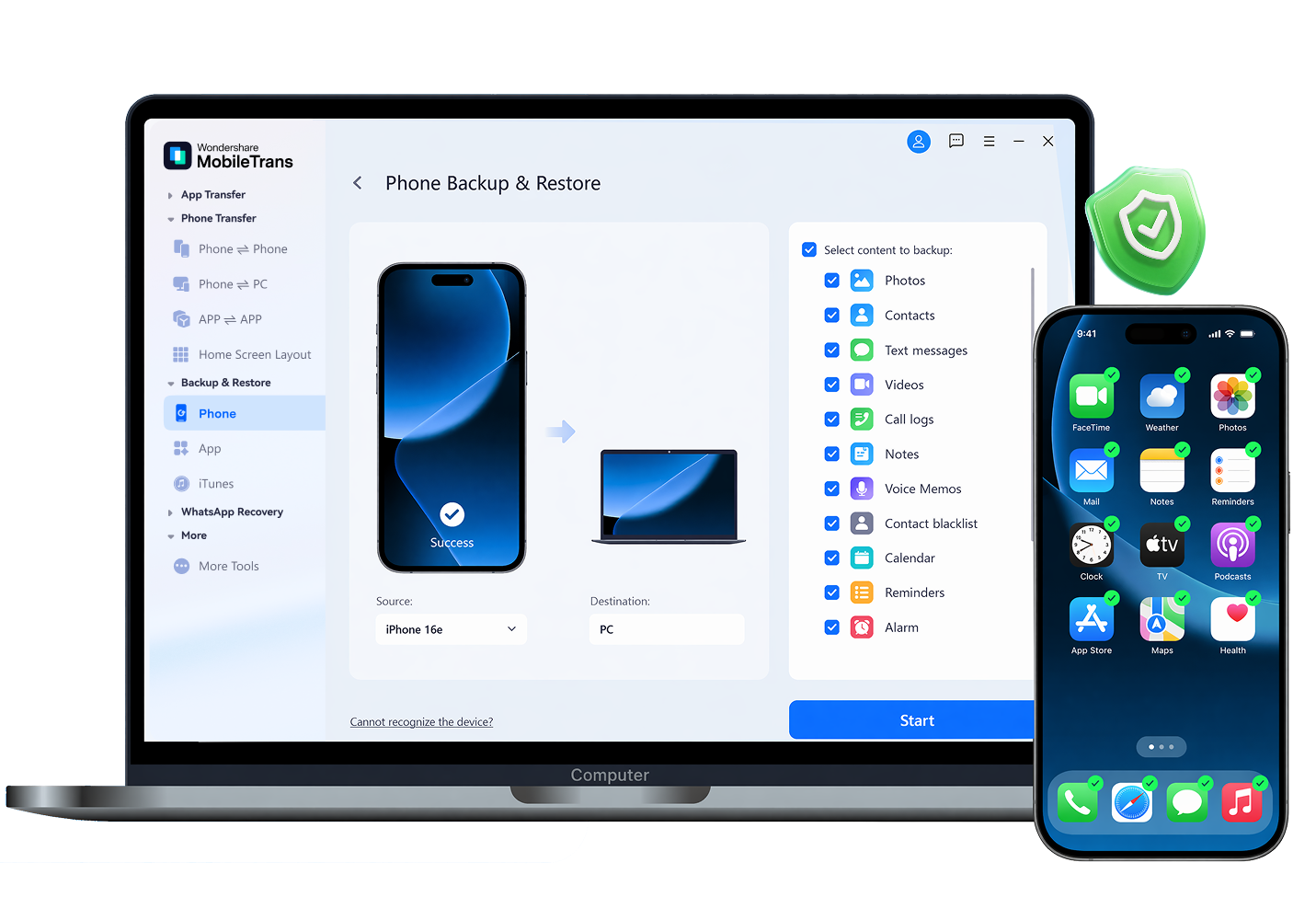
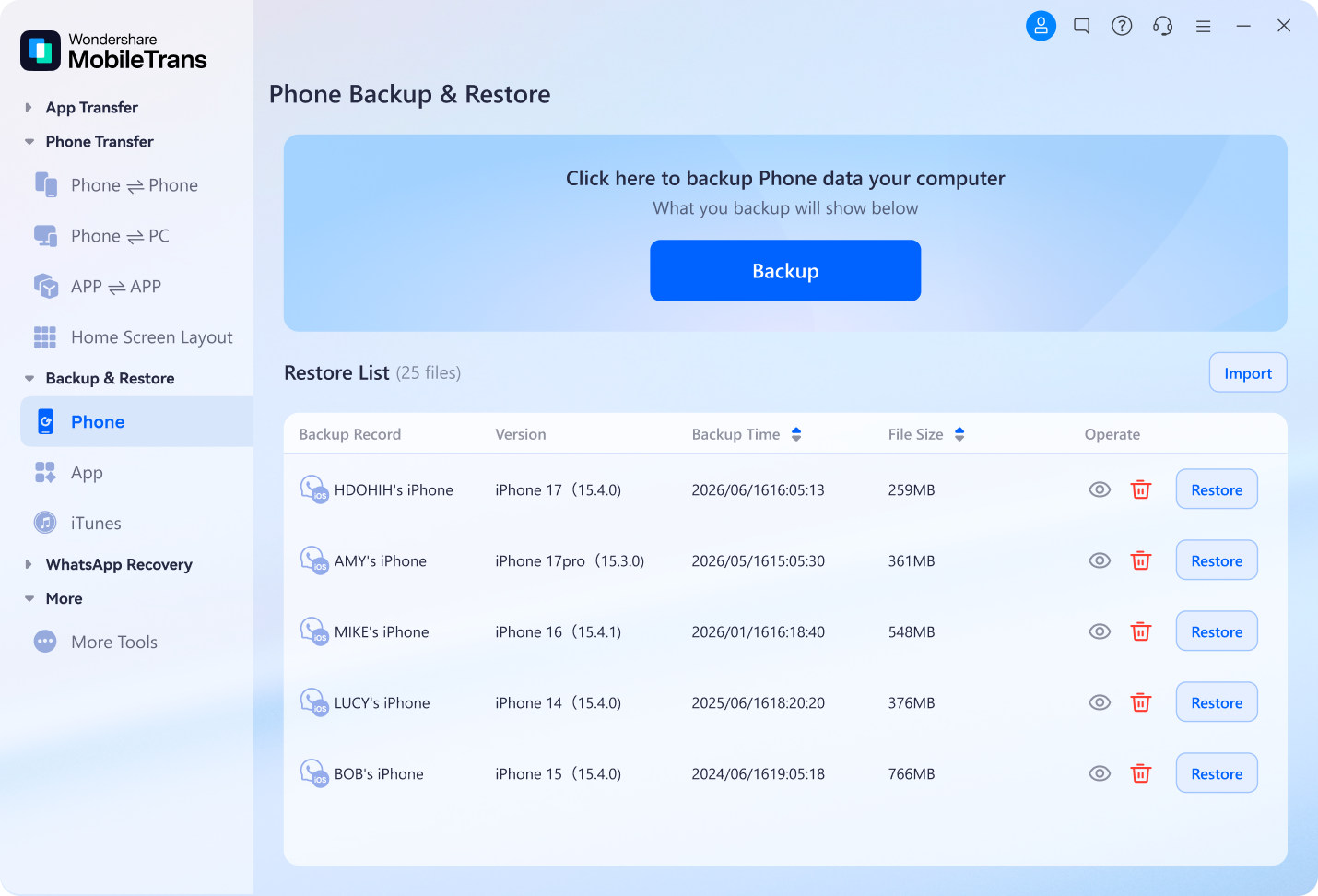
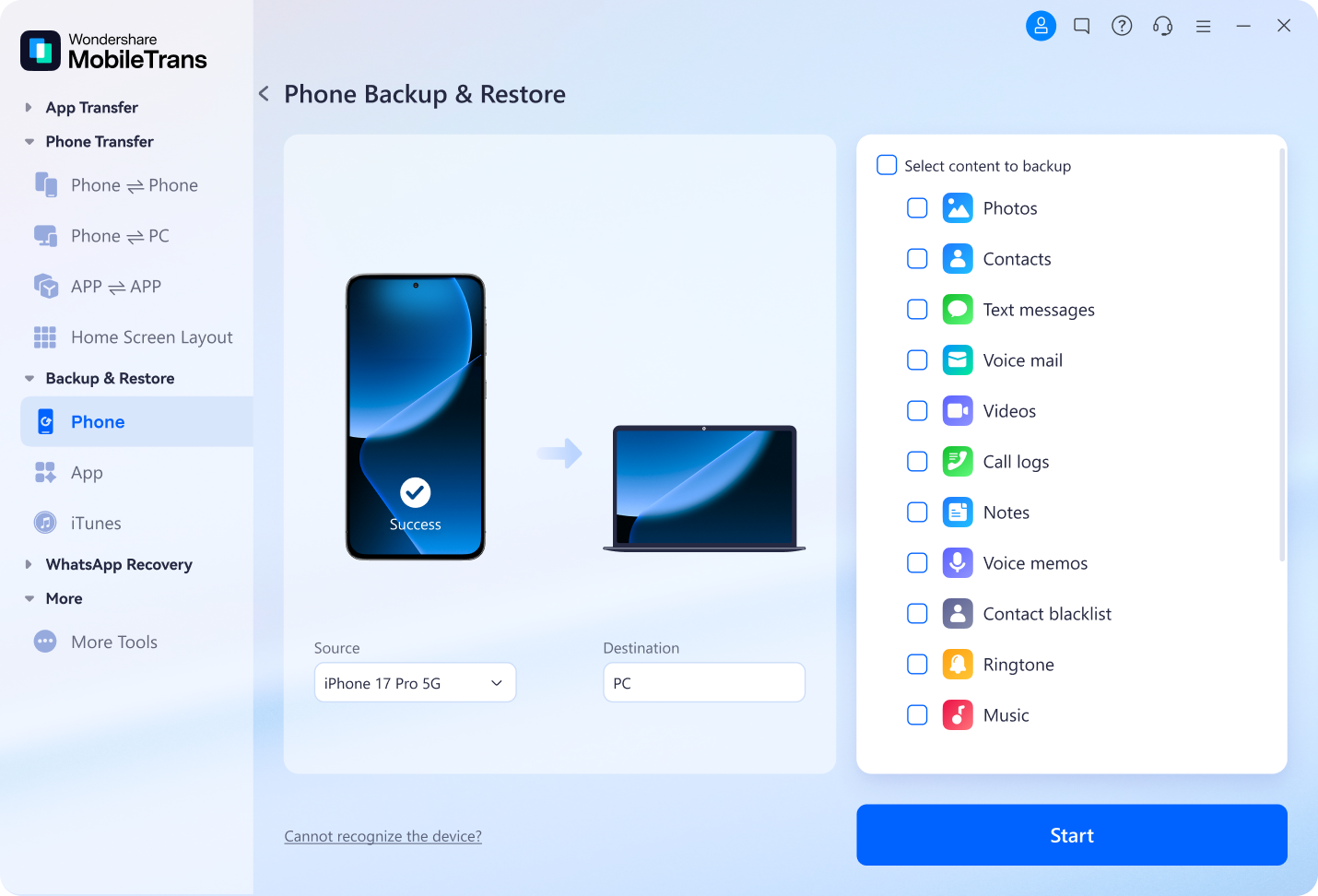
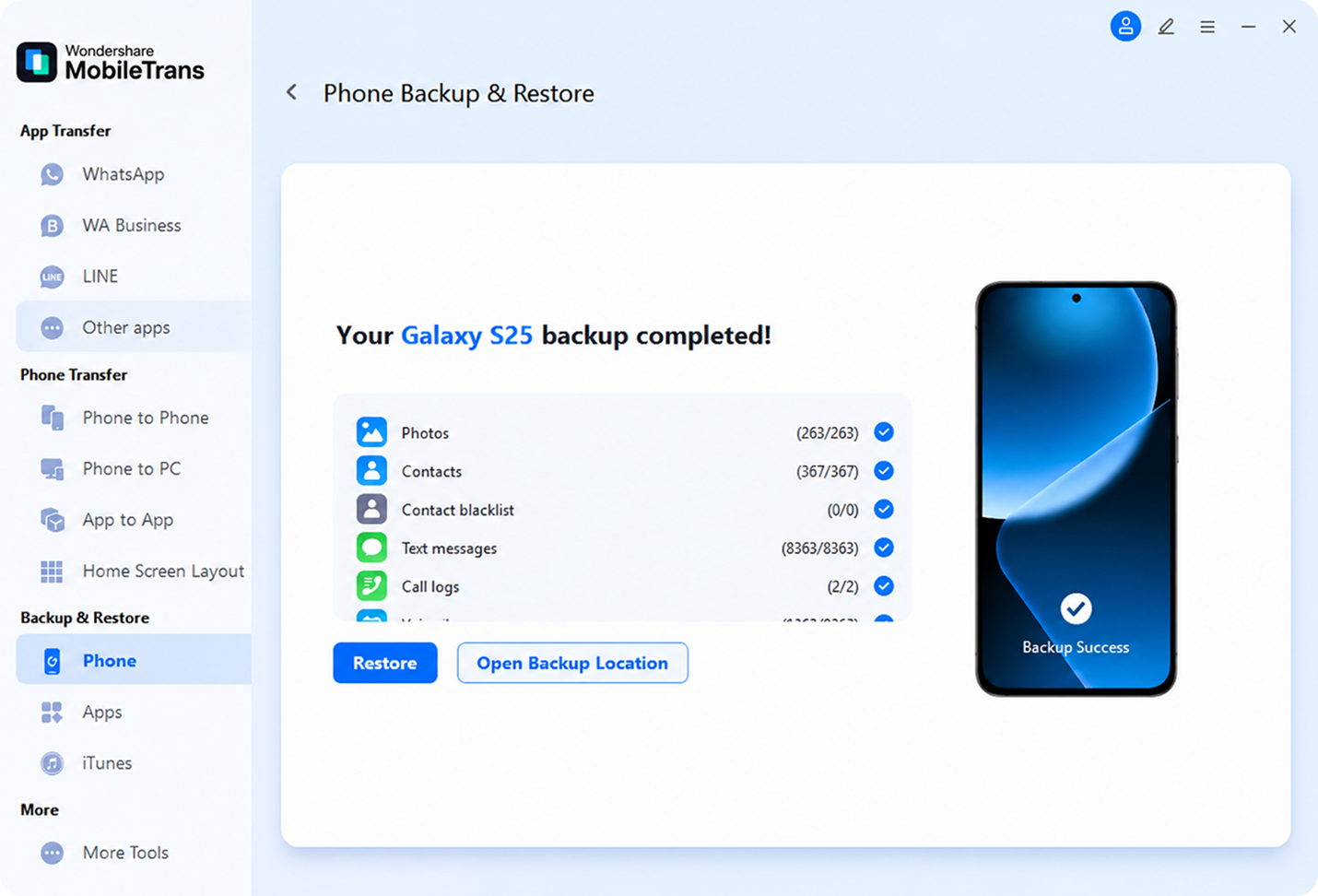
Looking for the best way to back up Samsung, iPhone, or other devices without cloud limits? Protect your photos, contacts, and execute SMS backup&restore tasks with a direct, local connection. Back up 18+ data types securely via USB cable. No internet connection required.
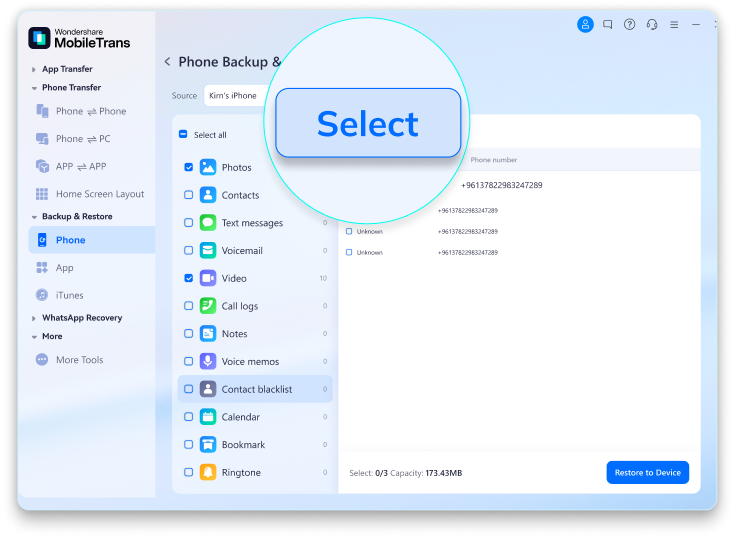
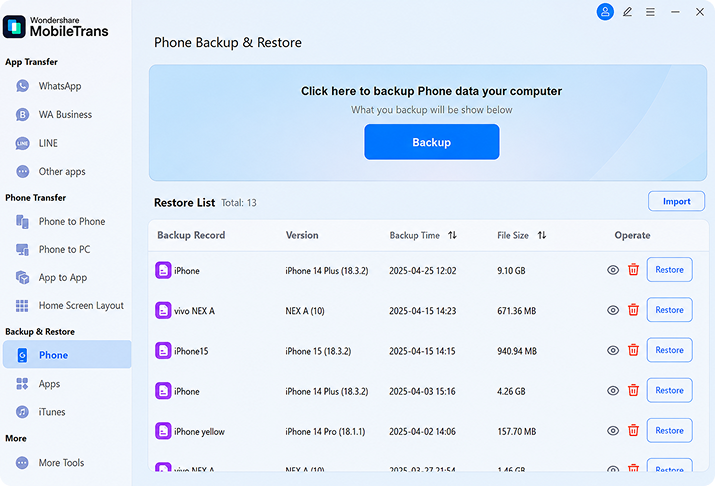
Need specific files back but don't want to restore the entire backup? Access your local backups and selectively choose only the data you need—whether it's text messages on Android or iPhone files. We guarantee no factory resets and no data overwriting, keeping your current phone perfectly intact.
WhatsApp Backup and Restore
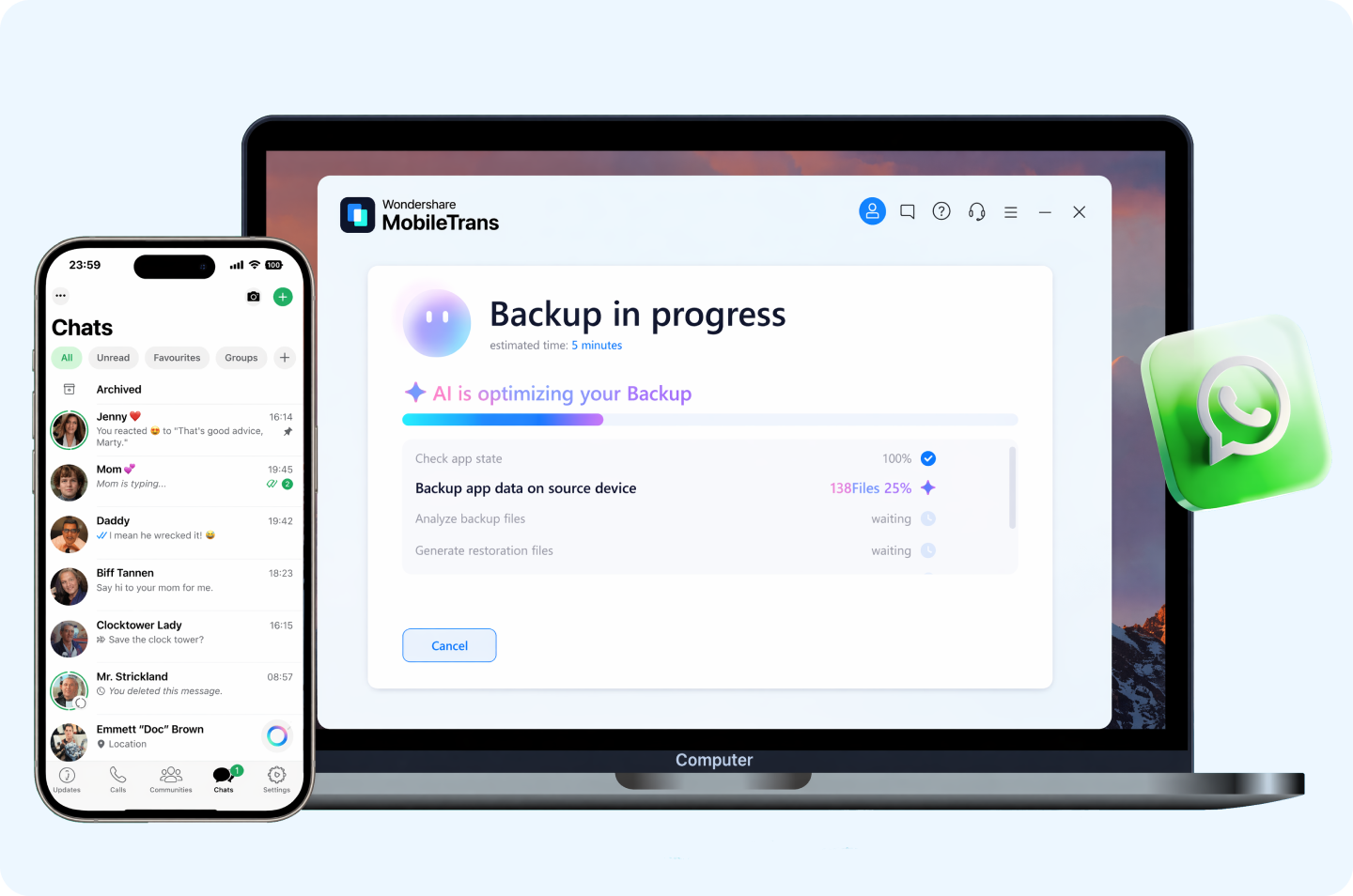
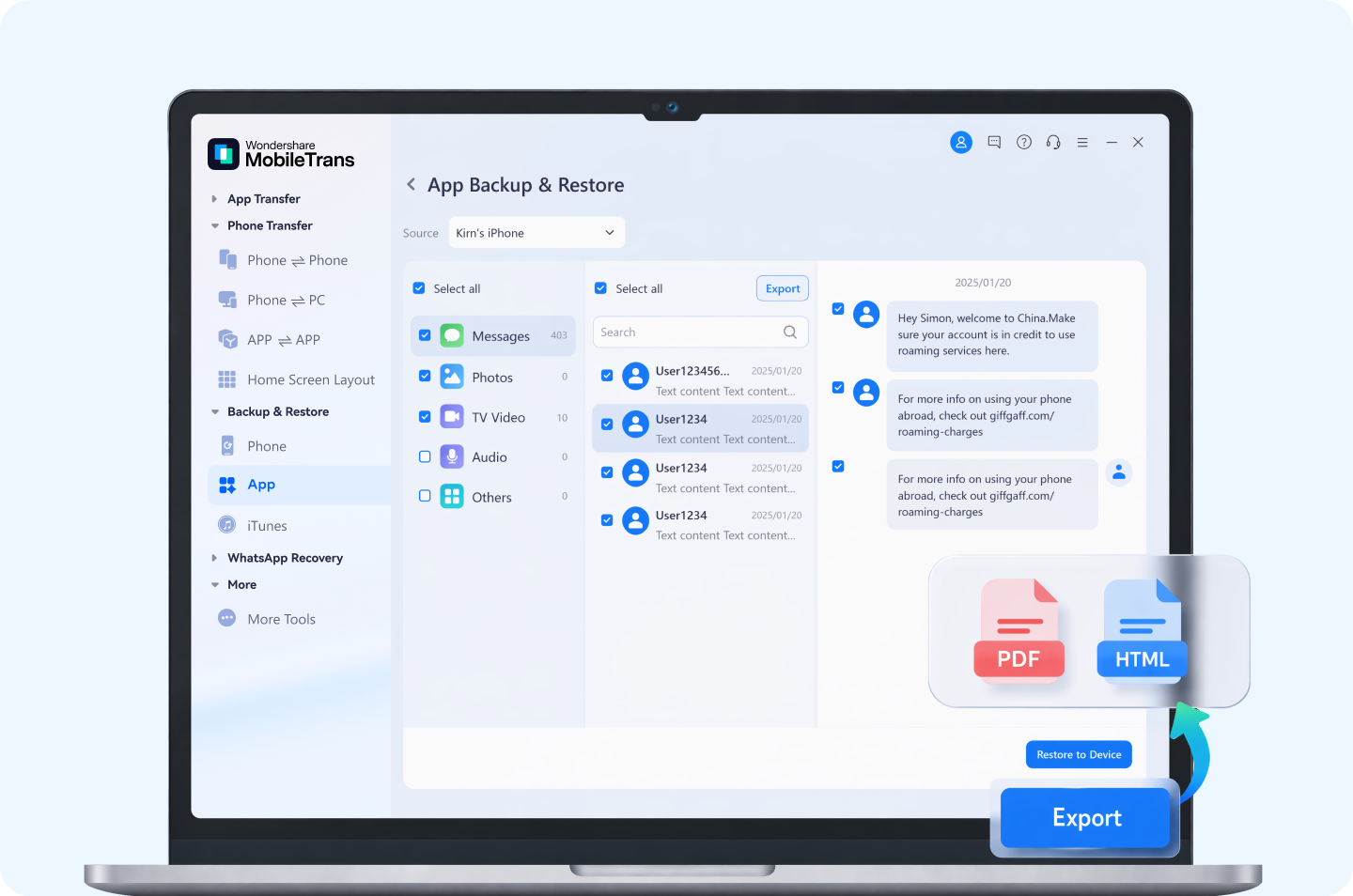

Accidentally Deleted WhatsApp Chats?
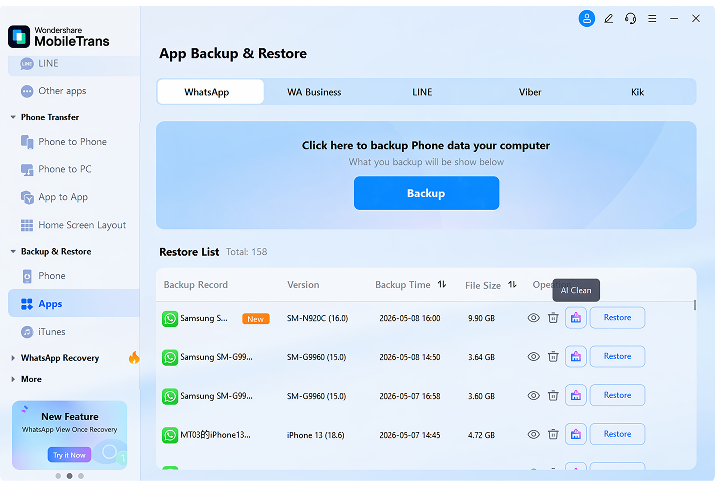
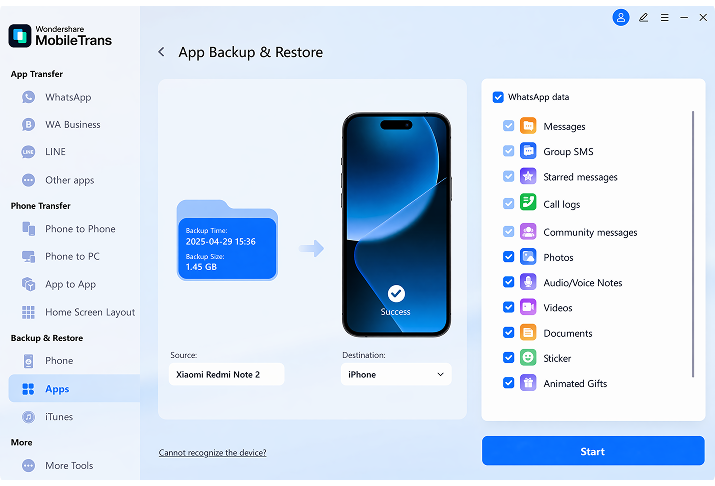
MobileTrans offers recovery options for supported scenarios. Android users may retrieve deleted WhatsApp messages directly from the device without an existing backup. iPhone users can scan and extract chat history from iOS or iTunes backups. You can also pull data from iCloud Drive or Google Drive backups and restore selected chats to supported devices without a full device reset.
Restore Phone Data from Existing Backups
Besides restoring backup files generated by itself, MobileTrans can do more for you, find out here

MobileTrans Backups
Easily locate, preview, and restore data from previous local MobileTrans files or Google backup of contacts to any new device you own.

iTunes Backups
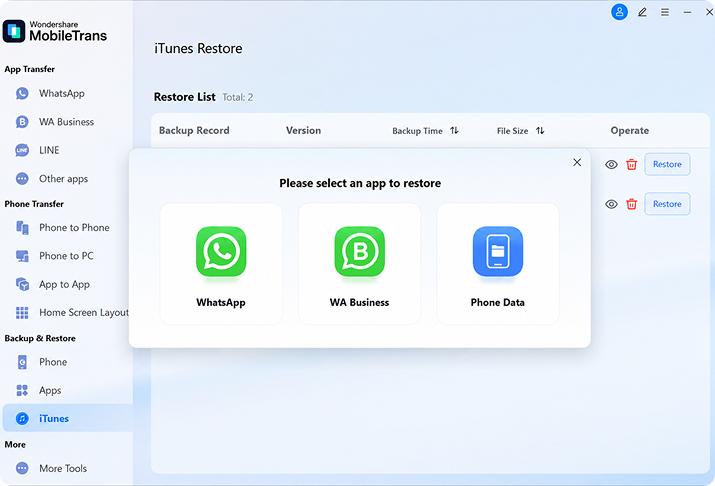
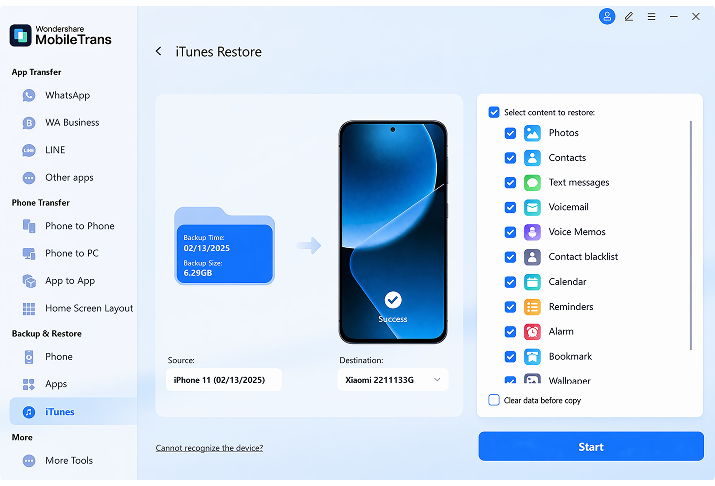
Want to restore iPhone from backup files without dealing with iTunes syncing errors? Preview your old iTunes backups on your computer, extract the data, and even restore it directly to an Android phone.
Why Choose MobileTrans Over iCloud, iTunes, or Google Drive?
| Features |  |
  |
 |
|---|---|---|---|
| Selective backup | Limited | ||
| Selective restore | |||
| Restore without overwriting | Limited | Limited | Limited |
| Restore iTunes backup to iPhone or Android | Limited | ||
| Selectively back up WhatsApp, LINE, Kik, and Viber data | |||
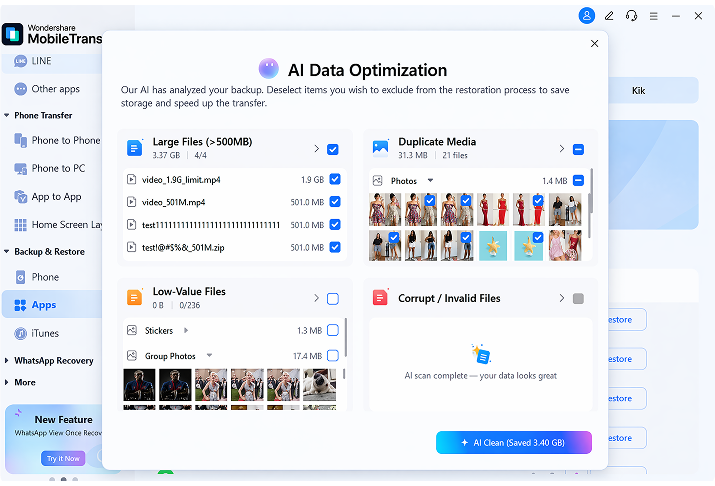
| AI Clean before WhatsApp restore | |||
| Export WhatsApp Chats as PDF/HTML | |||
| No cloud storage required | |||

| MobileTrans |
|---|
How to Back Up and Restore Your Phone Data?

Tech Specs
CPU
1GHz (32 bit or 64 bit)
RAM
256 MB or more of RAM (1024MB recommended)
Hard Disk Space
200 MB and above free space
iOS
iOS Versions: iOS 6 and up (iOS 27 included) Android Versions: Android 4.6 and up (Android 16 included)
Computer OS
Windows: Win 11/10/7/Vista/XP
Mac: 14 (macOS Sonoma), 13 (macOS Ventura), 12 (macOS Monterey), 11 (macOS Big Sur), 10.15 (macOS Catalina), 10.14 (macOS Mojave), Mac OS X 10.13 (High Sierra), 10.12 (macOS Sierra), 10.11 (El Capitan), 10.10 (Yosemite), 10.9 (Mavericks), or 10.8
Why Users Love MobileTrans for Backup & Restore

David R
This tool is exactly what I needed. I backed up my entire phone to my PC and restored it to my new device without any data loss.
Sarah K
A tool that actually backs up your data locally—no more worrying about running out of expensive cloud storage!
Michael T
Works as advertised! Successfully backed up thousands of photos and contacts to my computer in just a few minutes.
Emily L
Simple interface, fast backup process. Highly recommend for anyone who wants a secure local copy of their phone data.
James P
I was worried about losing my files during a factory reset, but the restore feature brought everything back perfectly.
David R
This tool is exactly what I needed. I backed up my entire phone to my PC and restored it to my new device without any data loss.
Sarah K
A tool that actually backs up your data locally—no more worrying about running out of expensive cloud storage!
Michael T
Works as advertised! Successfully backed up thousands of photos and contacts to my computer in just a few minutes.
Emily L
Simple interface, fast backup process. Highly recommend for anyone who wants a secure local copy of their phone data.
James P
I was worried about losing my files during a factory reset, but the restore feature brought everything back perfectly.
David R
A must-have for phone switchers! Even non-techies can use it to securely back up and restore their devices.
Daniel H
Saves time and stress. Unlike complex iTunes backups, this software lets you back up Android and iOS devices easily.
Sophia W
Restored my previous backup to my newly purchased phone seamlessly—worth every penny!
Ethan B
MobileTrans keeps it practical. Being able to choose specific data types to back up or restore is a huge time-saver.
Ava S
Took a bit of time for a large backup, but overall, it safely backed up and restored all my important files.
David R
A must-have for phone switchers! Even non-techies can use it to securely back up and restore their devices.
Daniel H
Saves time and stress. Unlike complex iTunes backups, this software lets you back up Android and iOS devices easily.
Sophia W
Restored my previous backup to my newly purchased phone seamlessly—worth every penny!
Ethan B
MobileTrans keeps it practical. Being able to choose specific data types to back up or restore is a huge time-saver.
Ava S
Took a bit of time for a large backup, but overall, it safely backed up and restored all my important files.You May still be Wondering
 What types of data can I back up using MobileTrans?
 How long does it take to back up my phone data?
Where are the MobileTrans backup files stored on my computer?
Can I restore my old phone's backup to a new phone?
How long does it take to back up my phone data?
Where are the MobileTrans backup files stored on my computer?
Can I restore my old phone's backup to a new phone?
- Run MobileTrans software and open the "Restore" feature.
- Connect your new phone to the computer.
- Select the backup in the left list and choose file types to transfer.
- Click "Start" to restore the MobileTrans backup to your new phone.
How can I restore my iPhone data without iTunes?
- Launch MobileTrans and choose the "Restore" feature.
- Connect your iPhone to this computer.
- Select "MobileTrans Backup" to restore your iPhone.
