


 TL;DR:
You can mention contacts in a WhatsApp status by tapping the @ symbol in the caption text box before publishing a photo or video to trigger an immediate notification for the targeted user.
● This tagging capability is strictly limited to picture and video uploads and cannot be applied when creating audio or text-based status updates.
● Mentioned individuals will not see the tag if they do not have your phone number saved in their address book unless your status privacy is configured to show all contacts.
● The WeLastseen tracker application permits downloading expired personal or WhatsApp Business statuses to local device storage but can only capture media uploaded after you link the specific contact for monitoring.
Ask AI for a summary
 ChatGPT
 Perplexity
 Gemini
 Claude
 Grok
Grok
WhatsApp is launching an exciting new feature that could revolutionize staying connected. Imagine being able to mention your contacts directly in your status updates, just like tagging friends on Instagram and Facebook. This small yet impactful change will make it easier to grab the attention of friends or family and keep them updated.
Whether announcing an event or providing a quick update, this feature will add a more personalized touch to your updates. It will be a beneficial feature for users as it ensures your updates reach the right people. As a bonus tip, we will explore how to mention someone when creating a status to help you stay more connected than ever before.
In this article

Part 1. How to Mention Someone When Creating a Status on WhatsApp
Upon discussing the need for this upcoming feature, let us look into how this feature will work on different operating systems. Users get to apply this “Status Mention” feature only while uploading pictures or videos as a status.
Therefore, you cannot tag a user while adding an audio or text status. Through the following steps, understanding how to mention someone in WhatsApp status on different devices will help you navigate this functionality.
1. For Android
As an Android device user, you can update your WhatsApp status and add mentions to make sure your desired contact sees the status before the 24-hour deadline. Explore the steps below to start uploading status on Android and learning how to mention your friends:
Step 1. Locate and press the WhatsApp icon on your device to open the app. Within the main screen, enter the “Updates” tab from the bottom navigation bar. From here, tap on your profile photo with the “+” green button to start posting your status.

Step 2. Now, you can either snap a live “Photo” or “Video” according to your will. Alternatively, press the “Gallery” icon to upload multimedia from the “Gallery” of your device.

Step 3. Once you are done cropping and editing the status you are trying to upload, hit the “Add a Caption” text box. Within this box, touch the “@” icon on the bottom-right and hit the “OK” to move from the following screen. Now, select the contact you want to mention from the list and press the “Tick” button. This will inform the tagged contact that they were mentioned on your status.

2. For iOS
While adding status on an iOS device, you can insert mentions to ensure your favorite contact notices it before the status disappears. Follow the steps below to start creating status and discover how to use the WhatsApp status mention feature through an iPhone device:
Step 1. Open the WhatsApp application, go to the “Updates” tab from the bottom-left, and tap the “My Status” beside your profile icon to add the status.

Step 2. Next, use WhatsApp's camera lens to capture a picture or video. Alternatively, import an image or video through the “Gallery” icon since you are going to add media on status.

Step 3. Lastly, as you upload the status, the caption text box will have an "@" sign that represents the tagging feature. Using that icon, pick someone from your contact list and witness them getting tagged on your status for immediate viewing.

Pro Tip: How to Track and Save WhatsApp Status Updates Instantly
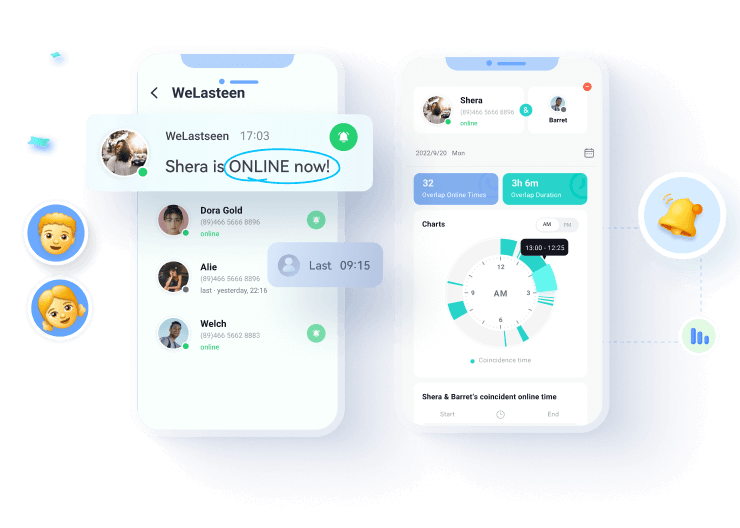
After learning how to use WhatsApp status mentions on different devices, it’s time to explore a smarter way to monitor them. The best solution is the WeLastseen, which now offers a brand-new WhatsApp Status Tracker feature. With it, you can track your contacts’ photos, videos, and voice statuses in real time and even view them after they’ve expired.
Key Features
- Real-Time Status Tracking: Monitor WhatsApp status updates (photos, videos, and voice notes) as soon as they’re uploaded.
- Extended Visibility: View and save statuses even after they disappear after 24 hours.
- Free Local Saving: Download and store WhatsApp statuses directly to your device gallery.
- Business Status Support: Fully compatible with both WhatsApp and WhatsApp Business statuses.






Quick Guide: How to Track WhatsApp Status Using WeLastseen
Follow this simple walkthrough to start tracking and saving WhatsApp statuses with ease:
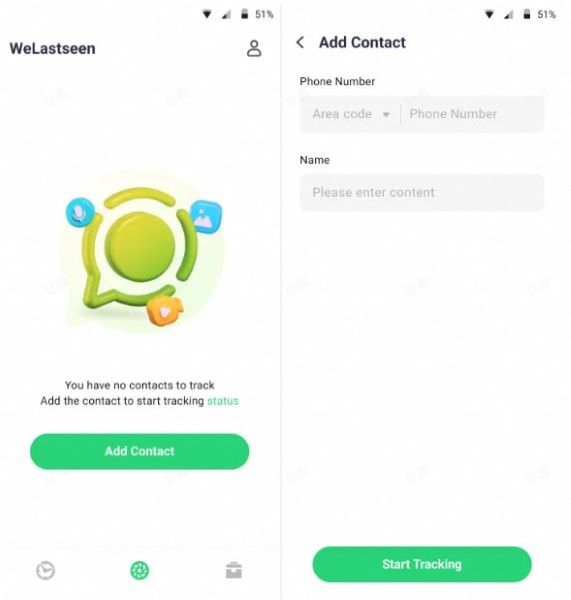
01 of 03 Launch WeLastseen and Access “Status Tracker”
Open the WeLastseen app and navigate to the “Status Tracker” tab. Press the “Add Contacts” button and grant the necessary permissions to start monitoring your chosen contact’s statuses.
02 of 03 Connect Your WhatsApp Account
Tap “Link” to connect your WhatsApp account. This will allow WeLastseen to monitor both personal and business statuses in real time.
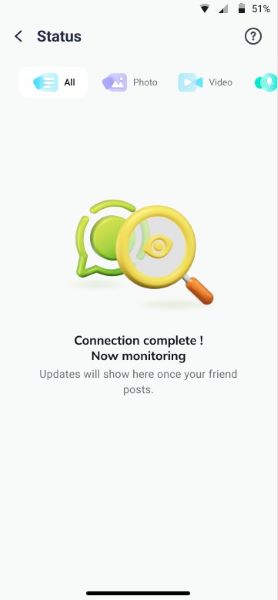
03 of 03 View and Save Expired Statuses
Once connected, you can view all statuses posted by the tracked contact — even those that have expired. Tap the “Download” button to save them directly to your local gallery.
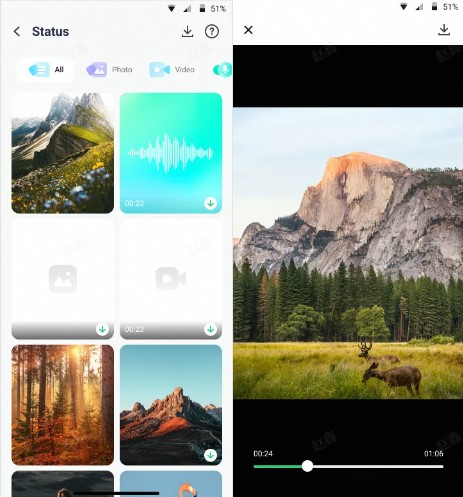
WeLastseen’s WhatsApp Status Tracker gives users the ultimate freedom to monitor, view, and save WhatsApp stories anytime — even after they’ve been deleted.
Part 3. Helpful Tips on Uploading an Attractive and Interactive WhatsApp Story
Once you have learned how to mention someone when creating a status, let’s talk about the best practices while adding a status for better engagement with your contacts.
- Use High-Quality Visuals: Always add high-resolution images or videos to grab your audience's attention. A visually appealing story is more likely to get replies and reactions from your contacts.
- Include Captions or Text Overlays: Adding captions or relevant text can give context to your story and make it more meaningful. Highlight key points or add a call-to-action to drive interaction.

- Add Stickers, Emojis, and GIFs: Make your story livelier by incorporating stickers, emojis, or GIFs that align with your message. By doing so, you can add personality and convey emotions more effectively through a status update.

- Use Mentions and Links: Mention specific contacts or add links to direct people’s attention to what you want them to see. This ensures better reach and increases engagement with your story.

- Utilize Filters Creatively: WhatsApp offers a range of filters that can make your story pop. Use them sparingly to enhance your content, making it visually appealing without being overwhelming.

FAQs
-
Q1. Will the mentioned person receive a notification?
When you mention someone in your WhatsApp status, they will receive a notification, making it easier for them to notice your status update. -
Q2. What if I mention someone who does not have my number saved?
If the person does not have your number saved in their contacts, they might not see your mention unless your status is set to show all contacts. -
Q3. Can WeLastseen track online status even if a contact has disabled the last seen?
Yes. WeLastseen can monitor when a contact is online, even if their “Last Seen” is hidden.
Conclusion
To sum up, we have discussed how the built-in new feature of how to mention someone when creating a status on WhatsApp works. Dive into this guide to follow how different operating systems will work with the new updates. We also investigated the third-party tool WeLastseen, and how it lets us stay connected at appropriate times with our friends and family.